Assuming a User Login
As a Global Administrator, you can work under or "assume" a user's login. This is helpful for testing a user's permissions or other configuration. ClientSpace tracks activities done under an assumed user login. See Viewing Audit Trails.
Note: "Assume User" can only be applied one layer deep. Example: As a Global Admin, you cannot assume another Global Admin and then attempt to assume a third user while already working under an assumed user. If you attempt to assume another user's login while already working under an assumed login, the following error message displays: "Cannot Assume User. Assuming a user is not allowed for an already-assumed user."
When you finish working under the assumed login, you can easily revert to your own login and continue working.
Assuming a User Login and Reverting to Original Login Upon Completion
To assume a user login and revert to the original login:
-
Go to System Admin
 > Resources > Users.
 -
Scroll through the list of users or use Search to locate the user.
-
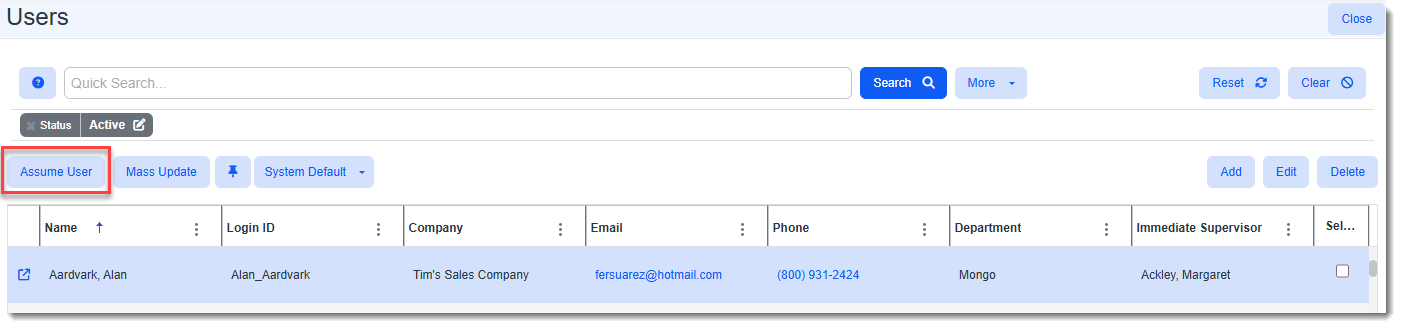
Then, click the line item of the user in the grid to select it.
-
Click Assume User.
A banner displays near the top of the ClientSpace main page under the modules bar. It lists the name of the user you have assumed and displays a link for reverting to your original login. The banner also remains visible even when opening records in new tabs.

-
Perform activities under the assumed login.
-
When you are finished working under the assumed login, click the link on the banner to revert to your original admin user login.
Note: Logging out of ClientSpace also ends the assumed login. The next time you log in, you will be prompted to log in under your own username and password.