Configuration Backup and Restore
ClientSpace supports configuration backup and restore in the following locations:
-
Email Templates
-
Workflow Channels
-
Widget Layouts
-
API Configuration
-
Import Map Header
Note: The Import Map Header backup and restore includes the related Import Map Detail records.
How this can help: If you have a test installation of ClientSpace, you can set up and test new email templates, workflows, widgets, import configurations and APIs. Then, once the test configuration is working as desired, you can copy the configuration from the test environment to a backup file and restore it in the production environment (thereby alleviating the task of manually reconfiguring the settings in production.) You can also use Backup and Restore to back up a production configuration file before you make changes so that you can easily roll back to the original version if needed.
Using Configuration Backup and Restore
To use Configuration Backup and Restore:
-
Go to the Email Templates, Workflow Channels, Widget Layouts, API Configuration, or Import Map Header Search dashboard.
-
Email Templates: System Admin
 > Email Templates
 -
Workflow Channels: System Admin
>Workflow Channels -
Widget Layouts: System Admin
>Widget Layouts -
API Configuration: System Admin
>Advanced > API Configuration -
Import Map Header Search: System Admin
> Advanced > Configure Import
-
-
In the dashboard grid of the ClientSpace installation you want to copy from, select the record for which you want to back up the configuration settings by clicking the line item of the record to highlight it.
-
Then click the Backup button on the dashboard toolbar.
-
Email Templates:
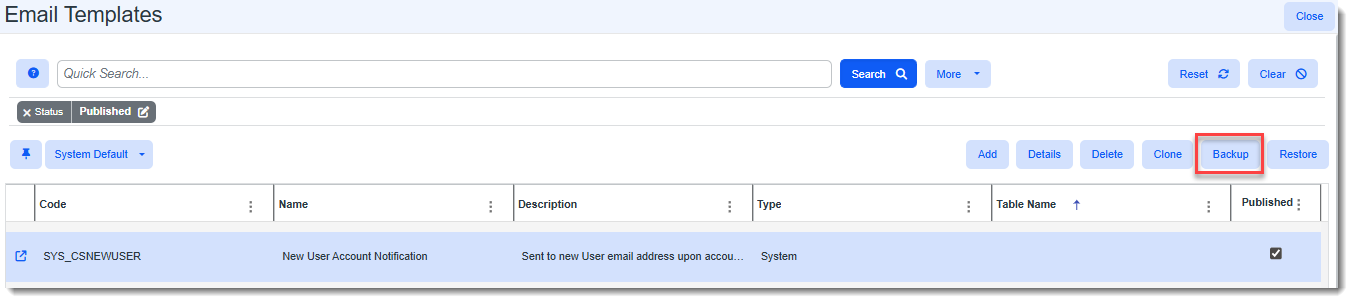
-
Workflow Channels:
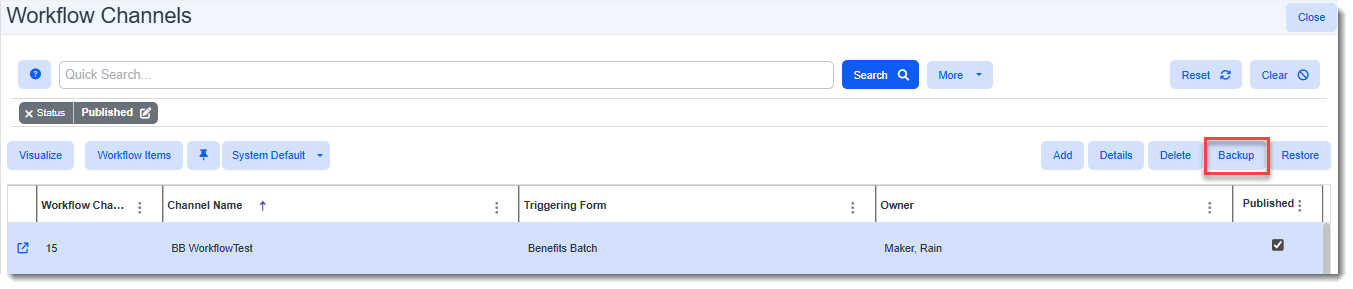
-
Widget Layouts:
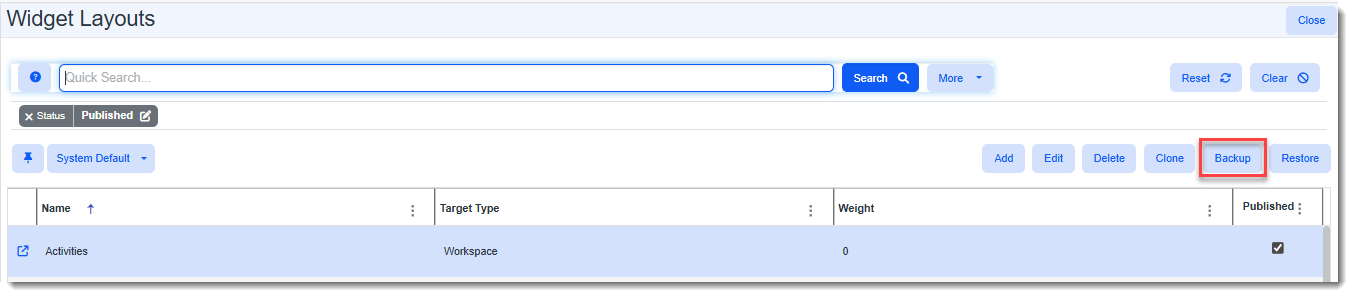
-
API Configuration:

-
Import Map Header Search:

The backup file is copied to your Windows Downloads folder. File extensions for each configuration file type are as follows:
-
Email Template = .et
-
Workflow Channel = .wfc
-
Widget Layout = .wl
-
API Configuration = .api
-
Import Map Header = .imh
Note: Before you proceed to Restore, ensure the backup file you created in the previous step is available for selection in the Upload File dialog of the restore process.
-
-
In the dashboard grid of the ClientSpace installation you want to copy to, click the Restore button on the dashboard toolbar.

The Upload File window displays.
-
Click Choose File to browse to the backup file and then click Save to restore the configuration.
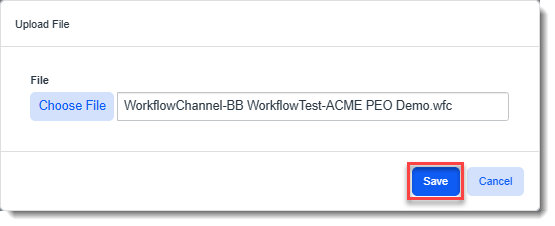
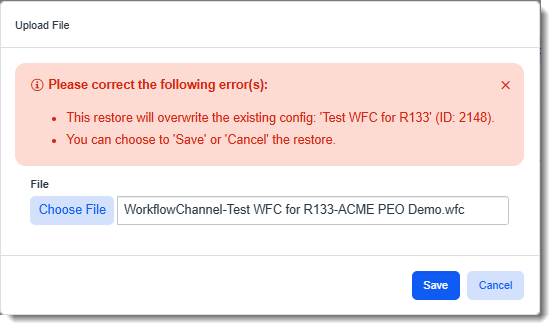
One or more warning messages may appear as shown in the example of a Workflow Channel configuration restoration below. For instance, if an existing configuration of the same name exists, this will be flagged so that you can confirm whether you want to overwrite the existing configuration.
-
Please evaluate any warning messages and then click Save to continue with the restore process OR click Cancel to abort the restore process.
Note: Restored import map header records are flagged Inactive by default. You will need to filter for the Inactive record, open the file and check the Active flag to enable it.