Cloning Parent Company Benefits Batch Data to Child Company Batches
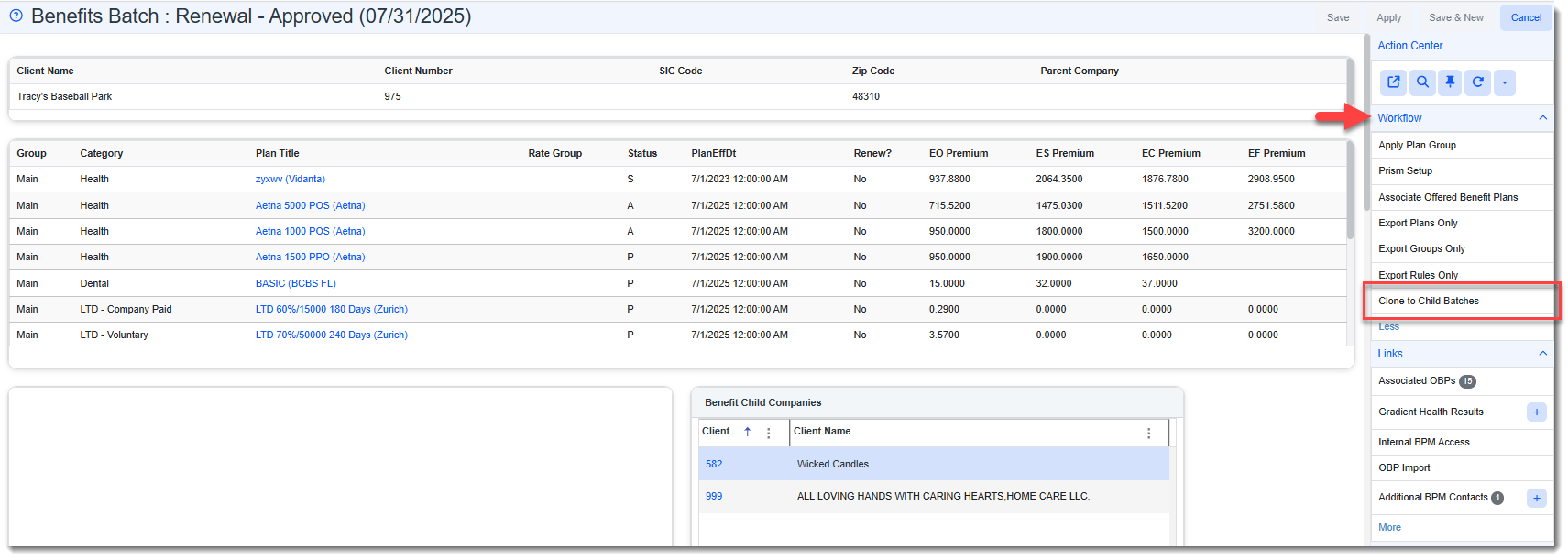
Use the Clone to Child Batches Action Center link in the Workflow section of the Benefits Batch dataform to automatically create or update child company benefits batches from a parent company batch (for eligible child companies).
Note:
-
Eligible child companies cannot have a terminated or inactive Client Master record.
-
The parent benefit company is identified by Benefit Parent Company field value located on the Client Master record of the child company.
Please do not confuse this feature with the Clone Parent OBPs functionality. While similar, Clone Parent OBPs is available on a displayed child batch and allows you to clone selected Offered Benefit Plan (OBP) records from the identified Benefit Parent Company batch to the child company batch (which must be blank). Additionally, for the process to work, the parent company OBPs must have an Effective Date that matches the Effective Date of the existing blank benefits batch in the child company workspace.
The Clone to Child Batches feature provides broader functionality. You activate the link from a displayed parent batch. It clones both benefits batch fields (except for the exclusions listed in the next section), benefit groups/codes, and active OBPs that are not in "Rejected" or "Expired" Status from the benefit parent company batch to its child company batches, with the goal of creating child batches that fully mirror the parent batch and offer the same benefit plans.
In summary, the Clone to Child Batches feature:
-
Creates new child batches that match the parent batch when existing child batches do not share the same Effective Date as the parent batch.
-
Updates existing child batches that share the same Effective Date as the parent batch. This includes:
-
Overwriting existing child batch data to match the parent batch.
Note: OBP Enrollment Counts are cloned on the initial creation of child batch OBPs to match the parent batch but subsequent updates do not overwrite the child batch enrollment counts.
-
Clearing child field values when the corresponding parent field is blank.
-
-
Inserts and updates child batch details, including Benefit Group record details (including active or inactive Status), active OBPs that are not in "Rejected" or "Expired" Status , BPM Contacts and other fields from the parent batch (with exception of the exclusions listed in the next section).
-
Logs update failures in the Update Log field of the parent batch.
Fields Excluded from Cloning
The following parent batch data is not cloned to child batches:
-
OBP Import Fieldset
-
BPM Stats Fieldset
-
OBP Export Fieldset
Cloning Parent Company Benefits Batch Data to Child Company Batches: Step-by-Step Guidance
To clone parent company benefit batch data to child company batched:
- Open the Benefits Batch record of the parent workspace you want to copy from: .
- From the modules bar, click
 Workspaces.
The Workspace Search dashboard (i.e., child workspace landing page) opens. - Select a workspace and click
 (Open).
The Workspace page opens. Scroll down the page to the administrative tiles where you see the dataform categories.

Click Benefits and then click the Benefits Batch tile.
- From the modules bar, click
- Open the parent company batch. Remember: Child companies must have the parent company identified in the Benefit Parent Company field of their Client Master record for this process to work.
- Click the Clone Parent OBPs link (located under Workflow in the Action Center) on Benefits Batch form as shown in the example below:
- Click Close on the status window.
- The batch details and OBPs are now copied to the child batches. You can review the Update Log field in the parent batch to see a list of items that were not successfully cloned.

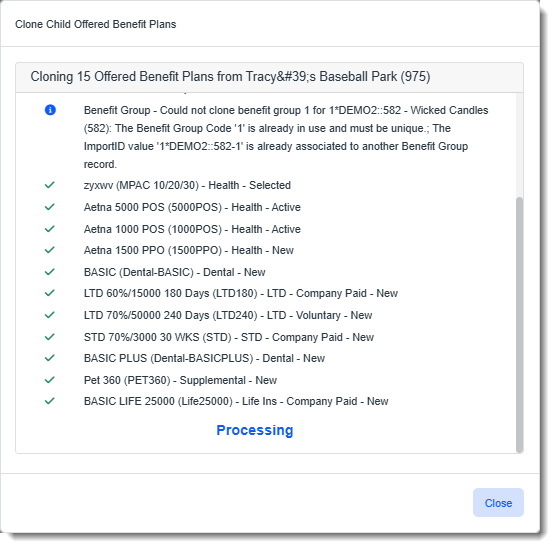
A Clone Child Offered Benefit Plans status window displays.
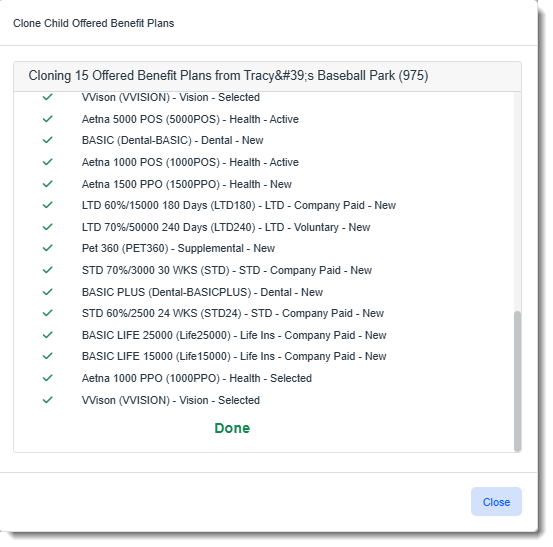
A green check mark  displays next to successfully cloned Offered Benefit Plans.
A blue info bubble  displays next to Offered Benefit Plans that were not successfully cloned. A reason why the item could not be cloned is also displayed.
When cloning is complete, a "Done" message displays at the bottom of the window.