Replying to Case Discussions
When a Case Discussion message is sent, the message is delivered to the recipient's email mailbox, such as Outlook or Gmail. Users could have two options for replying to case discussions: Send a Reply link or the Reply button.
Using the Reply button requires additional configuration. Consult with your ClientSpace administrator.
Reply Options
When replying to a case discussion, users can either:
- Click the Send a Reply link within the email message. This functionality is always available.
- Click the standard Reply button from the email mailbox. This functionality requires additional ClientSpace configuration by your ClientSpace administrator.

To reply using Send a Reply link:
- From the open email, in the email message, click Send a Reply.
- You are connected to ClientSpace and taken to the case discussion thread.
To reply using the email mailbox Reply button:
- From the open email, click the mailbox Reply button.
- A reply area opens to type your response and send the email as you would normally do for any email. The reply is captured in the case discussion thread within ClientSpace. This functionality requires additional ClientSpace configuration.
Replying directly from the email mailbox with Reply
To use the Reply button from your mailbox, ClientSpace requires additional configuration using an Email Integration that is explicitly tied to email templates CSCDISC and CSCDISCNEW.
How will you know that you can do this?
- When you see ATTN: Reply Above This Line, this indicates that Email Integration is enabled. You can use the Reply button to reply to the case discussion, and your message will be added to the case discussion thread.
- When you do not see ATTN: Reply Above This Line, this means that Email Integration has not been configured. If you click the Reply button, type a reply, and send, your case discussion reply will not be integrated into the case discussion thread.
The Recipient's Experience: Case Discussion Thread
Internal Recipients
When a recipient clicks Send a Reply or the Reply button (requires additional configuration), if they are a ClientSpace user and they are not already logged into ClientSpace, they are prompted to log in to ClientSpace and are taken to the version of the Discussions page that includes the full functionality which includes the related case discussion thread, the complete discussion thread list and all messages.
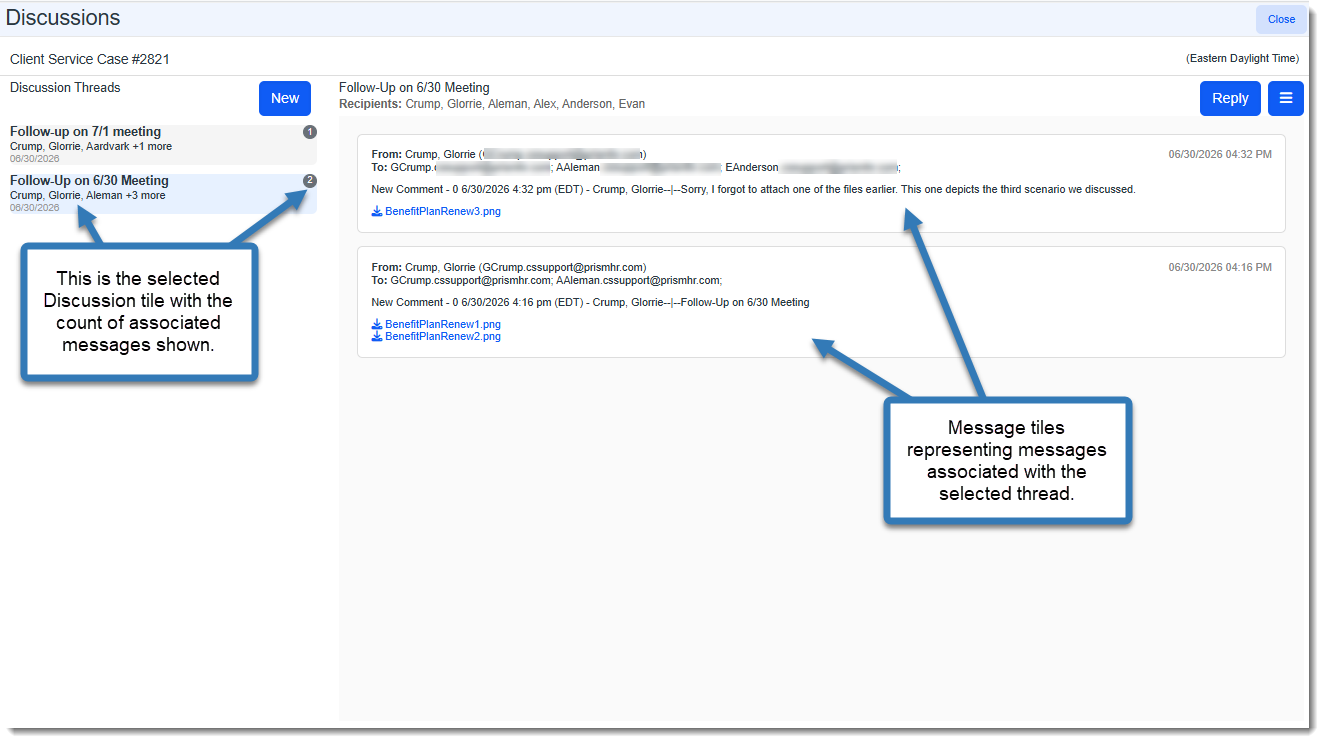
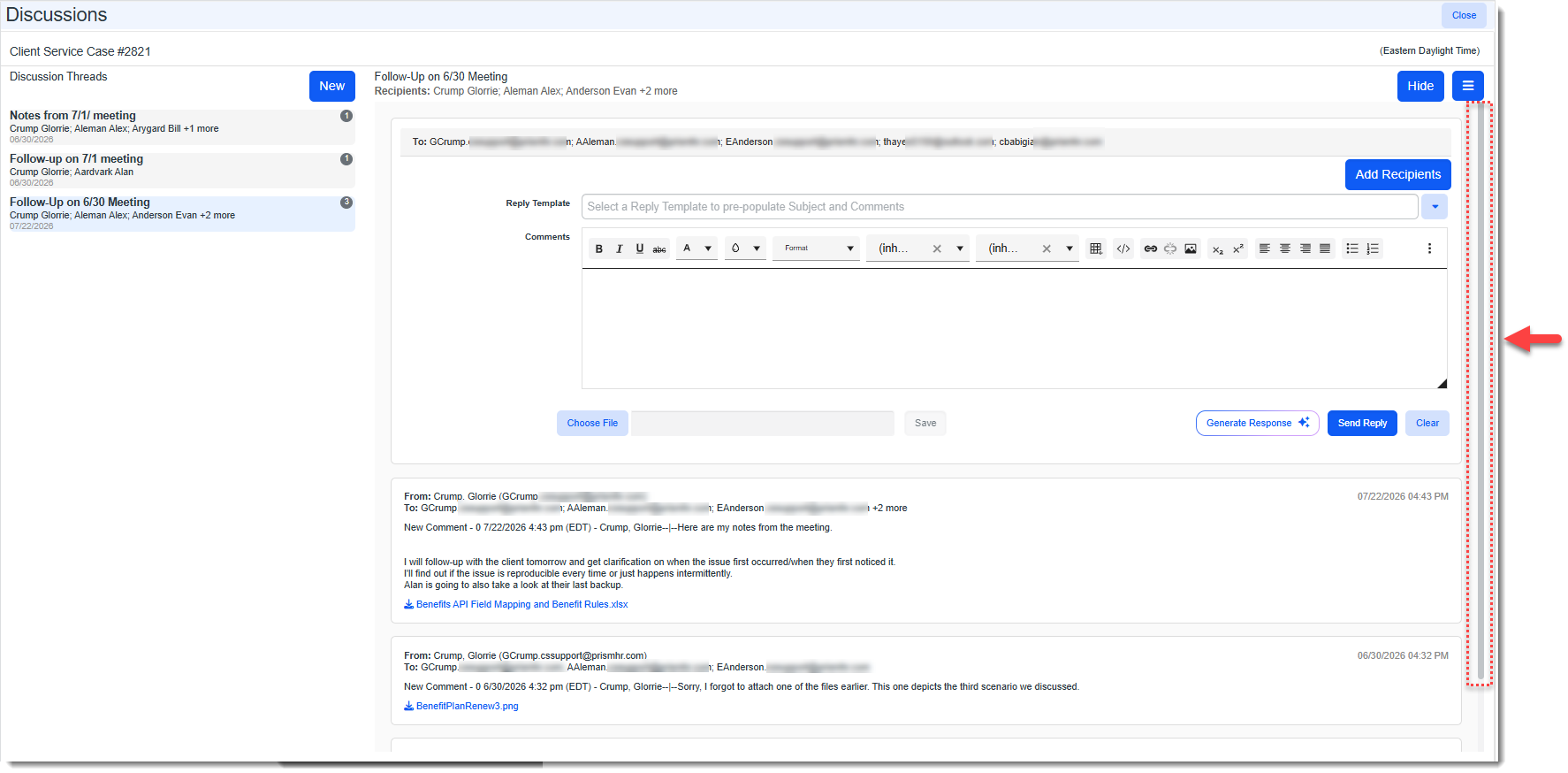
From here, you can click Reply to reply to the message by selecting a reply template (if applicable), typing in any customized notes, and selecting your recipients. (The Reply button is a toggle button that allows you to display or Hide the email composition area. If there are existing messages in the thread, they remain visible. A vertical scroll bar also appears if the existing messages exceed the display area:
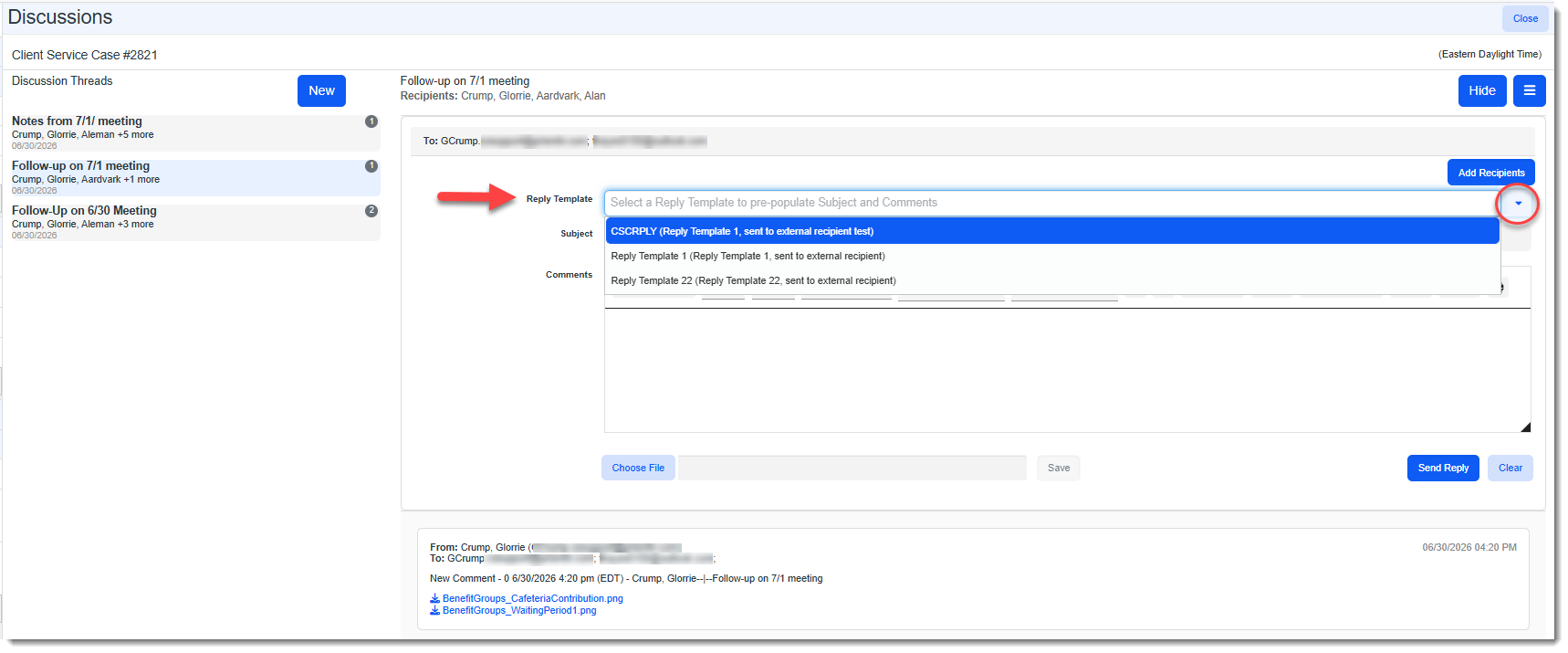
A Reply Template list is available if any are configured for your organization. Templates provide standardized Subject and Comments content for specific scenarios, such as payroll responses. Your ClientSpace administrator configures email templates.
You can also download attachments from the Discussions window for a thread by clicking the discussion thread on the left to select it and then clicking the Attachments  button.
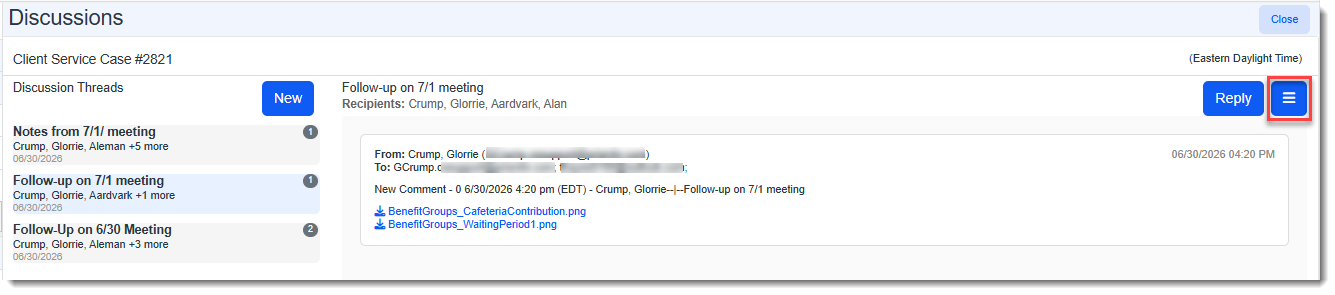
This expands the attachments panel where you can click Download All to download all attachments associated with the thread to your Windows download folder or you can click the download icon  next to a specific attachment to view a single attachment or download a single attachment to your Windows download folder.
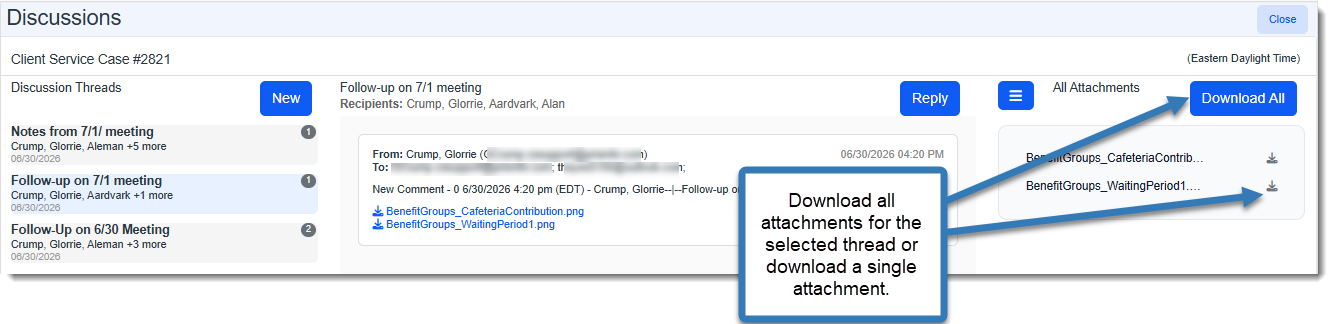
Note: Clicking the Attachments button again hides the attachments panel.
External Users
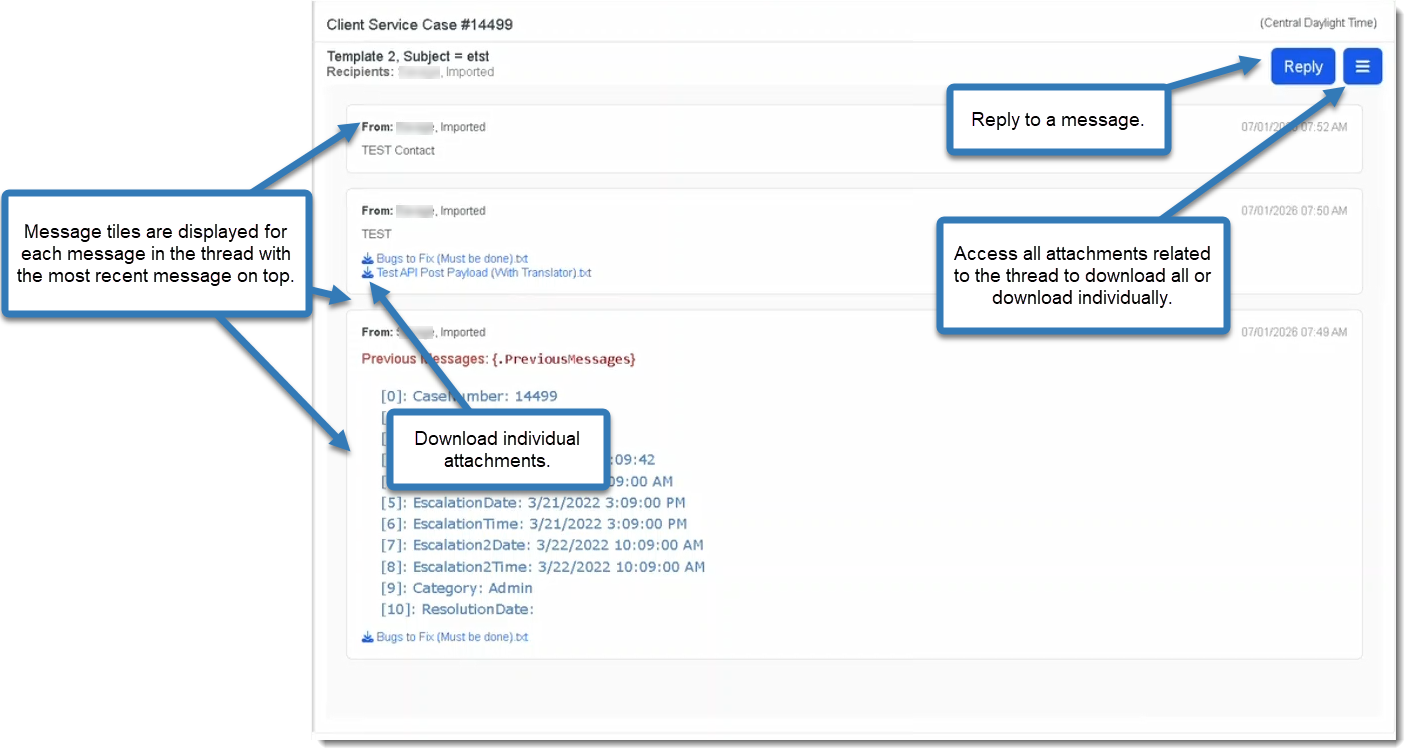
When an external user, such as a client, clicks the Reply To link in the email to open the discussion thread, their view of the Discussions window appears similar to the following.
There are tiles for each message in the thread. The latest message is the active tile. The Attachments button is available as well as the ability to Reply to a message.
Reactivate a Closed Case When Replying to Discussion Thread
ClientSpace uses the Reactivate Case business rule on the Discussion Message dataform, which runs on the Discussions Pipeline. If a case is Closed and a discussion thread exists on the case, the system will reactivate the case when the system receives a reply on the discussion thread. See Reactivate Case business rule.