You can clone an existing case in one workspace to another workspace or to the affiliated companies linked to a workspace using the Clone Case link on the Client Service Case form.
To clone a case:
-
From the Cases or Case Search dashboard, locate and open the case you want to clone.
-
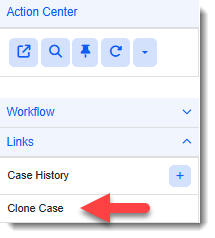
In the Action Center, under Links, click Clone Case.
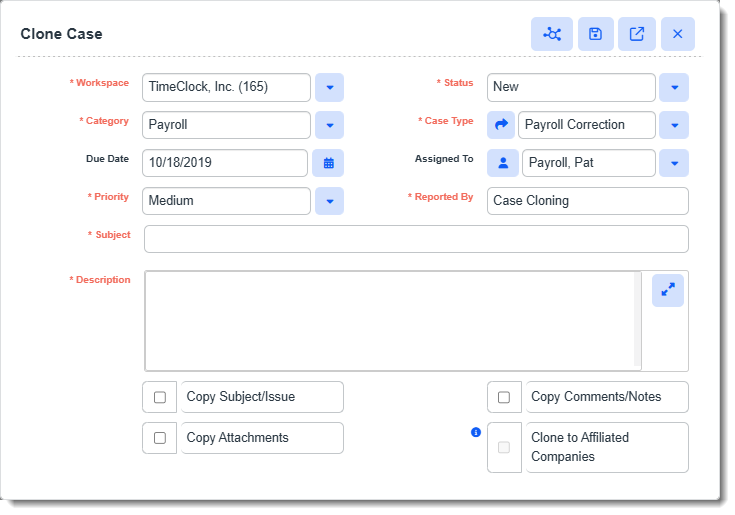
The Clone Case popup window displays.
-
Complete the form. Required fields are marked in red.
Workspace
The workspace name of the case you are cloning from defaults in the field. What do you want to do?
-
To clone the case to the same workspace: Leave the field set to the current workspace name.
-
To clone the case to affiliated companies linked to the same workspace: Leave the field set to the current workspace name, making sure to click the Clone to Affiliated Companies checkbox at the bottom of the form. The Workspace field becomes blank when you click the checkbox but you can verify the affiliated companies that the case will be cloned to by clicking the Related Companies
 icon in the Clone Case window's toolbar.
-
To clone the case to a different workspace: Select the workspace to which you will clone the case. (You can also type the first few letters of the desired workspace name to auto-filter the list and help you locate the workspace.)
-
To clone the case to affiliated companies linked to a different workspace: Select the workspace to which you will clone the case, making sure to click the Clone to Affiliated Companies checkbox at the bottom of the form. The Workspace field becomes blank when you click the checkbox but you can verify the affiliated companies that the case will be cloned to by clicking the Related Companies
icon in the Clone Case window's toolbar.
Note: If you are attempting to clone to affiliated companies and the checkbox is dimmed/inaccessible, it is because the number of affiliated companies exceeds the upper limit of 20. You can only clone a case to a maximum of 20 related companies.
Status
Status defaults as New. Edit if needed.
Category
Broad classification for the case. The field value from the case you are cloning from defaults. Edit if needed.
Case Type
This is a more specific classification for the case. Case Types are filtered by the selected Category. The field value from the case you are cloning from defaults. Edit if needed.
Note: If you choose to edit the field, to expedite your selection, this is a typeahead field. You can scroll the list and select a type or start typing and select a match.
Assigned To
User to whom the case is assigned. The field value from the case you are cloning from defaults. Edit if needed.
Priority
Case priority. The field value from the case you are cloning from defaults. Edit if needed.
Reported By
Defaults to "Case Cloning".
Due Date
Case due date. The field value from the case you are cloning from defaults. Edit if needed.
Subject and Description
The case Subject and Description default as blank. Enter a case subject and description or click the Copy Subject/Issue checkbox if you want the Subject and Description field values on the case you are cloning from to default.
Copy Subject/Issue
Click the checkbox if you want the case Subject and Description field values from the case you are cloning from to default.
Copy Attachments
Click the checkbox if you want the attachments from the case you are cloning from to copy over to the created case(s) upon Save
 .
.Copy Comments/Notes
Click the checkbox if you want the comments and notes from the case you are cloning from to copy over to the create case(s) upon Save
.Clone to Affiliated Companies
Click the checkbox to clone the current case to the affiliated cases associated with the current workspace. The Workspace field becomes blank when you click the checkbox but you can verify the affiliated companies that the case will be cloned to by clicking the Related Companies
icon in the Clone Case window's toolbar.Note: If you are attempting to clone to affiliated companies and the checkbox is dimmed/inaccessible, it is because the number of affiliated companies exceeds the upper limit of 20. You can only clone a case to a maximum of 20 related companies.
-
-
Select a save, cancel, or other option from the Clone Case toolbar as appropriate.
Icon
Tooltip Text
Description

Related Companies
Displays a list of companies affiliated with the workspace name of the case from which you are cloning new case(s).
Save
Creates the new case(s) according to the configuration settings you provided on the Clone Case window.

Go to full form
Creates the new case(s) according to the configuration settings you provided on the Clone Case window and opens the case(s) in the Client Service Case form.
Note: If multiple cases were created, the first case displays. All cases are open in the Work Center as work items so that you can navigate between the open case records.

Cancel
Aborts Clone Case configuration. Closes the Clone Case form without saving.