Using Dataform Field Search
The Dataform Field Search feature streamlines the process of locating and managing dataform fields within the Advanced Administration section. Designed to address clutter and improve efficiency, this tool allows users to quickly search, filter, and edit fields across all dataforms, offering flexible options such as quick search, multiple filters, and the ability to save searches. With direct access from two locations, users can easily navigate, update, and review field properties, ensuring a more organized and productive workflow.
To use Dataform Field Search:
-
Go to System Admin
 > Advanced > Dataform Field Search OR go to System Admin > Advanced > Dataform Admin > Fields view, click the Magnifying Glass
  icon in the page header.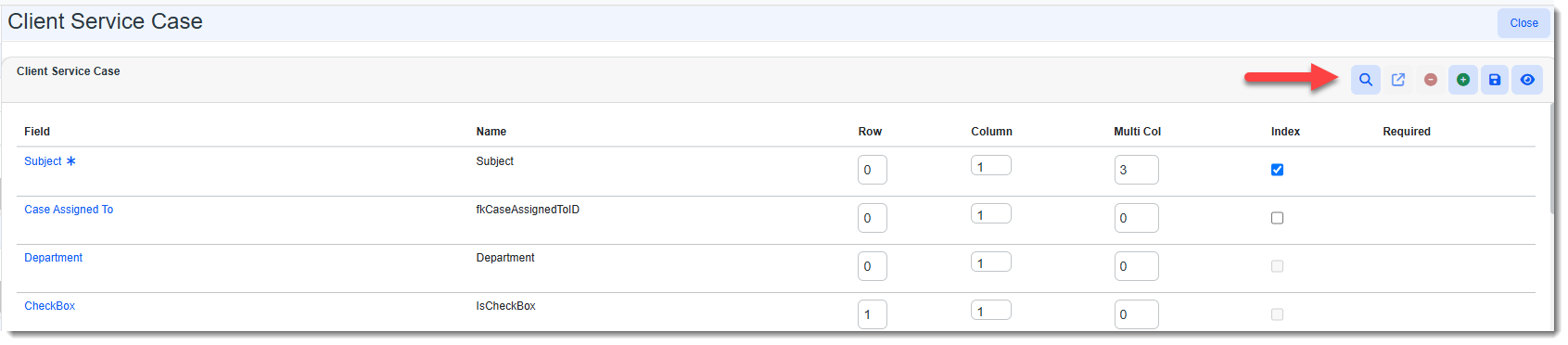
The Dataform Field Search dashboard opens. The dashboard is not populated by default if you open it using the Dataform Field Search option. It populates when you execute a search.
Note: Clicking Search without entering search criteria displays all dataform fields. Be aware that the page may take a long time to populate depending upon the number of dataforms and dataform fields in your system.
If you open the Dataform Field Search dashboard from the Fields view, the dashboard is filtered to display fields associated with the current dataform.
By default, Dataform, Field Label, Field Name, Element Type, Field Set and Field Behavior columns are displayed.
-
Optionally, click any column header and select Columns to add any of the following hidden columns: Lookup Group, Parent Form, Secured, Cloneable, Triggerable, and Audited.
-
Perform a Quick Search or More search.
-
Use the Quick Search field to quickly filter the list of values by Field Label or Field Name. Enter all or a portion of a field label or field name to perform a "Starts With" search. Enter a % symbol in front of a portion of a field label or field name to perform a "Contains" search. Then, click Search next to the Quick Search field to display the results in the grid.
-
Use More search to perform an advanced filter of fields by Dataform, Element Type, Field Label, Field Name, Field Behavior, associated Lookup Group, or Parent Form. You can also filter for fields that are Cloneable, Triggerable, Secured or Audited. Click Search on the More search window to display the results in the grid.
Note: You can also save a search. See Search dashboards.
-
-
Click Open
 next to a filter result to open the associated field properties form.