Gradient AI Risk
The Gradient AI Risk API in ClientSpace allows you to receive real-time assessments of your Pricing Console batch information, worker's compensation predicted losses and a suggested premium (i.e., Target Premium) for each worker's compensation policy included in the batch.
Why do I care about this?
Real-time data determines the best worker's compensation policy pricing based on a variety of risk factors and your geographic region.
What does it do and how do I use it?
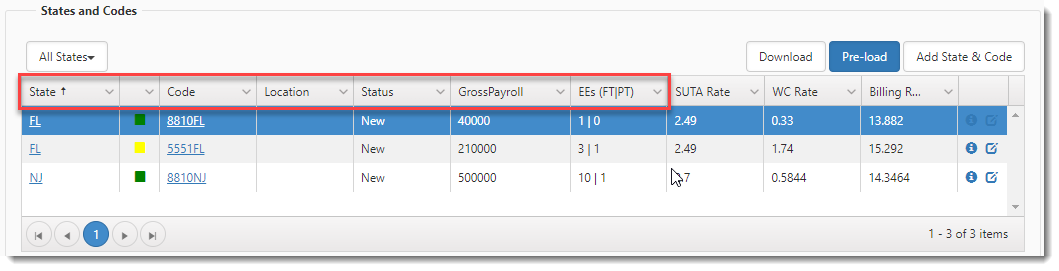
Gradient AI uses information from the States and Codes section of the Pricing Console such as State, Code, GrossPayroll, and EEs. Each class code must also have a rate greater than 0:
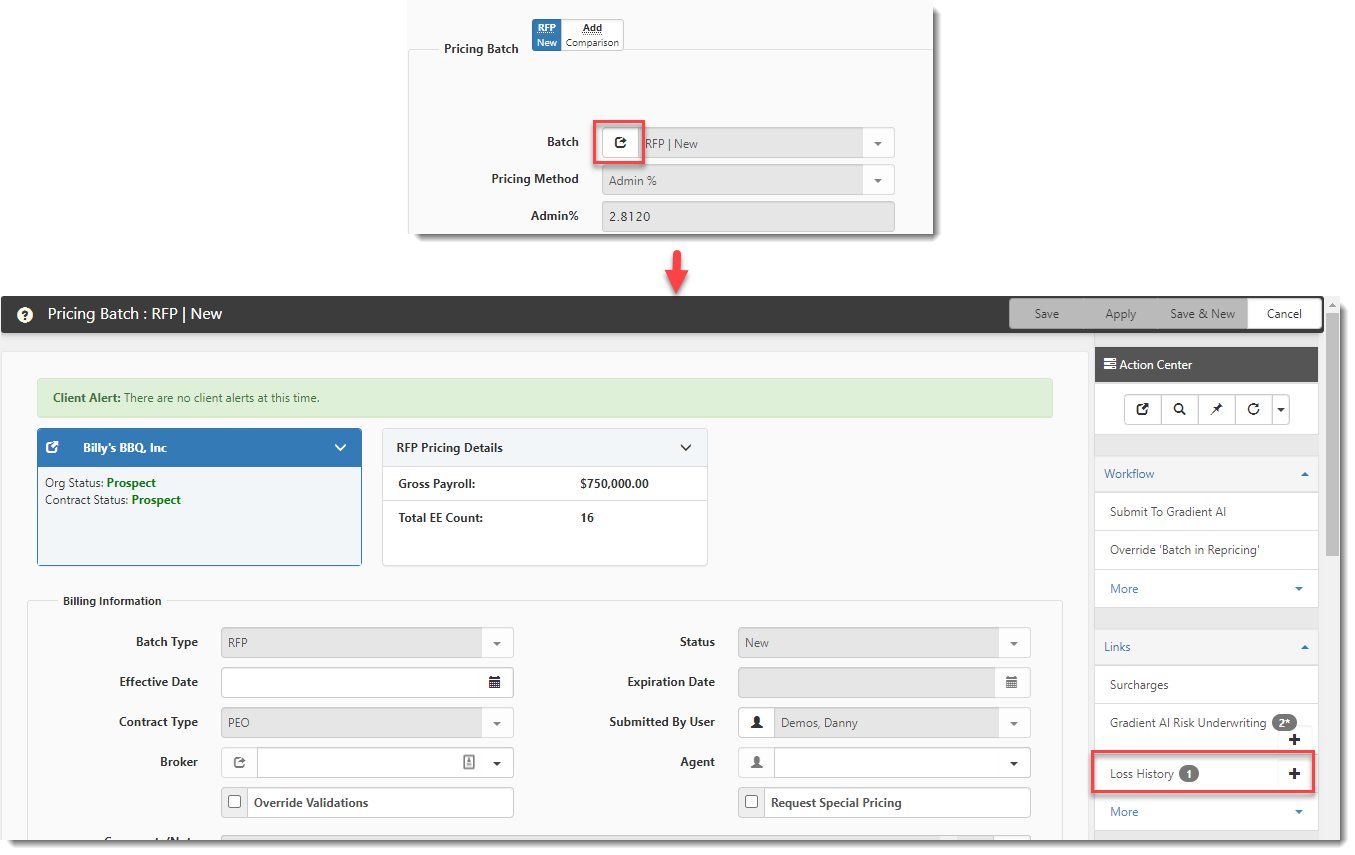
Gradient AI also uses historical worker's compensation loss information, if entered. Though this information is optional, providing it can greatly increase the accuracy of your results. Enter this information by clicking the Loss History link on the Pricing Batch dataform. Incurred amounts are sent to Gradient AI rounded to two decimal places:
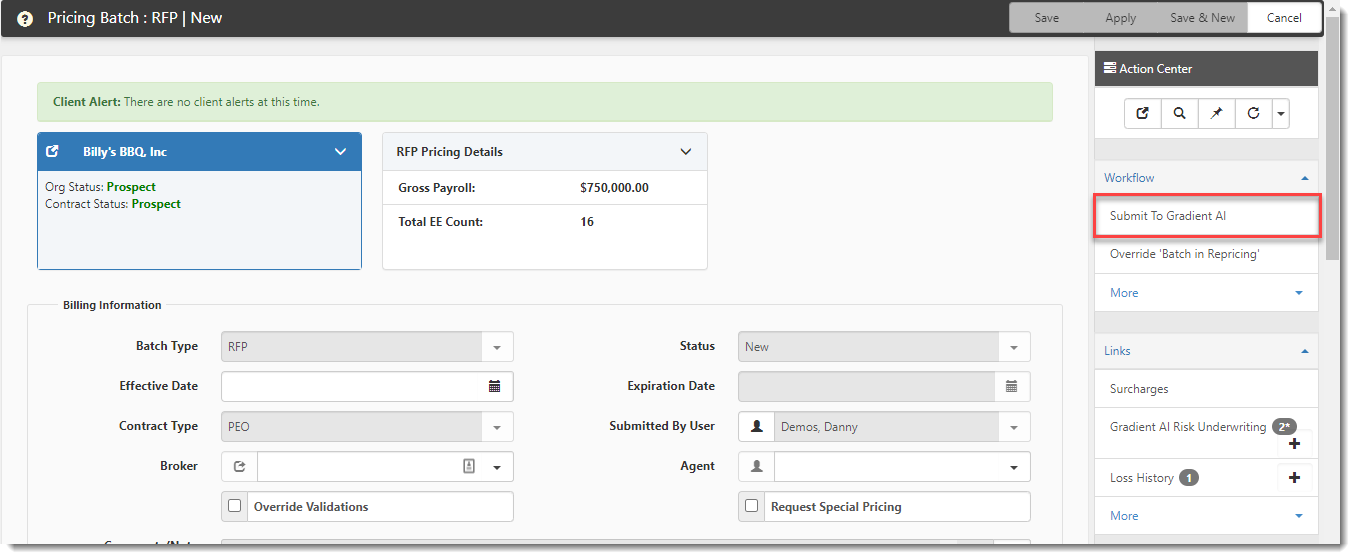
When you are ready to submit the pricing console information to Gradient AI, click the Submit To Gradient AI link.
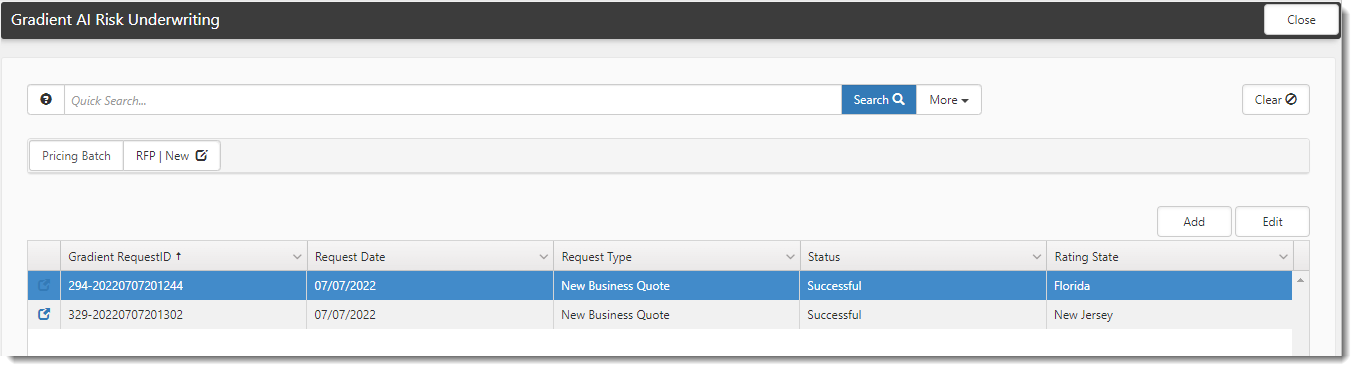
Results are returned in real time. Click the Gradient AI Risk Underwriting link on the Pricing Batch dataform to view Gradient AI Risk Underwriting dashboard and then open the request in the grid to view the results on the view Gradient AI Risk Underwriting dataform.
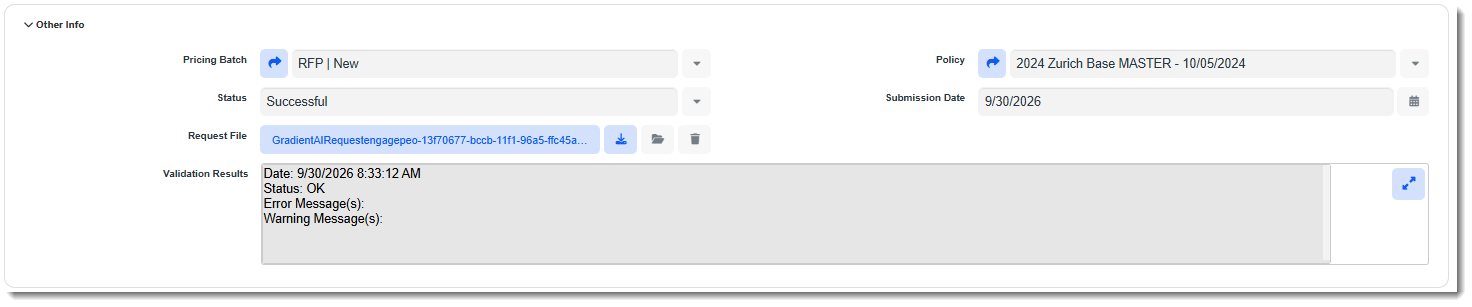
Each submission creates a new Gradient AI Risk Underwriting record and inactivates the previous one, so the active record always holds the most recent results. The "Other Info" section of the record displays the Status as Successful if Gradient AI accepted the submission and Failed if the submission was not accepted. This section also includes the Request File that was sent to Gradient AI.
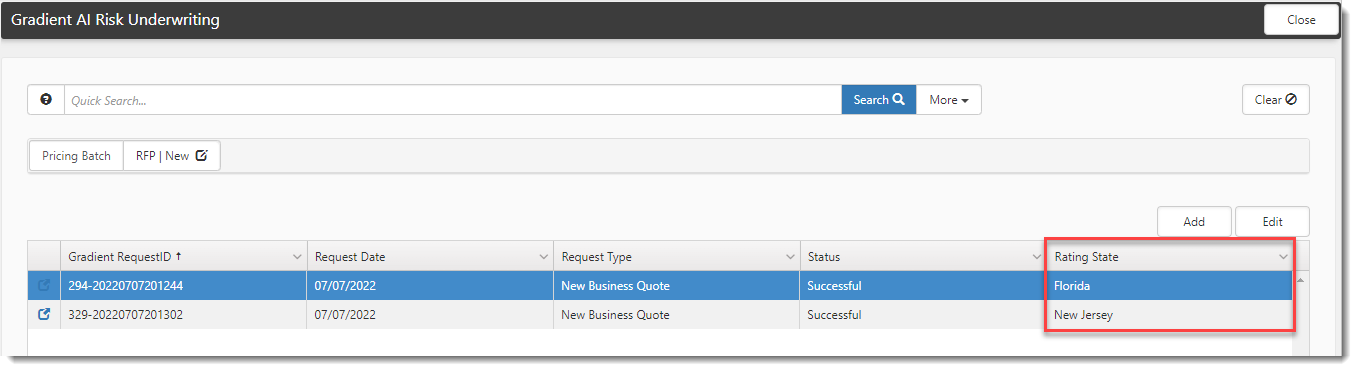
Gradient AI aggregates the results by worker's compensation policy. Therefore, you will see one line item listed per policy:
The Rating State column displays the state associated with the policy. If a policy includes multiple states under the same worker's compensation policy, the state with the most payroll displays as the Rating State:
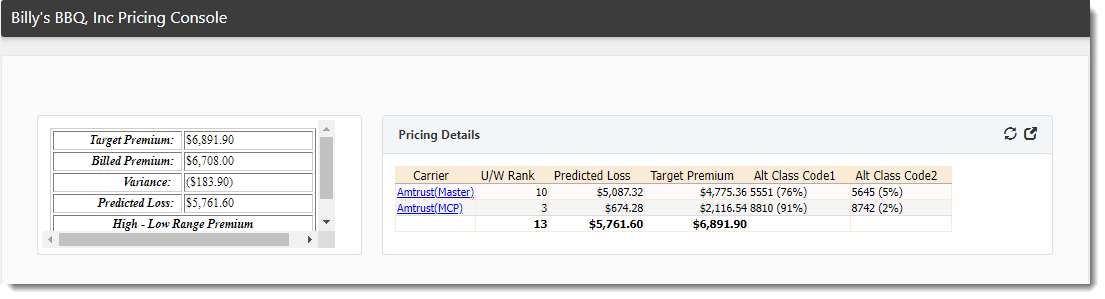
Return to the Pricing Console main dataform to view results summary dashboard information at the top of the form. The dashboard on the left shows a summary of key information across all submitted worker's compensation policies. The dashboard on the right displays a summary of key information for each submitted policy:
If a submission is rejected...
Gradient AI checks each submission before it returns results. If Gradient AI rejects any values, a GradientAI Exception Error displays on the Pricing Batch that begins with "An error occurred when attempting to submit to Gradient AI. Reason:" followed by the type of error. Each rejected value is then listed on its own line with the policy, state, class code, rating factor, or loss history year it applies to, the field name, and the reason. This is shown in the example image below:

The same message is recorded in System Admin  > Exception Log.
A rejected submission does not create a Gradient AI Risk Underwriting record. Correct the listed values on the Pricing Batch and submit again.
Note: For accepted submissions, the Validation Results field on the Gradient AI Risk Underwriting record shows any errors or warnings that Gradient AI returned after processing the submission.
Implementation procedure overview
A relationship and contract with Gradient AI is necessary to utilize the Gradient AI Risk API in ClientSpace. To integrate the Gradient AI Risk API proposal, you must work with ClientSpace Professional Services. For assistance, log an Extranet case. If you are reactivating a Gradient AI Risk integration that has not been used recently, contact Professional Services to confirm that your Gradient AI account and API configuration are still active. The following table lists the tasks and responsible group for implementing the ClientSpace Gradient AI Risk API integration.
| Task | Who performs this task? |
|---|---|
|
Set up the API configuration |
Professional Services |
|
Enable the business rules |
Professional Services |
|
Review the Gradient AI Risk dataform security |
Client |
|
Configure the Pricing Console > Pricing Batch dataform links to Gradient AI |
Available in the application. May be enabled by Professional Services. |
|
Identify and set up the workflow processes |
Client |
|
Demonstration |
Professional Services |