Work Center
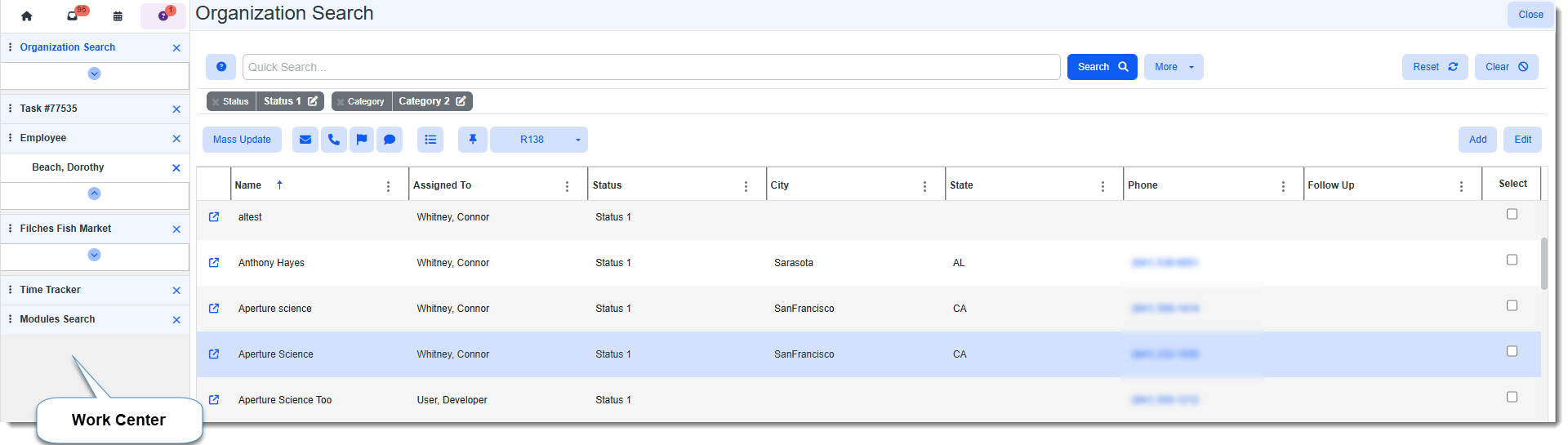
ClientSpace clients work with many pieces of information and realize that multitasking is essential. The ClientSpace design provides multitasking capabilities through the Work Center, located on the left side of the application. The Work Center menu is your primary tool for multitasking – it provides a hierarchical display of multiple open workspaces and work items at any given time.
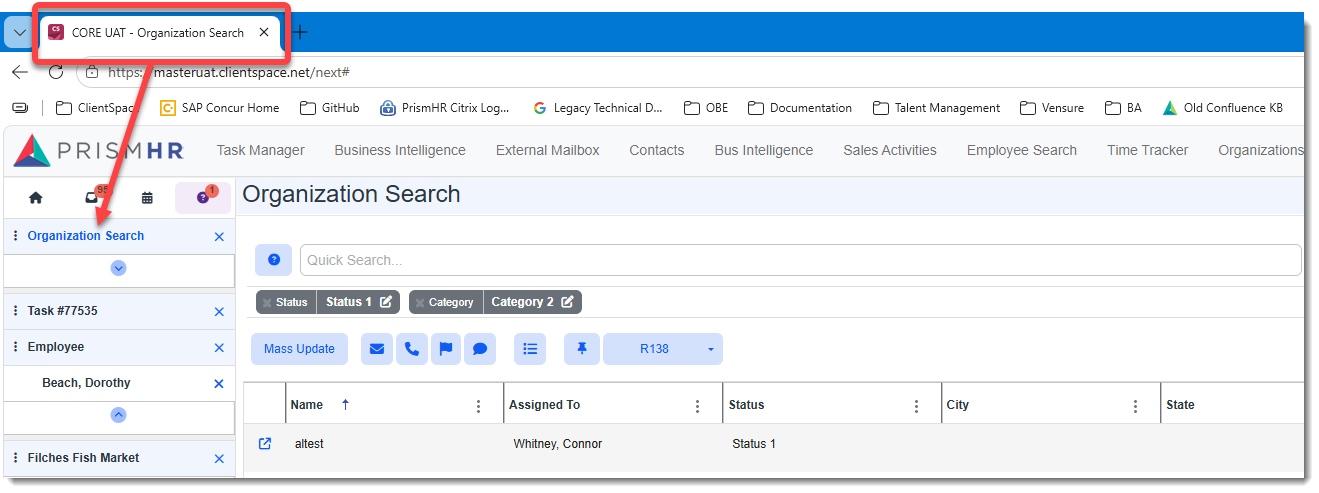
To simplify navigation, when you have multiple ClientSpace browser tabs open, the tabs reflect the active work item. For example, if Organization Search is the active work item, then your browser tab will reflect the same. This feature helps you to quickly identify where you want to go when you have multiple browser tabs open.
Work Center Icons
At the top of the Work Center, you see the icons Home, Inbox, Calendar, and Help.

Below the icons, as you navigate and open forms and dashboards, you will see Work items, Sub-items, and Work item sets.
Work Items
A work item is any item that opens under the menu on the left side of your browser. These can be various modules that you open from the top modules bar. As you open them, you see that it creates unique work items. If you try to open a second copy of a work item, the system lets you know that you already have that item open and asks if you would like to navigate to the existing item or create a new copy.
Saving Work Items
You can also save work items by clicking your username and selecting Save Work Items (or Logout and Save Work Items if you want to log out of the ClientSpace session and save work items simultaneously).
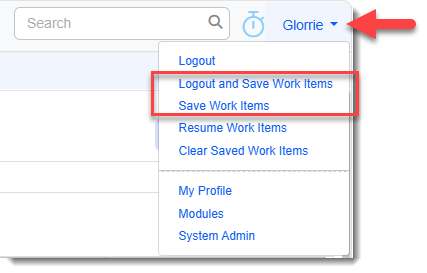
Additional options include:
-
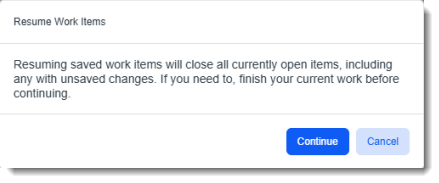
Resume Work Items: Upon login, if there are saved work items and you choose not to load them, you can load them at any time during the ClientSpace session by returning to the menu shown above and selecting Resume Work Items. The following message displays reminding you to save any currently open items before continuing as all currently open items will be closed, including items with unsaved changes.
-
Clear Saved Work Items: Removes saved work items from memory. You can no longer retrieve previously saved work items.
Note: Always save any unsaved records before saving the work items to prevent data entry loss. If you attempt to exit ClientSpace or select Logout and Save Work Items without saving changes, a warning message displays:
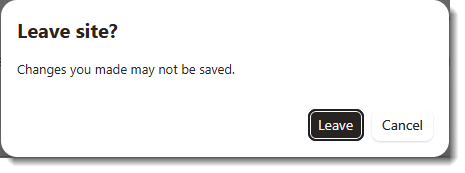
If you select Leave, your changes are lost as Logout and Save Work Items does not save data entry.
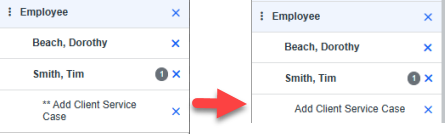
In the example below, a Client Service Case was in progress and had unsaved changes on it as denoted by the preceding asterisks (**). The work items were saved but the Client Service Case was not saved. After resuming the saved work items, the Client Service Case is still displayed in the list of work items but the asterisks no longer display because, in this instance, the changes were not saved prior to logout.
Once you save work items and log out of ClientSpace, the next time you log back in, you are presented with the following message:
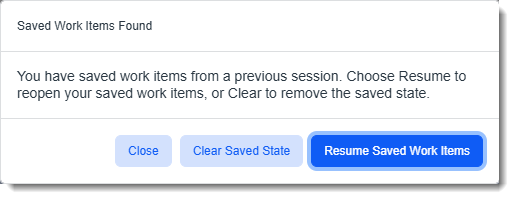
Select one of the following options:
-
Resume Saved Work Items: Loads the Work Center with saved work items displayed.
Note: For search dashboards with a pinned search, the search criteria active when the work items were saved are restored when you resume the saved work items, instead of the pinned search.
-
Clear Saved State: Clears the saved work items and loads the Work Center with no work items displayed.
-
Close: Loads the Work Center with no work items displayed but the work items are still saved in the background. You can select Resume Work Items from the drop-down menu on the toolbar to display the saved work items.
Work Item Sets
Work items are organized as separate levels, where the topmost level known as sets provides multiple thread and sub-thread items. Thread items are indented below the set of items, and sub-thread items are further indented below threads. You can rename a set and you can drag and drop a set to a different location within the Work Center.
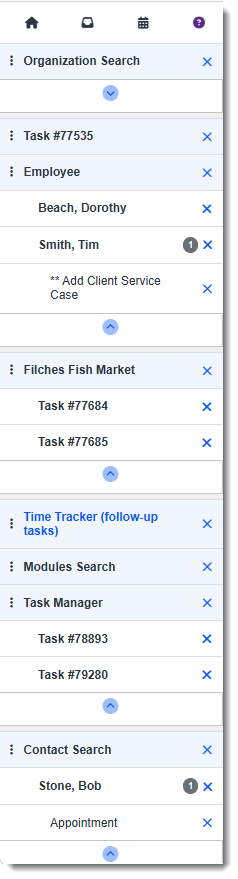
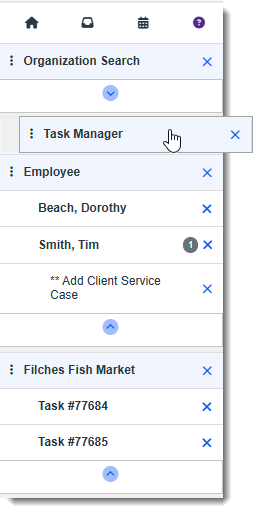
Sets are the topmost levels, represented by the shaded bars. The example shows four sets: Task Manager, Filches Fish Market, Contact Search, and Employee.
Threads are displayed under the Sets and are the individual cases or tasks opened from their respective set. Threads display a count of the associated open sub-thread items. In the example, a thread count is associated with Contact and Employee.
Sub-threads display under a Thread. An example of sub-threads would be a task opened from one of the cases, or a time tracking item opened from a task.
Work items appear as you open cases, tasks, workspaces, organizations, and contacts. They represent open cases, tasks, lists, and so on.
To navigate work items:
-
To view an open item, select an entry.
-
To close an open item, click X.
-
To collapse the space at the bottom of each set, click
 (caret symbol).
To rename a set:
-
Locate the set to rename.

-
Double-click the name of the set.
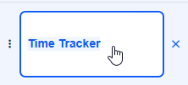
-
Type the name for the set.
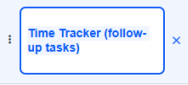
-
Press Enter to save the name for the set.

To drag and drop work item sets within the Work Center:
- Identify a work item set to drag and drop to a different location within the Work Center.
- Using the mouse, move the pointer and hover over the work item set that you want to move.
- Click and hold the mouse button. (The pointer changes to a hand.)
- Drag the work item set to a different position in the Work Center and position the set above or below another set as desired.
- After dragging the work item set to the desired location in the Work Center, release the mouse click to drop the set to the new location.
Note: The changes that result from renaming a work item set or dragging and dropping a work item set do not persist after refreshing the screen (pressing F5) unless you save the work items.