Role security is administered from the Security Roles Dashboard. To administer role security, you first create or select a role, add or update role entities and then edit the rights (i.e., access permissions) associated with the role.
If a user needs access to a particular security entity, you can take one of two actions:
-
Add the user to a role that already contains the required entity, using More search to filter for roles containing the entity or filter for the user.
-
Add the security entity to a role to which the user is already assigned using the wildcard % search or More search, if necessary, to locate the role.
Accessing the Security Roles Dashboard
To access the Security Roles Dashboard:
Go to the System Admin  > Security > Roles.
The Security Roles dashboard opens.
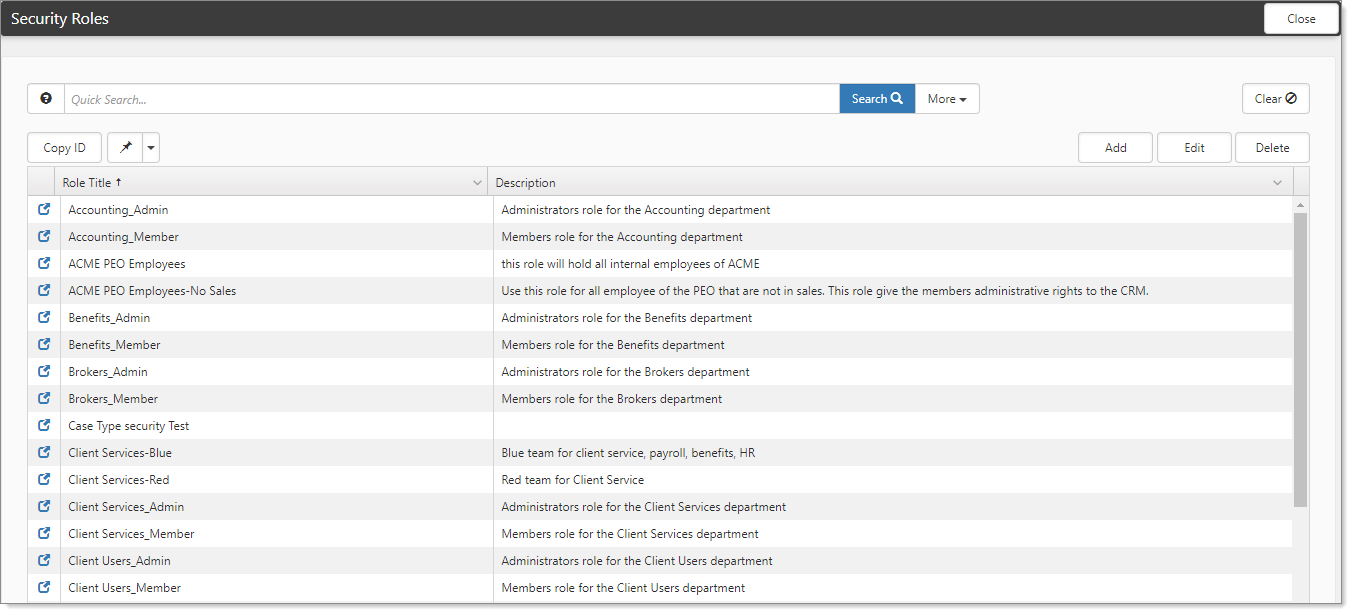
Filtering the Security Roles Dashboard
To filter the Security Roles Dashboard:
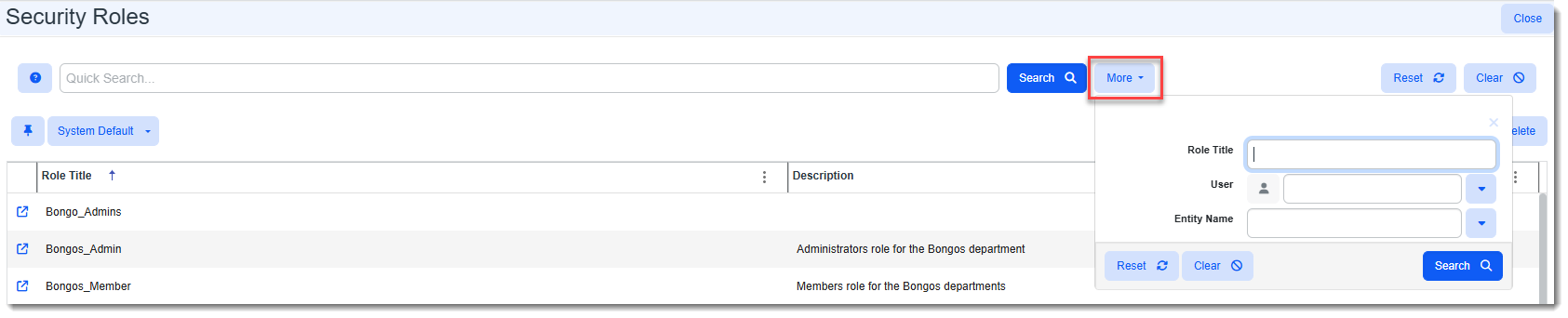
Use More search to filter by Role Title, Users that are associated with the role, or Entity Name of the associated Security Entities.
Note: You can also use a wildcard when searching for roles. When setting search parameters, place a % symbol before your search string to make it a wildcard keyword search. EX: %Service Case
Adding a New Security Role
To add a new security role:
-
Click Add on the Security Roles Dashboard toolbar.
The New Security Role window displays.
-
Enter a security role Title and Description.
-
Optionally, click the System checkbox to make the role a system-protected role.
Note: If you do not have access to the System checkbox, it is "read only" and cannot be edited. Enabling the System checkbox makes the role a system-protected role. If a security role is a system-protected role, only a developer user can delete the role.
-
Click Apply to save the changes and keep the form open (if you plan to add entities or user role assignments) or click Save to save the changes and close the form.
If you clicked Apply, you will see the Action Center refresh to show sections for Entities and Users. This is where you will add security entities and assign users to the role. For detailed steps, refer to the following sections in this topic:
Editing a Security Role
Edit a security role to:
-
Update Title, Description and System fields.
-
Add or edit entities and users associated with the security role (most typical).
To edit a security role:
-
Click an existing role in the grid and click
 (Open) next to it. (You can also double-click the row or select the row and then click Edit on the toolbar to open the record.)
 -
Edit the Title, System or Description fields as appropriate.
Note:
-
If the role was created by a Department, the Title field is "read only" and cannot be edited.
If you change a Department Name (System Admin
 > Department), the associated role names are automatically updated for you.
-
If you do not have access to the System checkbox, it is "read only" and cannot be edited. Enabling the System checkbox makes the role a system-protected role. If a security role is a system-protected role, only a developer user can delete the role.
-
-
Click Apply to save the changes and keep the form open (if you plan to add or update entities or add or update user role assignments) or click Save to save the changes and close the form.
For detailed steps on updating entities and user assignments, refer to the following sections in this topic:
Adding or Updating Role Entities
Use these steps when you are adding entities to a new security role OR when you are adding an entity to an existing role so that users already assigned to the role will have the required entity. Use More search if necessary to locate the security role record by Role Title or by a User already known to be assigned to the role.
To add or update role entities:
-
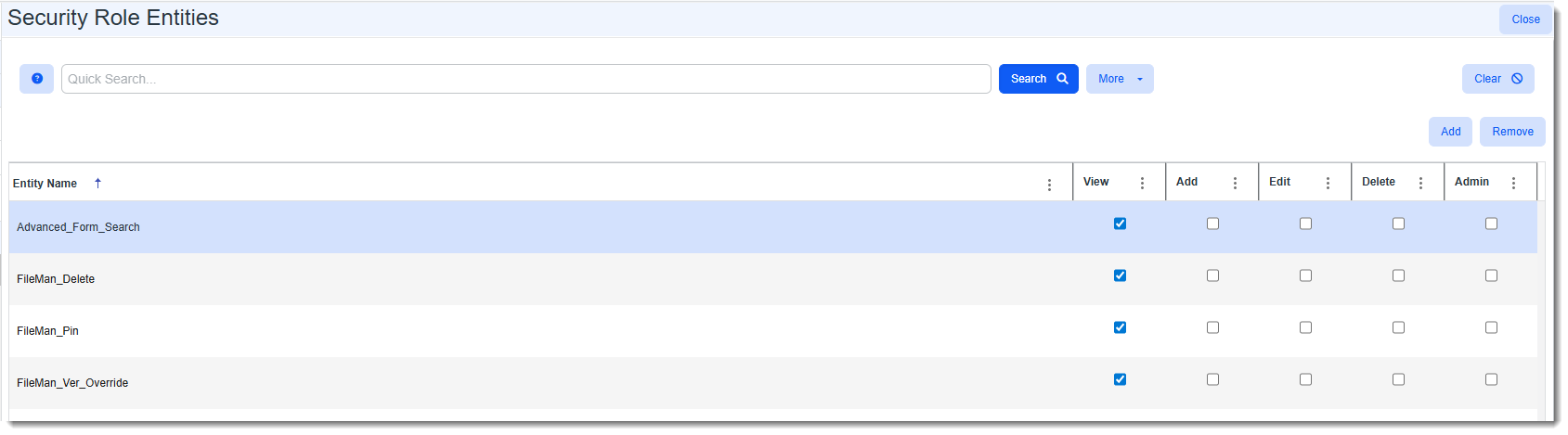
From an open security role record, click Entities in the Action Center. The counter next to the action item indicates the number of associated entities. The number 0 (zero) indicates there are no associated entities.

The Security Role Entities dashboard displays. If any role entities have already been added for the role, they will be listed in the checkbox grid by Entity Name. The checkbox grid contains checkboxes for viewing and selecting the following entity access permissions: View, Add, Edit, Delete, and Admin.
-
What do you want to do?
-
To add a role entity:
-
Click Add on the Security Role Entities dashboard toolbar.
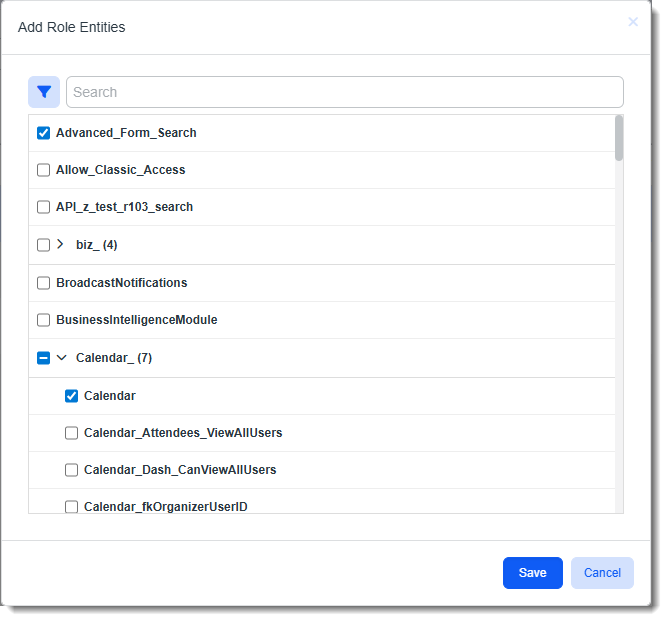
The Add Role Entities window displays the list of available role entities with selection checkboxes next to them.
Note:
-
A right chevron symbol
 to the left of the entity name indicates that it is a collapsed group of related role entities. Click the symbol to expand the group to view all related role entities in the group.
 -
If the checkbox next to a standalone role entity contains a check mark
 , the role entity is selected.
 -
If the checkbox next to a group of related role entities contains a check mark
, all role entities within the group are selected. -
If the checkbox next to a group of related role entities contains a dash
 , one or more role entities (but not all role entities) within the group are selected.
-
-
Optionally, click the Filter icon
 to filter the list of role entities by "Selected" or Not Selected entities or enter search criteria in the Search field to help locate role entities.
 -
Select the desired entities and then click Save. The entities are added to the Security Role Entities dashboard grid.
Note: Clicking the checkbox next to a group of related role entities selects all role entities within the group. To select specific role entities within the group, click the right chevron symbol
to expand the group and then click the checkbox next to the desired role entities within the group. -
Add or update role entity access permissions on the grid to complete the process.
-
-
To remove a role entity: You have two options for removing role entities.
-
To remove a single role entity at a time, you can click a role entity on Security Role Entities dashboard grid to select it, click Remove on the toolbar and then click Yes on the Delete Row confirmation message.
-
To remove one or more role entities, click Add on the toolbar to access the Add Role Entities window, uncheck the checkboxes next to the role entities you want to remove and then click Save.
-
-
To add or update role entity access permissions: To add or remove rights for an entity, check or uncheck any of the following options for an entity in the list: View, Add, Edit, Delete, and Admin.
-
Adding or Updating User Role Assignments
Use these steps when you are adding users to a new or existing security role. Use More search if necessary to locate the security role record by Role Title, by a User already known to be assigned to the role, or by a specific entity (Entity Name) within a role that the user requires.
To add or update user role assignments:
-
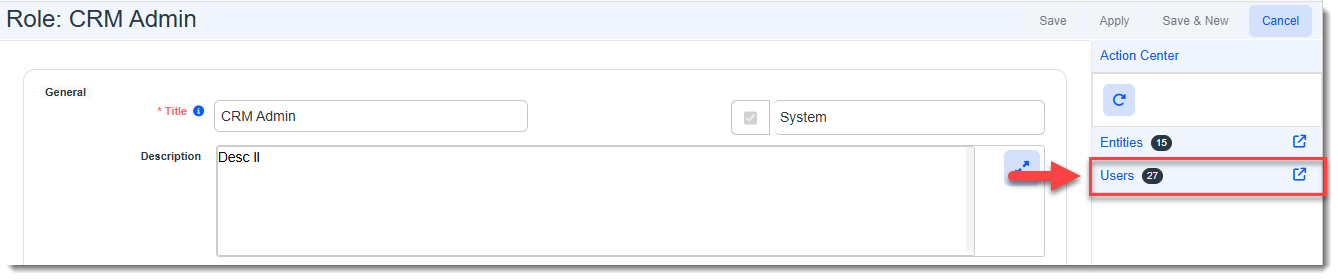
From an open security role record, click Users in the Action Center. The counter next to the action item indicates the number of associated users. The number 0 (zero) indicates there are no associated users.
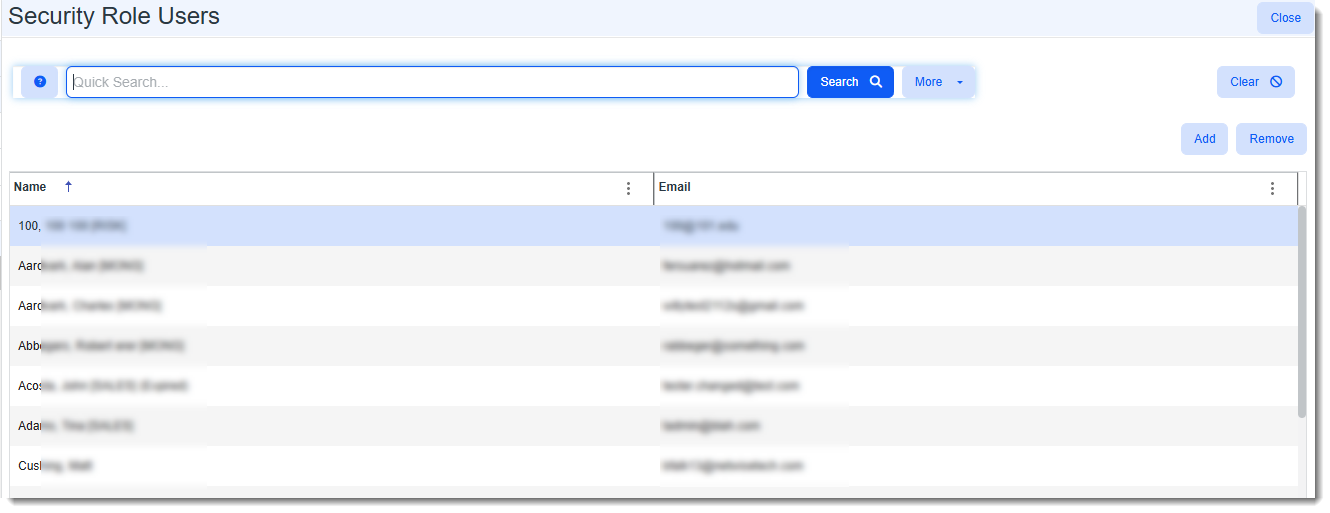
If there are already users added to the selected role, the Security Role Users dashboard displays the list of users.
-
What do you want to do?
-
To add a user to the security role:
-
Click Add on the Security Role Users dashboard toolbar.
The Add Role Users window displays.
-
Select a user from the drop-down list and then click OK.
-
-
To remove a user: Click a user on Security Role Users dashboard grid to select it, click Remove on the toolbar and then click Yes on the Delete Row confirmation message.
Note: If the system does not allow you to delete the security role, determine if the security role is a system-protected role. On the Security Roles dashboard, display the hidden System column by clicking the vertical three dot menu (i.e., kebab) icon
 next to any displayed column, selecting Columns and then selecting System. If the System column for security role is checked, only a developer user can edit the setting and delete that role.
-
Tips:
To see if a user is already in a role with a specific entity:
-
Use More search to filter the Security Roles dashboard by User and Entity Name.
You can also use a wildcard when searching for roles:
-
When setting search parameters, place a % symbol before your search string to make it a wildcard keyword search. EX: %Service Case