As a Global Administrator you can determine the username option (Username, First Name, or First Name Last Name) for ClientSpace and determine whether profile pictures can be uploaded to user profiles on the Personalization form.

To apply user profile personalization settings:
- Go to System Admin
 > Resources > Personalization.
The Personalization form opens. - Complete the form.
|
Field |
Description |
|---|---|
|
Username Options |
Select a username formatting option. Valid selections are:
In the example below, First Name is selected.
|
|
Allow Photo |
If the option to allow profile photos is set to Yes, a Personalization fieldset containing a Photo upload field is added to the User Details window and you can add a profile picture to a user profile (username > My Profile. (Any size photo can be used. The system will scale the photo as necessary.) Note: Profile pictures display next to the username in the upper right corner of the ClientSpace menu bar.
Profile pictures also display when you click a User Information
|

 icon next to a User selection drop-down field: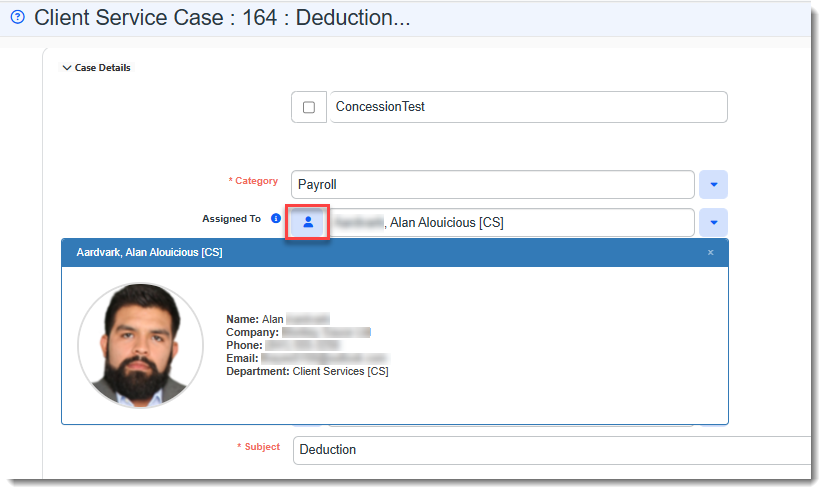
- Click Save.
Learning How: User Profile Personalization
 Video
Video
Watch the video on User Profile Personalization.