Sending a Password Reset Link and Unlocking a User
On occasion, it may be necessary for a Global Admin user to send a password reset link to a user or unlock a user account if it becomes locked.
If a user encounters a problem changing their own password (see Changing your password) or if a new user needs to create their password for the first time, a Global Admin user can send the user a link to set or reset their password.
If a user unsuccessfully logs into the system and exceeds the maximum number of login attempts (see Configuring your ClientSpace authentication settings), and the user needs to unlock their account before the system Lockout Duration timing expires, a Global Admin user can unlock the user account.
Use the following procedures to set a link to set/reset a user password or unlock a user account:
To send a set/reset password link to a user:
-
Go to System Admin
 Resources > Users.
The Users dashboard opens.
-
On the Users dashboard, select
 (Jump) for the row that contains the user.
 -
In the Action Center, click
 (Reset Password).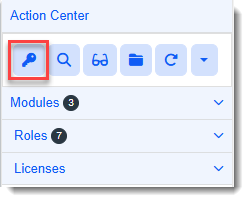
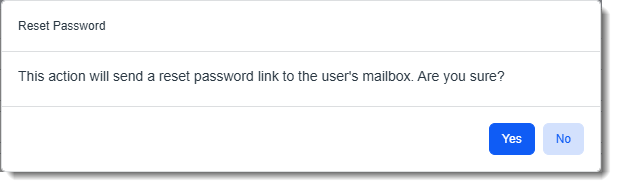
The Reset Password confirmation message displays.
-
Click Yes to continue.
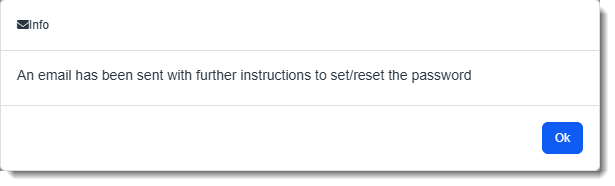
The following informational message displays indicating that the email was sent.
-
Click Ok.
To unlock a user:
-
Go to System Admin
> Resources > Users.The Users dashboard opens.
-
On the Users dashboard, select
(Jump) for the row that contains the user to unlock. -
The system displays the following message for the locked user:

-
Click the Unlock User button.