Third Party Application Configuration Dashboard
The Third Party Application Configuration dashboard displays a list of third-party application (TPA) configuration records necessary for the setup of ClientSpace integrations with applications and services such as Salesforce, Slack, GraphAPI, the PrismHR "View PrismHR Info" feature, Single Sign On from PrismHR to ClientSpace and more. The TPA record allows you to map each Login ID from a third-party application to a ClientSpace User so that users of the integration or feature can seamlessly log in to ClientSpace and the third-party application simultaneously. The Third Party Application Configuration dashboard also provides navigation to the screens where you add and maintain TPA records and associated users.
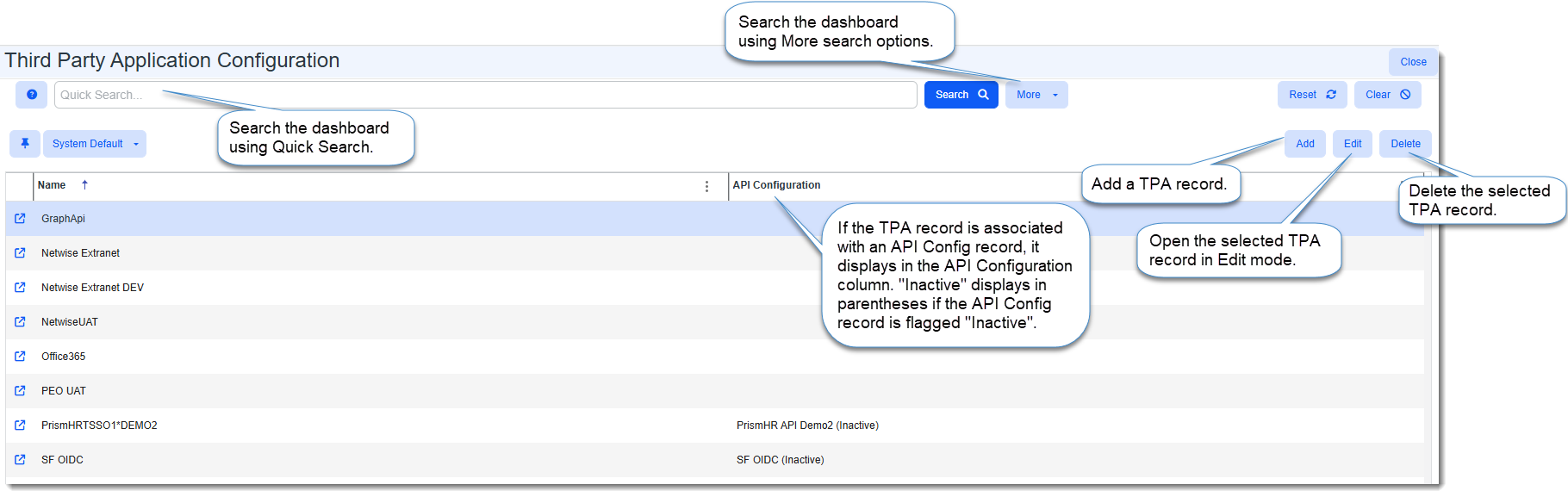
To access the Third Party Application Configuration Dashboard:
-
Go to System Admin
 > Advanced > Third Party Applications.
The Third Party Application Configuration dashboard opens. -
To search, you can do any of the following:
-
Sort by columns.
-
Use Quick Search to search by Name (starts with).
-
Use % Search to search by Name (contains) or API Configuration (contains).
-
Use More search to search by Name or API Configuration.
-
To add a third-party application configuration record:
| 1. | Click Add. |
The New Third Party Application form opens.

| 2. | Complete the applicable form fields: |
|
Name |
Type a unique name to identify this third-party connection. |
|
API Configuration |
Select a valid API Configuration from the drop down list to connect to an external site via an API. |
|
Private Token |
If required, add the private token. Note: This is primarily used for Slack integrations. |
|
CallBack URL |
If required, enter the callback URL for the site to which you are connecting. The callback URL is the specific URL endpoint that a service or application invokes after completing a requested process, such as a third-party authentication. |
|
Client ID |
If this is an OAuth 2.0 third-party application, use this field to store the Client ID assigned by the identity provider. |
|
Scopes |
If this is an OAuth 2.0 third-party application, use this field to store the scopes defined by the identify provider in a space-separated list. Scopes in OAuth 2.0 are strings used to specify permissions, limiting an application's access to a user's account to only necessary data or actions. EX: read write email. |
| 3. | Click Apply. |
The Application Key is auto-generated. Now you are ready to add users to the configuration.

To add users to the third-party application configuration record:
| 1. | In the Action Center, click Users. |

The Third Party Application Users dashboard opens.
| 2. | Click Add. |
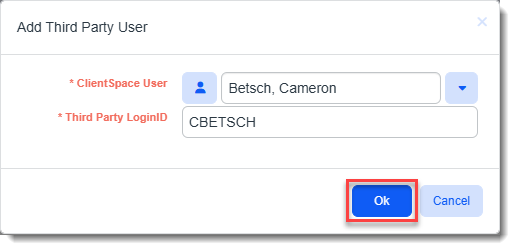
The Add Third Party User dialog box opens. This is where you add user records for each user who will connect from ClientSpace to the third-party application.
| 3. | Complete the fields: |
|
ClientSpace User |
Select the ClientSpace user. |
|
Third Party LoginID |
Type the user's login ID in the third-party application. |
| 4. | Click OK. |
When you return to the Third Party Application Users dashboard, the newly added user displays in the list.
| 5. | Repeat these steps until you have added all users who will connect from ClientSpace to the TPA. |
To edit a TPA record:
-
Select the TPA record in the Third Party Application Configuration Dashboard and click Edit.
The record opens in edit mode. -
Make the desired changes and then click Save or Apply.
To delete a TPA record:
-
Select the TPA record in the Third Party Application Configuration Dashboard and click Delete.
A confirmation message displays. -
To proceed with deleting the record, click Yes on the confirmation message.