Adding and Editing BPM Additional Contacts
You can add up to twenty (20) additional BPM contacts on a Benefits Batch and grant them View Only or Edit access to the batch in BPM.
Note: When you place a batch in Client Review status and the Renewal Client Contact receives the email notification indicating that a batch is ready for review in BPM, if you have added BPM Additional Contacts, they will also receive the email notification. Their ability to view or edit the batch will depend on the access you assign to them as an additional contact.
Overview
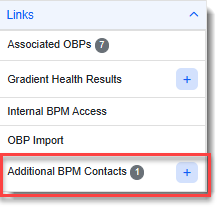
The Renewal Client Contact is automatically added as a BPM contact. Other BPM contacts are manually added from the Benefits Batch by clicking the Add  button next to the Additional BPM Contacts Action Center link:
Note:
-
Since login requirements for an additional BPM contact are the same as that of the Renewal Client Contact (i.e., the designated "reviewer and approver" of the offered plans on the Benefits Batch), the ClientSpace contact records of additional BPM contacts must also contain valid Last Name and Primary Email field values as these fields are used by your additional BPM contacts for BPM access authentication. Mobile number is also recommended as it can be used for authentication. See Finalizing a Benefits Batch for BPM and Sending for Client Review.
-
As previously mentioned, the Renewal Client Contact is automatically added by the system as a BPM contact. Default Edit access is granted to them and their contact record is kept up-to-date by the system.
For instance, if an existing Renewal Client Contact field value is changed, the BPM Contact record is inactivated for the previous Renewal Client Contact and a record with Edit access is added for the new Renewal Client Contact. If the new Renewal Client Contact already had an Active BPM Contact record but their access permission was View Only, their contact record will be updated to grant them Edit access.
-
Internal Access: If a Renewal Client Contact has not yet been added, you can still access BPM using the Internal BPM Access link on the Benefits Batch. In this scenario, BPM grants access using your current user account instead of a Renewal Client Contact.
When BPM is accessed using your current user account, the interface displays the following changes:
-
Welcome Page banner: Displays "Welcome to the Benefit Plan Election Portal" instead of "Welcome {Renewal Client Contact Name} to the Benefit Plan Election Portal."
-
Welcome Page contact information: Displays Benefits Representative instead of Renewal Client Contact information.
-
Review Selections > Selection Summary: The Benefit Contact information is not displayed in the Client ID tile.
-
BPM avatar: Displays the current user's information instead of the Renewal Client Contact's information.
Note: Be certain to add a Renewal Client Contact before sending BPM notifications to your client. This ensures that the client's Benefits Contact information displays correctly throughout BPM and in client communications.
Also see Internal BPM Access Permissions.
-
Adding a BPM Additional Contact
BPM Additional Contacts contain the name of the Benefits Batch, the organization and contact name (from the ClientSpace contact record), and the assigned access level to the Benefits Batch (View Only or Edit).
To add a BPM Additional Contact:
- Open the Benefits Batch where you want to add the contact(s).
-
Click the Add
button next to the Additional BPM Contacts Action Center link:
The BPM Contacts window displays in "Add" mode. "View Only" defaults in the BPM Contact Access field.

-
The contact record must contain a valid Last Name and a valid Mobile number or Primary Email as these fields are used for BPM login. See Finalizing a Benefits Batch for BPM and Sending for Client Review for details.
-
If the additional contact record is set as the Renewal Client Contact, you cannot edit the BPM Contact field. If you want to change the Renewal Client Contact, please pick a new contact in the Renewal Client Contact field on the Benefits Batch and allow ClientSpace to make the appropriate updates to the Additional BPM Contacts form, such as:
-
Adding a new Additional BPM Contacts record for the new Renewal Client Contact and granting default Edit access.
-
Or, if the new Renewal Client Contact was previously added to the Additional BPM Contacts form with View Only access, updating the existing record to Edit access.
-
-
Click Apply to save the contact record and keep the BPM Contacts form open. Click Save & New to save the contract record and open another BPM Contacts window in "Add" mode or click Save to save the contact record and close the BPM Contacts window.
|
Field |
Definition |
|---|---|
| Benefits Batch | Auto-fills with the related benefit batch name. |
|
Related Org |
Required. Defaults to the Workspace's associated organization but can be edited, if necessary. |
|
BPM Contact |
Required. Select the contact name from the list of contact records associated with the organization in the Related Org field. See Adding Contacts to the Organization for steps to add a new contact record.
Note: |
|
BPM Contact Access |
Required. The field defaults to "View Only". Contacts with "View Only" access cannot make changes to the batch. Select "Edit" if the contact is a reviewer who will need to make changes to the batch. |
|
BPM Contact Type |
If this field is Active on the form, it auto-fills as "Client". If the contact is a broker, select "Broker". Note: Distinguishing between "Broker" and "Client" contacts can be used to establish a workflow whereby the email template invitation to review plans in BPM is sent to "Broker" contacts when the Benefits Batch Status = "Broker Review". Also refer to Customizing BPM Login Notification Email Templates. |
Editing a BPM Additional Contact
To edit a BPM Additional Contact:
- Open the Benefits Batch where you want to edit the contact(s).
-
Click the Additional BPM Contacts Action Center link (not the Add
button).
Note: The Additional BPM Contacts Action Center link has a counter badge to allow you to see the number of BPM contacts at-a-glance.
Clicking the link opens the BPM Contacts record if there is only one contact saved.

If there is more than one contact, the link opens the BPM Contacts dashboard where you can search and select a contact record to open by clicking Open
 next to it in the grid.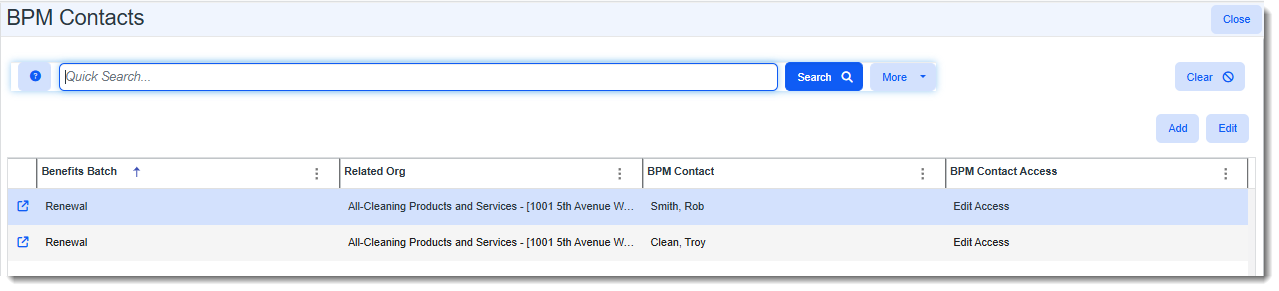
-
Edit fields as necessary.
Field
Definition
Benefits Batch Auto-fills with the related benefit batch name. Related Org
Required. Defaults to the Workspace's associated organization but can be edited, if necessary.
BPM Contact
Required. Select the contact name from the list of contact records associated with the organization in the Related Org field. See Adding Contacts to the Organization for steps to add a new contact record.
Note:
-
The contact record must contain a valid Last Name and a valid Mobile number or Primary Email as these fields are used for BPM login. See Finalizing a Benefits Batch for BPM and Sending for Client Review for details.
-
If the additional contact record is set as the Renewal Client Contact, you cannot edit the BPM Contact field. If you want to change the Renewal Client Contact, please pick a new contact in the Renewal Client Contact field on the Benefits Batch and allow ClientSpace to make the appropriate updates to the Additional BPM Contacts form, such as:
-
Adding a new Additional BPM Contacts record for the new Renewal Client Contact and granting default Edit access.
-
Or, if the new Renewal Client Contact was previously added to the Additional BPM Contacts form with View Only access, updating the existing record to Edit access.
-
BPM Contact Access
Required. The field defaults to "View Only". Contacts with "View Only" access cannot make changes to the batch. Select "Edit" if the contact is a reviewer who will need to make changes to the batch.
BPM Contact Type
If this field is Active on the form, it auto-fills as "Client". If the contact is a broker, select "Broker".
Note: Distinguishing between "Broker" and "Client" contacts can be used to establish a workflow whereby the email template invitation to review plans in BPM is sent to "Broker" contacts when the Benefits Batch Status = "Broker Review". Also refer to Customizing BPM Login Notification Email Templates.
-
-
Click Apply to save the contact record and keep the BPM Contacts form open or click Save to save the contact record and close the BPM Contacts form.
Sending Emails to Additional BPM Contacts
As stated in a previous section, when you place a batch in Client Review status and the Renewal Client Contact receives the email notification indicating that a batch is ready for review in BPM, if you have added BPM Additional Contacts, they will also receive the email notification.
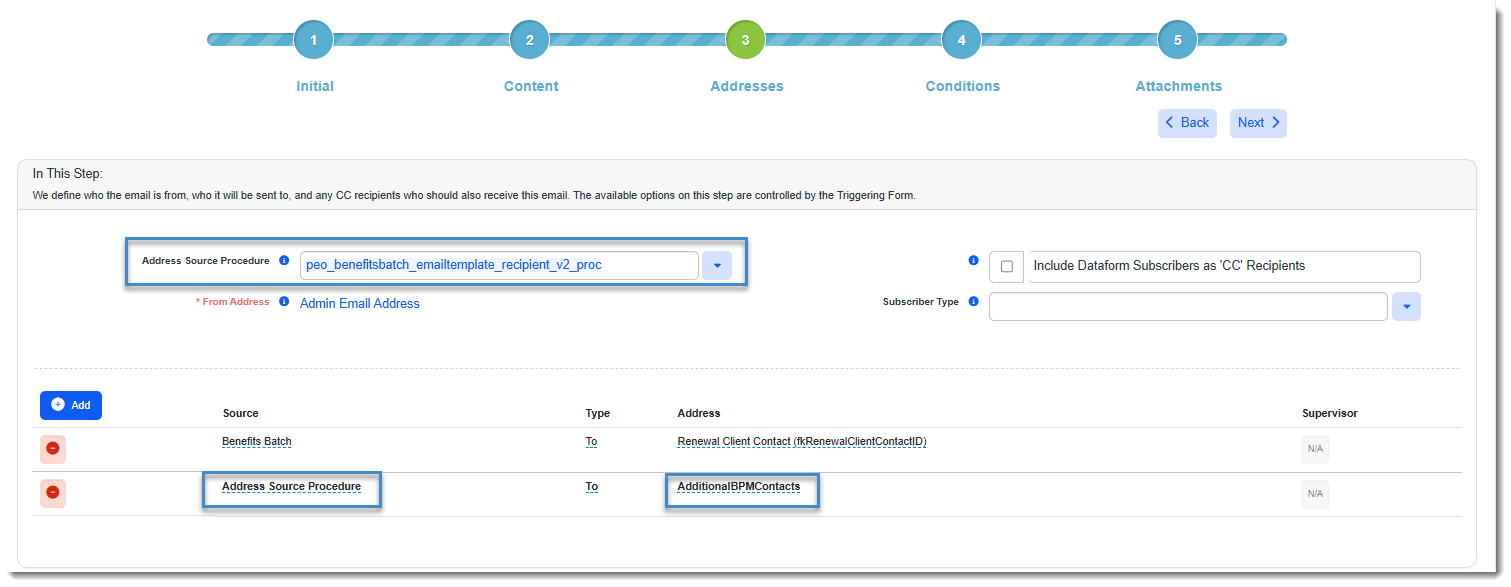
You also have the ability to send other emails to Additional BPM Contacts. To do this, the Triggering Form on the Initial tab of the Email Template must be set to Benefits Batch. Then, you can use the peo_benefitsbatch_emailtemplate_recipient_v2_proc Address Stored Procedure to send Email Template emails to all active BPM contacts listed on the Benefits Batch > Additional BPM Contacts dataform. Define recipients on the Email Template Addresses tab using Address Source Procedure under Source and AdditionalBPMContacts under Address.
Learning How: BPM Contacts and Access
 Video
Video
Watch the video on BPM Contacts and Access.