Using the Benefits Batch Mass Update Feature
Use Benefits Batch Mass Update feature to:
-
Flag new and existing Offered Benefit Plans (OBPs) for import or update (via the PrismHR Mass OBP Import scheduled process) from PrismHR to selected Benefit Batches.
ALERT: Do not confuse this feature with the OBP Mass Update feature available on the Benefits Batch OBPs dashboard. The OBP Mass Update feature serves a different purpose. It does not import records. Instead, it lets you make bulk updates to existing OBP records. For example, you can update the Status field for multiple OBP records at the same time and set it to "Cancel." The feature described in this topic is OBP Mass Import, which is located on the Benefits Batch Mass Update interface and allows you to flag OBP records for import from PrismHR into selected Benefits Batches.
-
Flag selected benefits batches for renewal (via the Benefits - Mass Update Renew scheduled process).
-
Set the Renewal Assigned field on multiple Benefits Batch records at one time.
This topic details how to flag Benefits Batches for mass OBP Import, how to flag Benefits Batches for mass renewal and how to update the Renewal Assigned field on multiple records at once using Mass Update on the Benefits Batch Search dashboard.
Mass OBP Import Overview
Use this feature when you want to quickly import OBP details from PrismHR into the existing ClientSpace batches to bring the existing batches current with PrismHR details. This can save time when preparing batches for renewal.
Note: The OBP import process syncs Benefit Groups prior to pulling the Offered Benefit Plans into the Benefits Batch. Additionally, the OBP Import process also respects the PrismHR Stop All Use On and Stop New Use On field values on the Benefit Groups. Benefit Groups that have a stop date that is on or before the current day are skipped.
The Mass OBP import feature allows you to select the Benefits Batches where you want the OBPs brought up to date. It flags them for update by setting the Mass OBP Import field on the selected Benefits Batch records to "Yes". If the option to include contributions was selected, a corresponding field Include Contributions checkbox on the selected Benefits Batch records will also be checked.
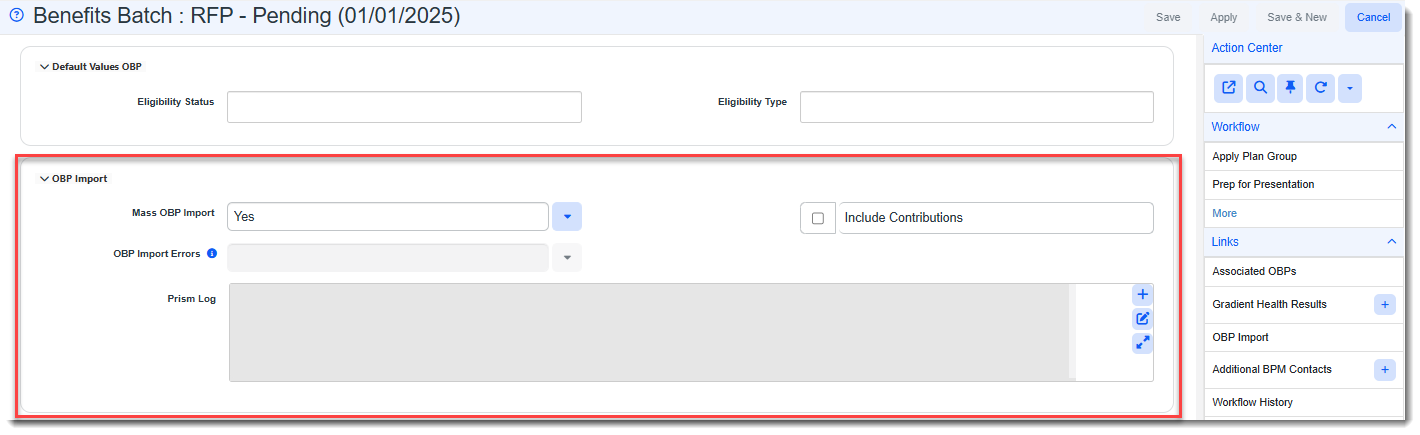
Then, a nightly scheduled process named PrismHR Mass OBP Import runs for all Benefit Batches where Mass OBP Import = Yes. Any new OBPs associated within the flagged batches will be added to ClientSpace from PrismHR. If any existing OBPs associated within the flagged batches have changed in PrismHR, they will be updated in ClientSpace.
Other key features include:
-
A security entity named biz_benefitsbatch_massupdate enables the Mass Update button on the Benefits Batch Search dashboard. Users with Add, Edit, or Admin permissions can access the button. See Administering Role Security for details steps on enabling permissions.
-
Error logging is present in the "OBP Import" fieldset of the selected Benefit Batches.
-
If the import fails for a batch, an error is logged to the Prism Log field of the batch indicating the failure reason.
-
If the import is successful for a batch, a message is logged to the Prism Log field indicating that the import was successful. Then, the Mass OBP Import field automatically set to No. To include the batch again in a PrismHR OBP Import scheduled process, you must set the Mass OBP Import field to Yes.
-
-
If the Scheduled Process cannot run at all, an exception log error is recorded. The import will not retry automatically. (Retry Threshold on the PrismHR Mass OBP Import Scheduled Process configuration is set to 1.)
Mass Benefits Batch Renewal Overview
Use this feature when you want to flag multiple Benefits Batches for renewal. The feature sets the Mass Update Renew field on the selected records to "Yes". Then, when the Benefits - Mass Update Renew nightly scheduled process runs, any records with Mass Update Renew set to "Yes" are renewed using the renewal logic that is on the Benefits Batch.
Other key features include:
-
If the Scheduled Process completely fails, an exception log error is recorded.
-
You can also set the Renewal Assigned field on multiple Benefits Batches at once. This can be done when you mass renew or as a standalone process.
Flagging Benefits Batches for Mass OBP Import Using Mass Update
To flag Benefits Batches for Mass OBP Import from the Benefits Batch Search Dashboard:
-
From the modules bar, click Benefits Batch.
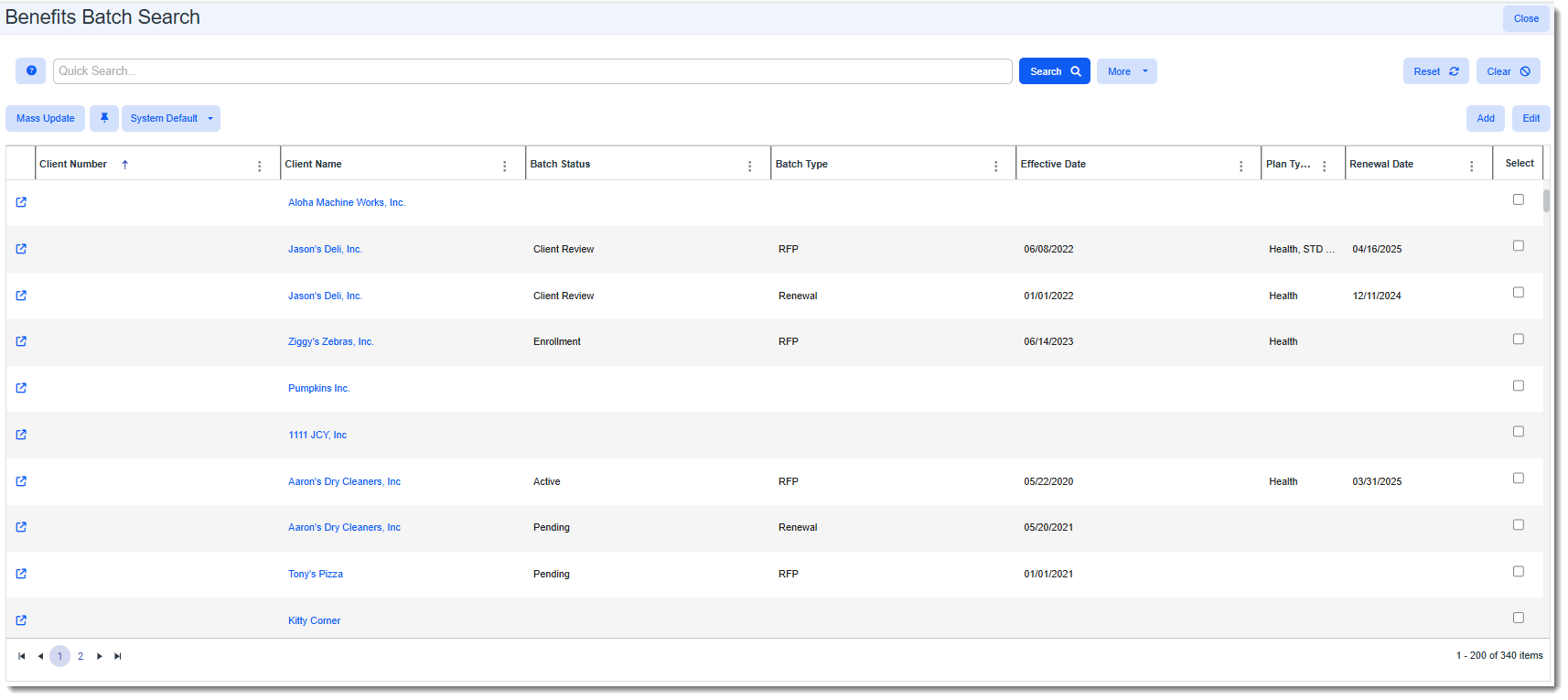
The Benefits Batch Search dashboard displays.
-
Use filtering and searching to find the batches you want to select.
-
Select the batches:
-
Click the Select row heading to select all batches displayed in the grid.
-
Or, click the Select checkbox at the end of each row for each batch you want to include.
-
-
Click the Mass Update button.
The Benefits Batch Mass Update form opens.
-
Update the following fields as appropriate:
Field Description Mass OBP Update Select Yes to flag the selected Benefits Batches for mass import of related OBPs from PrismHR.
Include Contributions
Optionally, select Yes if you want to also import related OBP Contribution details for each batch from PrismHR.
-
Click Save to apply the changes and close the Benefits Batch Mass Update form.

-
Repeat steps 6 through 9 to continue updating batches, if needed.
-
Verify settings and make manual changes, if necessary, to individual batches by clicking
 (Open) next to a batch on the Benefits Batch Search dashboard and going to the "OBP Import" section of the batch:
Flagging Benefits Batches for Renewal and Setting "Renewal Assigned" Using Mass Update
To flag Benefits Batches for Mass Renewal and/or Set "Renewal Assigned" from the Benefits Batch Search Dashboard:
-
From the modules bar, click Benefits Batch.
The Benefits Batch Search dashboard displays.
-
Use filtering and searching to find the batches you want to select.
-
Select the batches:
-
Click the Select row heading to select all batches displayed in the grid.
-
Or, click the Select checkbox at the end of each row for each batch you want to include.
-
-
Click the Mass Update button.
The Benefits Batch Mass Update form opens.
-
Update the following fields:
Field Description Renew Select Yes to flag the Benefits Batches for renewal.
Renewal Assigned
Optionally, select a user to set the Renewal Assigned field of all selected batches simultaneously.
Note: You do not have to set the Renewal Assigned field when you flag Benefits Batches for renewal. You can update the Renewal Assigned field on multiple batches at once as a separate process.
-
Click Save to apply the changes and close the Benefits Batch Mass Update form.

-
Repeat steps 6 through 9 to continue updating batches, if needed.
-
Verify settings.
Note: You can manually change the Mass Update Renew field to "No" on an individual Benefits Batch record if necessary by clicking
(Open) next to a batch on the Benefits Batch Search dashboard and going to the "Mass Update" section of the batch record. The scheduled process skips all records where Mass Update Renew is "No" or blank.