Using the Benefits Plan Mass Update Feature for Benefits Plan Renewal
Use Benefits Pan Mass Update feature to flag selected benefits plans for renewal (via the Benefits - Mass Update Renew scheduled process).
This topic details how to flag Benefits Plans for mass renewal using Mass Update on the Benefits Plan Search dashboard.
Mass Benefits Plan Renewal Overview
Use this feature when you want to flag multiple Benefits Plans for renewal. The feature sets the Mass Update Renew field on the selected records to "Yes". Then, when the Benefits - Mass Update Renew nightly scheduled process runs, any plans with Mass Update Renew set to "Yes" are renewed using the renewal logic that is on the Benefits Plan.
Other key features include:
-
If the Scheduled Process completely fails, an exception log error is recorded.
Flagging Benefit Plans for Renewal Using Mass Update
To flag Benefits Plans for Mass Renewal from the Benefits Plan Search Dashboard:
-
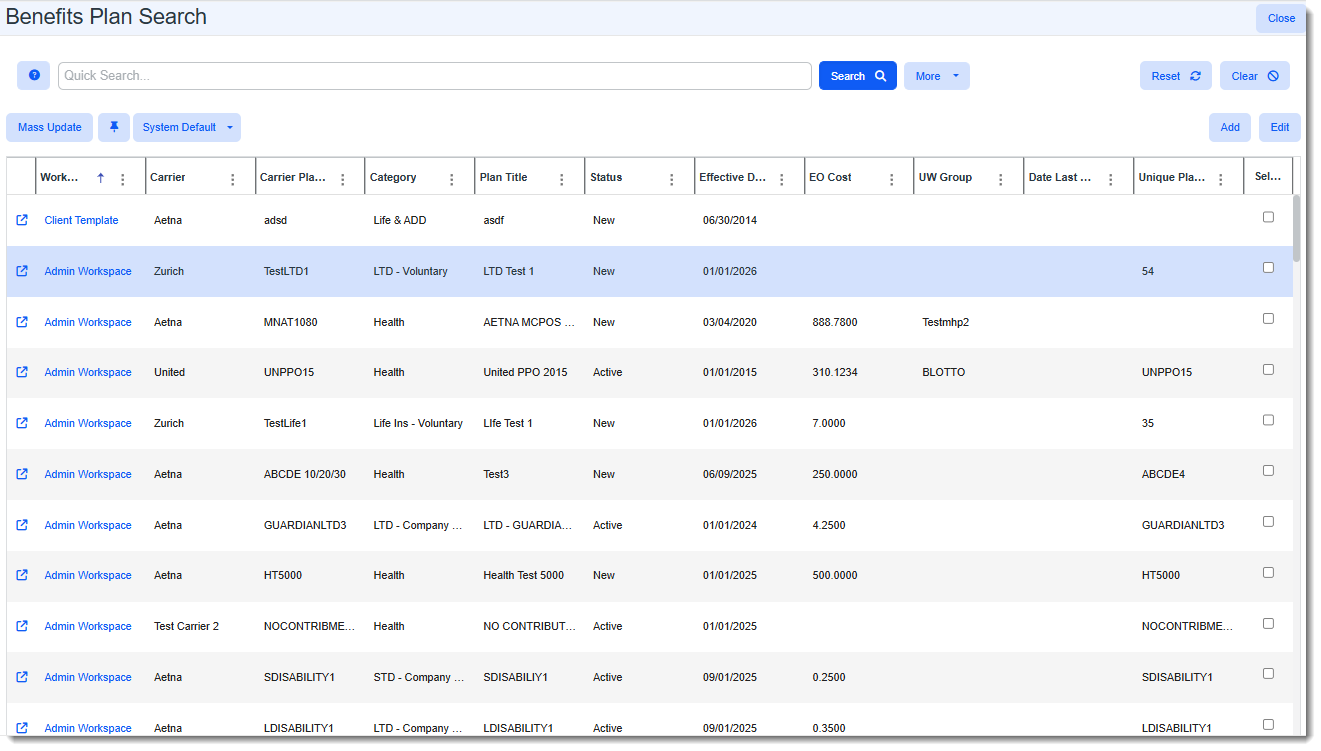
From the modules bar, click Benefits Plan (or click your username on the modules bar and then select Modules to select the Benefits Plan module).
The Benefits Plan Search dashboard displays.
-
Use filtering and searching to find the plans you want to select.
-
Select the plans:
-
Click the Select row heading to select all plans displayed in the grid.
-
Or, click the Select checkbox at the end of each row for each plan you want to include.
-
-
Click the Mass Update button.
The Benefits Plan Mass Update form opens.
-
Update the following field:
Field Description Renew Select Yes to flag the Benefits Plans for renewal.
-
Click Save to apply the changes and close the Benefits Batch Mass Update form.

-
Repeat steps 6 through 9 to continue updating batches, if needed.
-
Verify settings.
Note: You can manually change the Mass Update Renew field to "No" on a plan if necessary by clicking
 (Open) next to a plan on the Benefits Plan Search dashboard. The scheduled process skips all records where Mass Update Renew is "No" or blank.