Using the Mass OBP Import Feature
Use the Offered Benefit Plan Mass Import feature to import new and update existing Offered Benefit Plans (OBPs) from PrismHR to selected Benefit Batches.
How this can help: If you have a large number of Benefit Batches, being able to perform a mass import of OBP details from PrismHR into the existing ClientSpace batches can quickly bring the existing batches current with PrismHR details which will save time when preparing the batches for renewal.
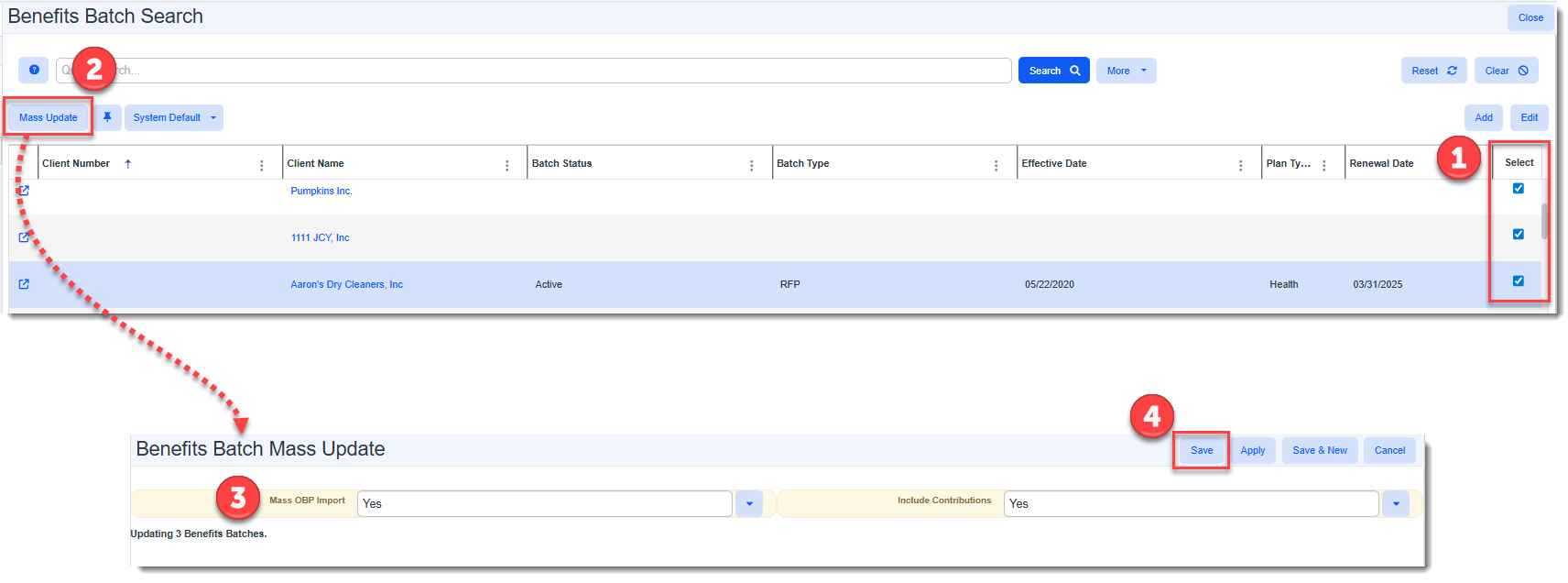
How this works: The import is triggered on Active Benefit Batches where the Mass OBP Import field (located in the "OBP Import" fieldset on the batch) is set to Yes. An optional Include Contributions setting allows you to import or exclude contributions from PrismHR. You do not have to manually flag the settings for each batch (although you can set the fields manually). The quickest option is to use the Mass Update option on the Benefits Batch Search dashboard to set the Mass OBP Import field and the optional Include Contributions field on the Benefits Batch Mass Update window:
This updates the "OBP Import" fieldset of the selected Benefit Batches with the import settings:
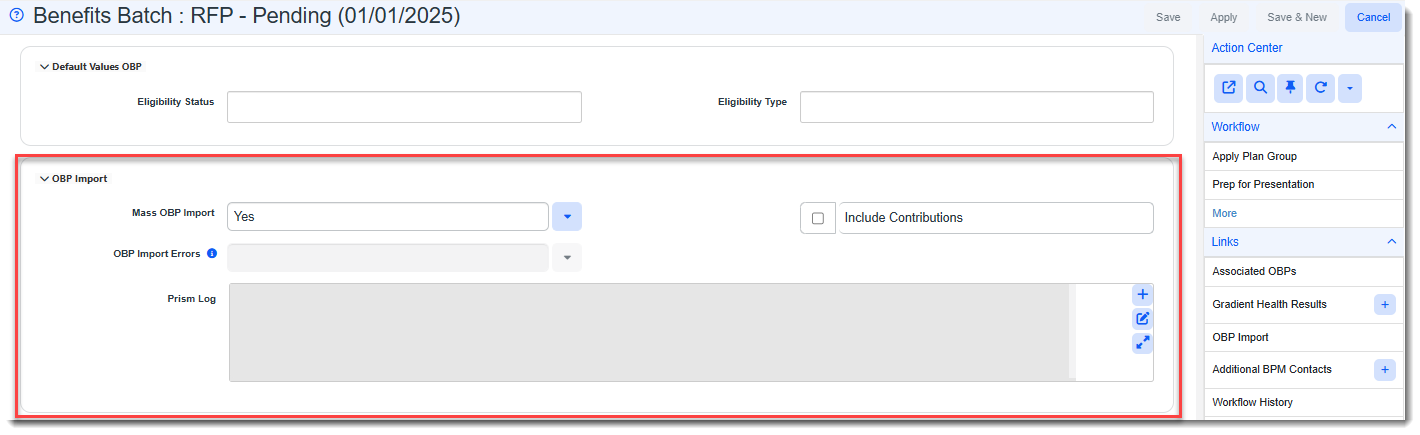
Then, a nightly scheduled process named PrismHR Mass OBP Import runs for all Benefit Batches where OBP Mass Import = Yes. Any new OBPs associated with the flagged batches will be added to ClientSpace from PrismHR. If any existing OBPs associated with the flagged batches have changed in PrismHR, they will be updated in ClientSpace.
Other key features include:
-
A security entity named biz_benefitsbatch_massupdate enables the Mass Update button on the Benefits Batch Search dashboard. Users with Add, Edit, or Admin permissions can access the button. See Administering Role Security for details steps on enabling permissions.
-
Error logging is present in the "OBP Import" fieldset of the selected Benefit Batches.
-
If the import fails for a batch, an error is logged to the Prism Log field of the batch indicating the failure reason.
-
If the import is successful for a batch, a message is logged to the Prism Log field indicating that the import was successful. Then, the Mass OBP Import field automatically set to No. To include the batch again in a PrismHR OBP Import scheduled process, you must set the Mass OBP Import field to Yes.
-
-
If the Scheduled Process cannot run at all, an exception log error is recorded. The import will not retry automatically. (Retry Threshold on the PrismHR Mass OBP Import Scheduled Process configuration is set to 1.)
This topic details how to flag Benefit Batches for Mass OBP Import using Mass Update on the Benefits Batch Search dashboard.
Flagging Benefit Batches for Mass OBP Import Using Mass Update
To use Mass Update from the Benefits Batch Search Dashboard:
-
From the modules bar, click Benefits Batch.
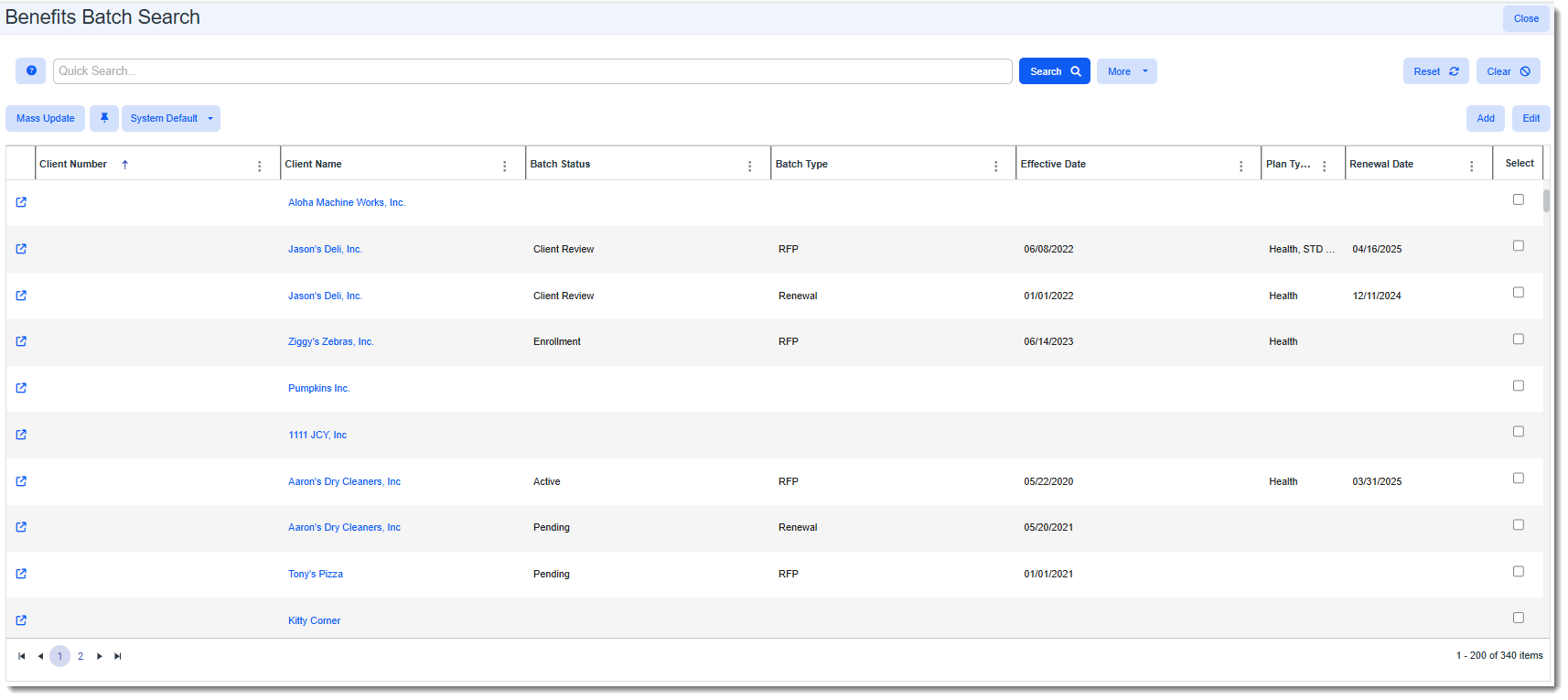
The Benefits Batch Search dashboard displays.
-
Use filtering and searching to find the batches you want to select.
-
Select the batches:
-
Click the Select row heading to select all batches displayed in the grid.
-
Or, click the Select checkbox at the end of each row for each batch you want to include.
-
-
Click the Mass Update.
The Benefits Batch Mass Update form opens.
-
Update the following fields as appropriate:
Field Description Mass OBP Update Select Yes to flag the Benefits Batch for mass import of related OBPs from PrismHR.
Include Contributions
Optionally, select Yes if you want to also import related OBP Contribution details from PrismHR.
-
Click Save to apply the changes and close the Benefits Batch Mass Update form.
-
Repeat steps 6 through 9 to continue updating batches, if needed.
-
Verify settings and make manual changes, if necessary, to individual batches by clicking
 (Open) next to a batch on the Benefits Batch Search dashboard and going to the "OBP Import" section of the batch: