Using Mass Update from the Claim Deductible Dashboard
Use the Claim Deductible dashboard Mass Update function allows you to select multiple Claim Deductible Billing records and update the Exclude from Prism Export and/or Status fields all at the same time.
To use Mass Update from the Claim Deductible Dashboard:
-
Access the Claim Deductible dashboard from the Modules toolbar or from Modules Search (by clicking your username and then selecting Modules in the upper right corner of ClientSpace).
The Claim Deductible Bill search dashboard displays.
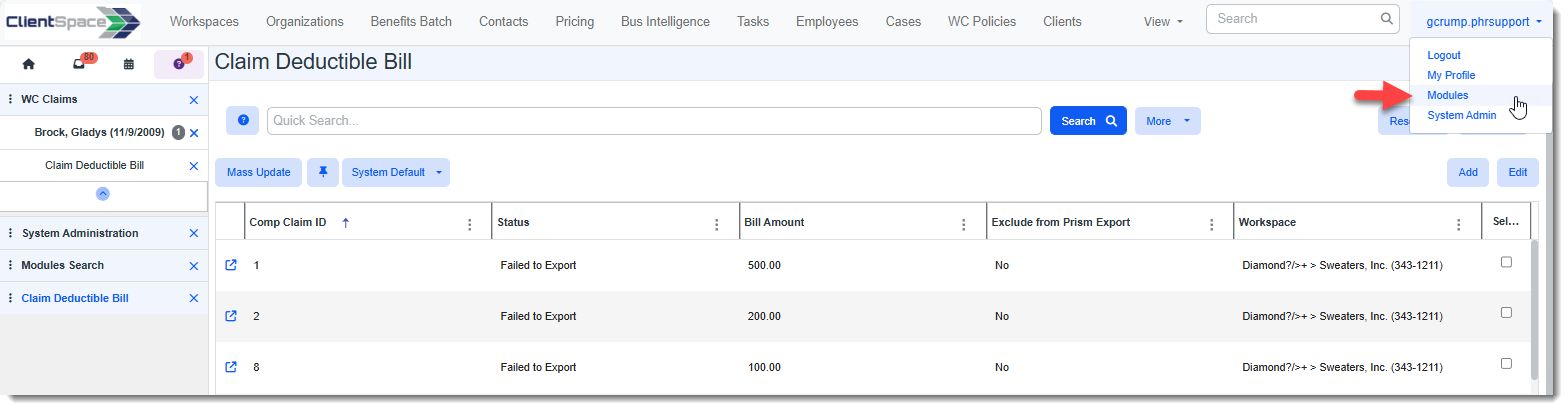
Note: To use the Mass Update option, you must access the Claim Deductible dashboard from the Modules toolbar or from Modules Search (by clicking your username and then selecting Modules in the upper right corner of ClientSpace). If you instead click the Claim Deductible link on a Comp Claim to access the Claim Deductible dashboard, you will not see the Mass Update option. When the Claim Deductible dashboard is accessed from a Comp Claim, it is a filtered version that only shows a list of Claim Deductible bills related to the Comp Claim you are viewing and it does not display the Mass Update feature or the Exclude from Prism Export column. (It does, however, contain the Exclude from Prism Export option in the More search.)
-
Locate the records you want to select for Mass Update. To search, you can do any of the following:
-
Sort by columns.
-
Use Quick Search or % Search to search by keyword, Workspace (contains) or Status (contains).
-
Use More search to search by Workspace, Date Created (from/to), Date Updated (from/to) or Exclude from Prism Export.
-
-
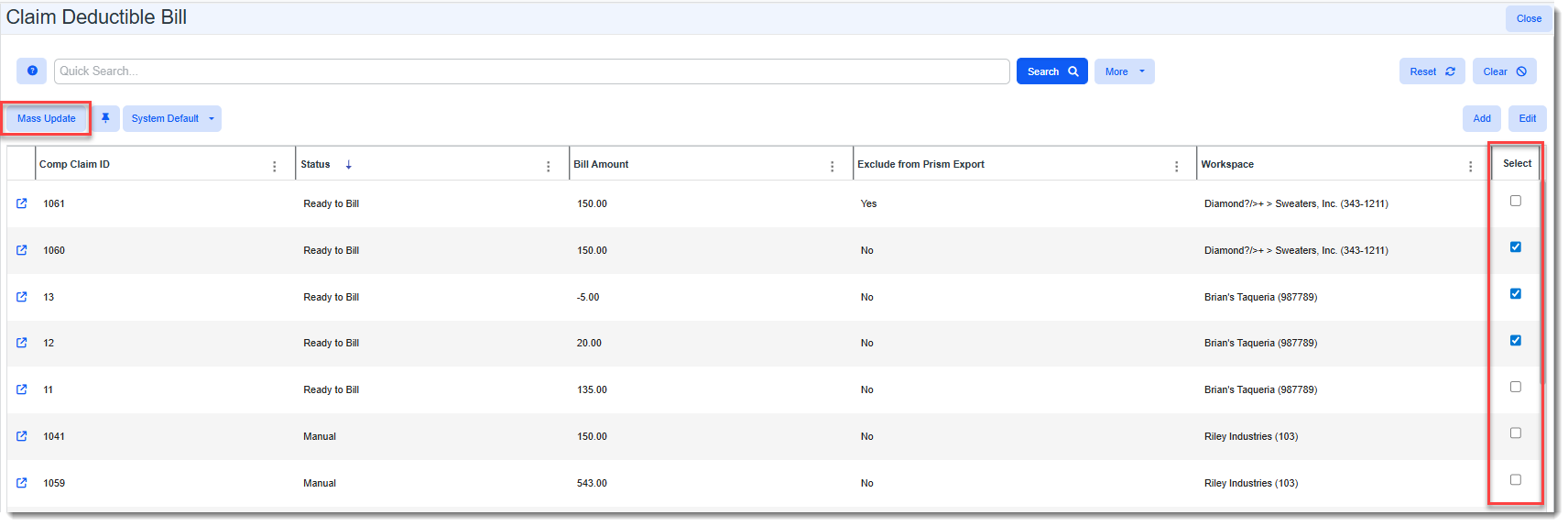
Select the records to update by clicking the Select checkbox at the end of each row.
-
Click Mass Update.
The Claim Deductible Bill Mass Update window displays.
-
Change the fields you want to update.
Field Description Exclude from Prism Export
Select Yes to check the Exclude from Prism Export field on the Claim Deductible Billing record. Select No to uncheck the Exclude from Prism Export field.
Status Choose an applicable status to apply to the selected Claim Deductible billing record. For example, if the selected records are being billed outside of PrismHR you can select Yes for the Exclude from Prism Export field and select "Billed" in the Status field to indicate that the records are being/have been billed.
-
Click Save.
The selected records indicated in the record count on the Claim Deductible Bill Mass Update window are updated.
