R158 Sprint: 11/3/2025 to 11/30/2025. To learn about product features that you may not recognize, contact ClientSpace Professional Services.
Release Schedule
Release updates are implemented by the group, as indicated in the following table.
The release schedule is subject to change and updated as required. To determine your group or ask questions, please log a case for ClientSpace Professional Services.
|
Sprint 11/3/2025 to 11/30/2025 |
||
|---|---|---|
|
Upgrade groups |
Date of upgrade |
Tentatively occurs on |
| Group 1 | First Thursday of the month | December 4, 2025 |
| Group 2 | Second Tuesday of the month | December 9, 2025 |
| Group 3 | Third Tuesday of the month | December 16, 2025 |
Announcements
|
Summary |
Details |
|---|---|
| IMAP Deprecation: ClientSpace Email Integration Users |
IMAP is being deprecated by Microsoft. Although there is no official cutoff date yet, we recommend switching to Microsoft Graph API, a supported and more secure authentication method. Switch to Graph API, in six easy steps:
If you require assistance, please contact your ClientSpace representative or log an extranet case. |
| Report Center Coming Soon! |
We are excited to let you know that we are preparing to roll out Report Center! To help ensure a smooth transition from Izenda to Report Center, please take a moment to archive any unused reports. To get up to speed with Report Center, we encourage you to attend an upcoming Report Center Training Sessions/Conferences or watch the Sigma "Jump Start" Training videos. |
 >
>  button in the Action Center to re-authenticate.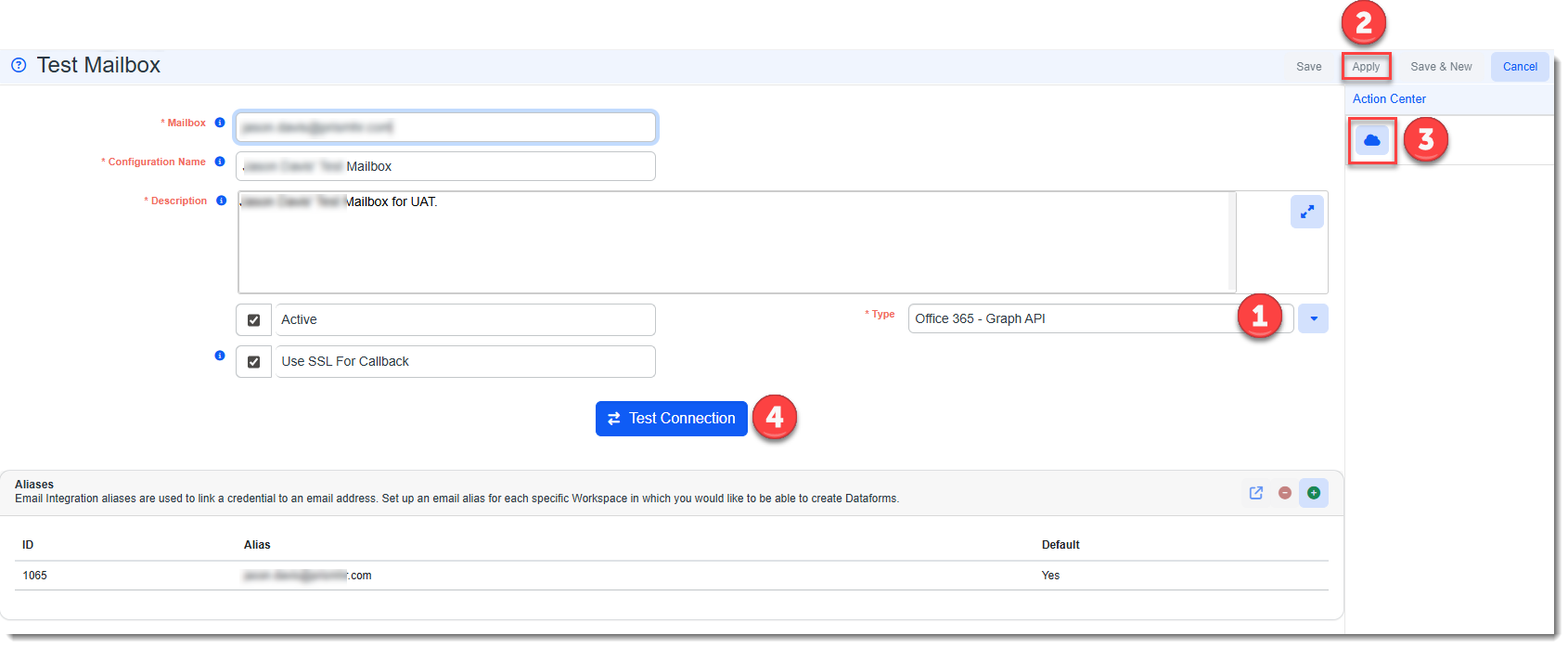
Enhancements
Enhancement groups are Change in Functionality, ClientSpace Premium (ClientSpace with additional modules), Advanced Administration, General, and Staffing.
ClientSpace Premium
Benefit Plan Manager (BPM)
|
Case |
Enhancement |
|---|---|
|
72775 |
Related Companies Link No Longer Displays on Signature Page When No Related Companies are present on Welcome Page Previously, when there were no related companies and therefore no related companies link (i.e., Click HERE to see the list) to display on the BPM Welcome page, an "Affiliated" section containing a Click HERE to see the list link still displayed on Signature/Selection Summary page. Now, when there are no related companies to display on the Welcome page, the "Affiliated" section and related companies link no longer display on the Signature/Selection Summary. |
|
74502 |
Added a "Save" Warning to Cafeteria Contribution Amount and Waiting Period Fields Previously, if you edited a Cafeteria Contribution Amount or Waiting Period field (Manage Benefits > Benefits Summary > Group Summary > Summary) without clicking the Save button in the section, you could navigate to another tab without being prompted to save your changes. Now, if you attempt to navigate away from Cafeteria Contribution Amount or Waiting Period without saving changes, the following message displays: "You have unsaved changes in the Cafeteria Plan and/or Waiting Period sections. Do you want to continue?" If you click Cancel, the message clears and you can click Save to apply changes. If you click Continue, you navigate to the selected tab and the pending changes are lost. |
| 74787 |
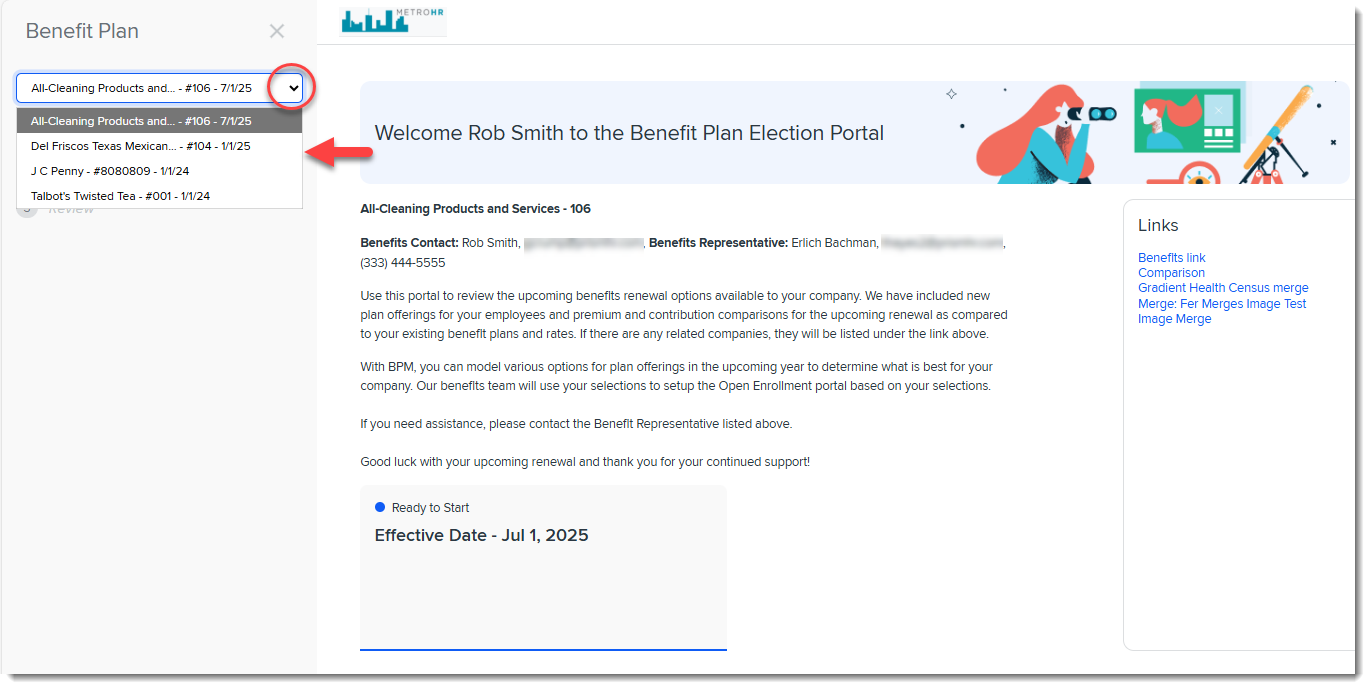
External Users Can Navigate Between Multiple Clients in BPM External users can now navigate between multiple clients in BPM. The user can log in as any client where they are added as a BPM Contact on the Benefits Batch (by using the credentials received in the BPM notification email for one of the client batches). Once logged in, they can click the drop-down list in BPM on the left pane of the Welcome Page and navigate between client batches.
Clicking a batch in the list refreshes the Welcome page and shows the Benefits Batch card for the selected client. Note:
See Adding and Editing BPM Additional Contacts and Multi-Client Access
Also view the video Using BPM - Full Walkthrough. |
|
75537 |
Added Benefits Batch Types Metadata to Allow BPM Login Method Configuration for Custom Batch Types If you have custom batch types, you can now use the Benefits Batch Types Metadata dataform to specify a BPM Login Type of ID or Client Number for external users by Benefits Batch Type . Also, an additional change was made to allow you to use BPM Login Type as a condition on BPM email templates to specify the correct email template for custom batch types (i.e., BPM Prospect for the ID login method or BPMLoginEmail for the Client Number login method).
Note: If you do not have custom batch types, you do not need to configure Benefits Batch Types metadata. See Configuring the BPM Login Method for Custom Batch Types and Customizing BPM Login Notification Email Templates |

Other ClientSpace Premium
 >
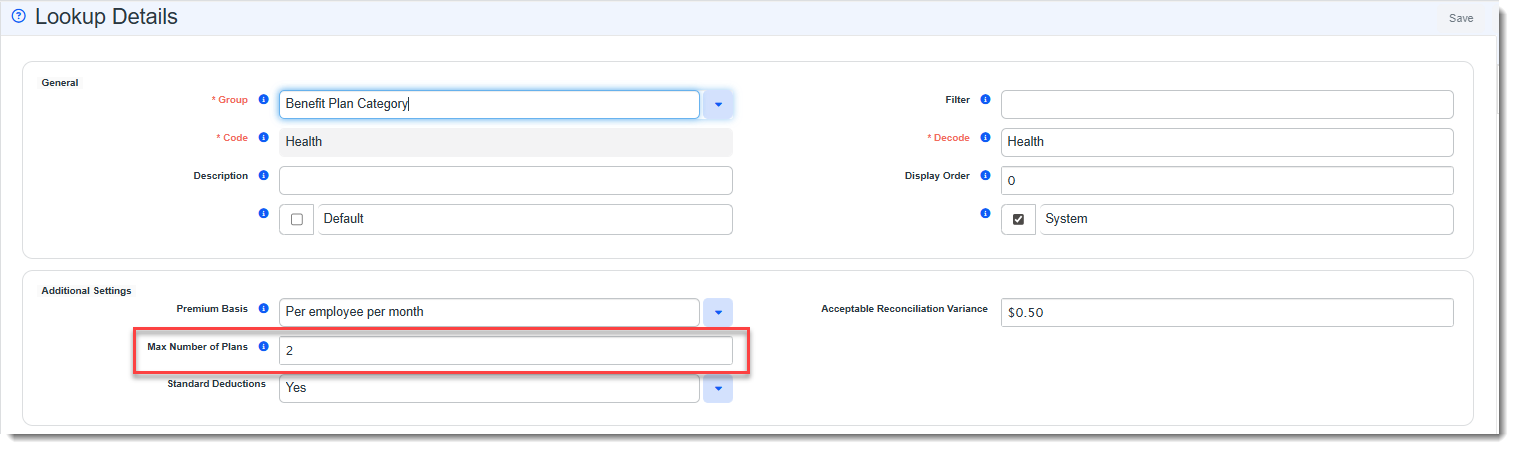
> 

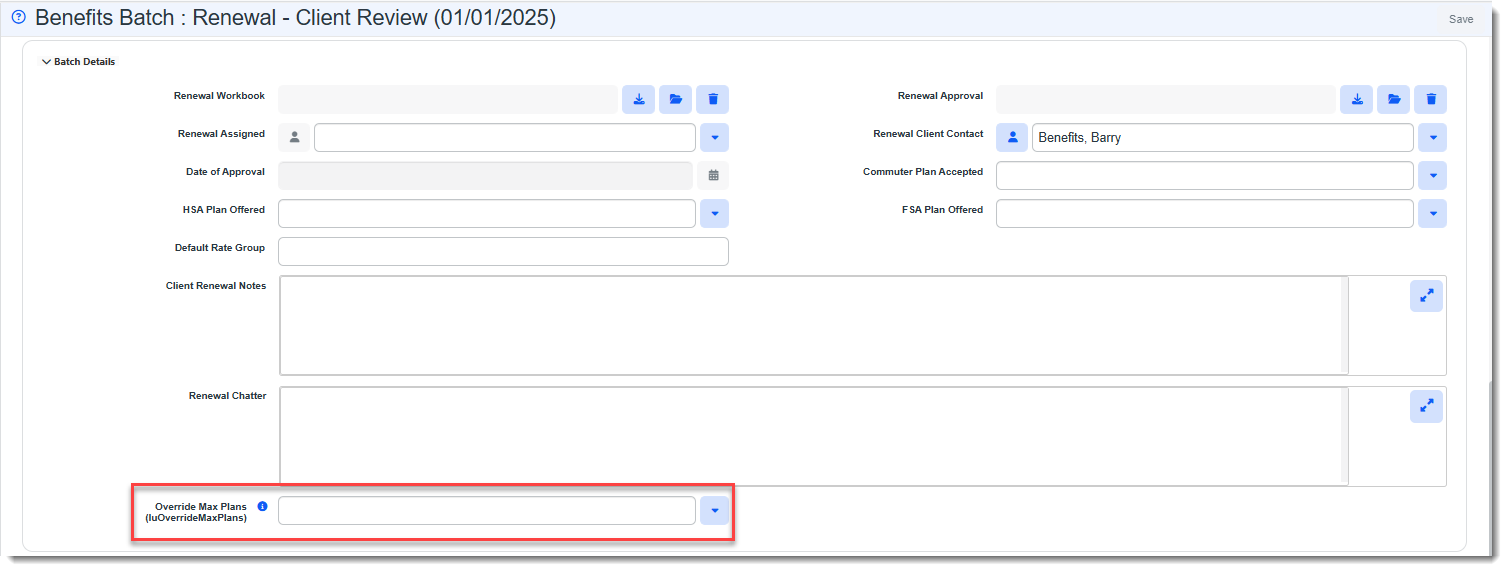
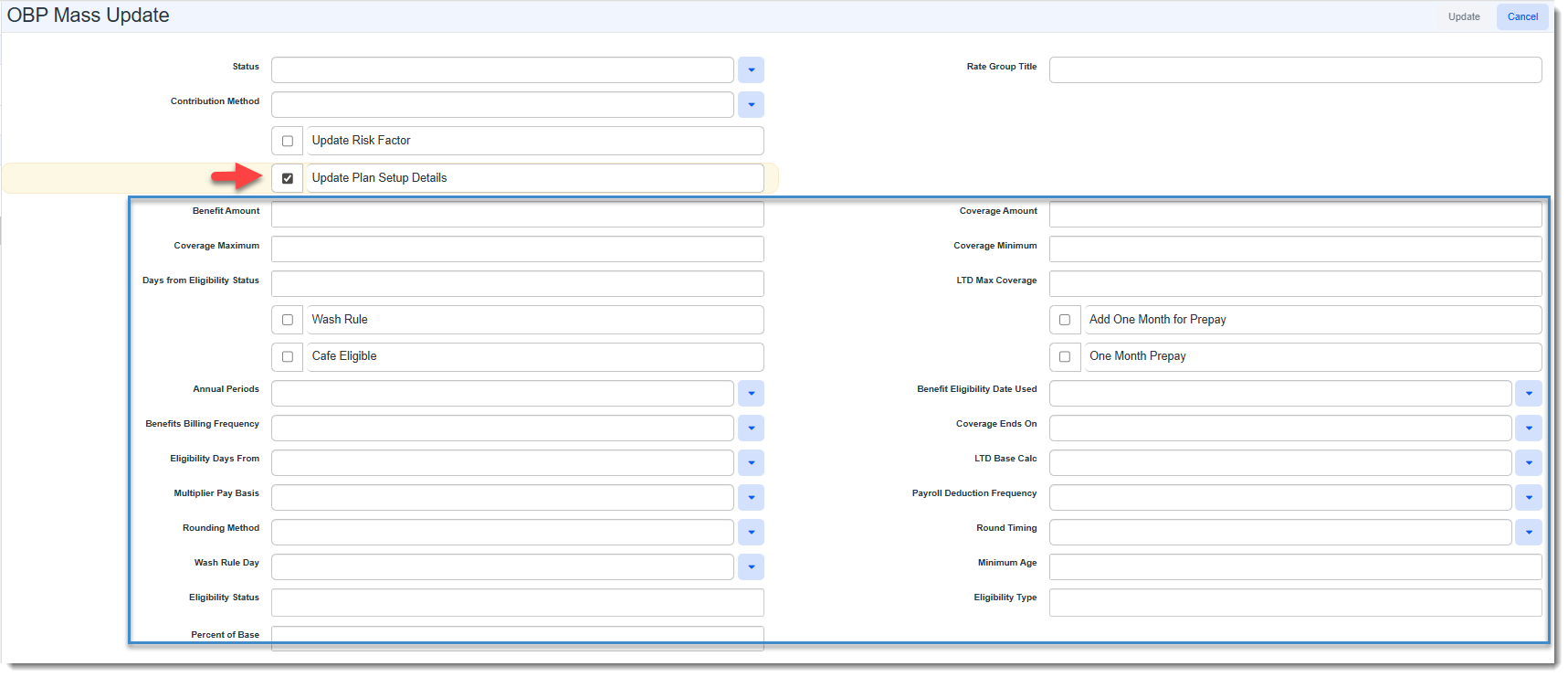

Advanced Administration and System Administration
|
Case |
Enhancement |
|---|---|
|
71973 |
Added Ability to Schedule Surveys You can now send scheduled surveys triggered from a dataform. To accomplish this, the following changes were made:
Additionally, to improve searching for existing scheduled Email Templates and Workflow Channels, this case included an additional change to the Email Templates and Workflow Channels dashboards. "Scheduled" has been removed as an option from the Type filter in the More search. A new Timing filter has been added to More search which includes "Scheduled" and "Real Time" options.
See Configuring Scheduled Email Templates and Configuring a Dataform Survey Email Template. |
| 74708 |
Improved Work Items Display of Workflow Items, Workflow Channels and Email Templates The display of Work Items in the Work Center panel for Workflow Channels, Workflow Items, and Email Templates has been updated to match the window header details. This makes it easy to differentiate between multiple items, particularly saved items since the headers of saved records show identifiers such as the Workflow Channel ID, Workflow Item ID and Email Template ID as shown in the example below:
|
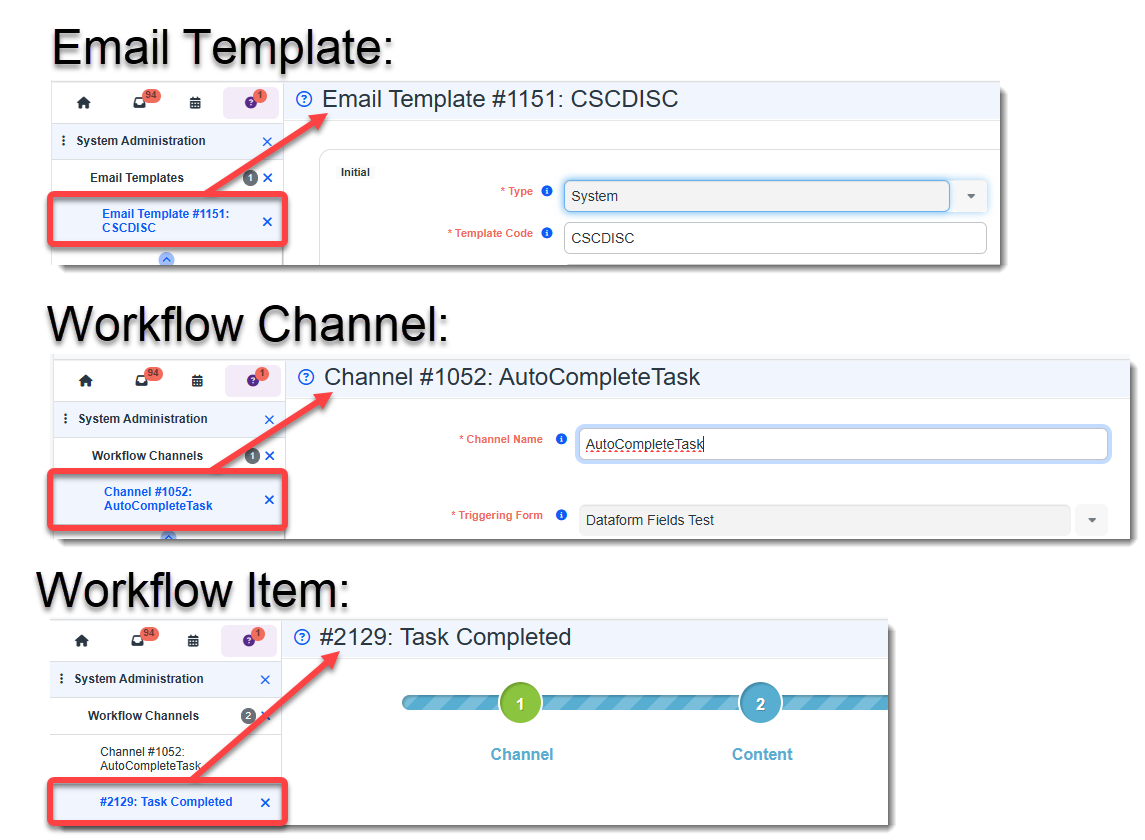
General User Enhancements
|
Case |
Enhancement |
|---|---|
| 69936 |
Stopped the Department Code, Expired Status or OOO from Displaying Next to UserID on Replace Fields The Department Code, Out of Office status (OOO) or terminated status (Expired) will no longer display next to user datatype fields on Email Template and Workflow Channel replace fields. Note: These details still display where useful throughout ClientSpace, such as in user datatype field drop-down lists. |
|
74579 |
Added Case Discussions Module/Dashboard A Case Discussions module has been added for managing Case Discussions. The Case Discussions module is a dashboard which auto-filters upon login to display discussions for cases assigned to you (i.e., the currently logged in user). You can remove the filter to see all case discussions.
Dashboard highlights:
|
|
74854 |
Standardized Add and Edit Toolbar Buttons on Cases 2.0 Dashboard, Quick Case and Quick Task The Cases 2.0 Dashboard, Quick Case and Quick Task Add and Edit toolbar buttons have been standardized to match the buttons for similar interfaces throughout the system:
See: |
|
75392 |
Updated PrismHR Favicon Icon for ClientSpace The PrismHR Favicon icon used on ClientSpace browser tabs has been changed to a transparent icon. The previous icon had a white background.
|
 on a line item in the grid to open the discussion thread of the most recent discussion message associated with the case.
 next to any displayed column, selecting


Technical Enhancements
|
Case |
Enhancement |
|---|---|
|
75739 |
Updated HCM Integration "peo_hcmapi_case_search" Stored Procedure Parameter Name Previously, the HCM integration "peo_hcmapi_case_search" stored procedure used an input parameter of @PEOID which was not the correct case. This caused HCM Support Center Cases to not show up in the user's Cases dashboard view after creating a new case (even though the case had been created successfully and showed up in ClientSpace.) To correct the issue of cases not being returned, the parameter name in the stored procedure has now been updated to @PeoId. |
Fixes
|
Case |
Issue summary |
Resolution |
|---|---|---|
| 73412 |
Edited Tasks Did Not Respect More Search Criteria in Task Manager |
Previously, if you edited a task so that it no longer fit the current More Search settings, that task continued to display in the Task Manager grid. Now, when you edit a task, if the edit causes the task to no longer match the More Search criteria, the task does not display in the Task Manager. |
|
75498 |
Corrected Global Search Input Field Focus Issue |
Previously, if you used a special character in the Global Search field, the field would lose focus. The user had to click in the field to place the cursor back in the field. This issue has been corrected. |
|
75426 |
SetClientPlanCode Business Rule Method Did Not Update OBP When Carrier Plan Code Changed |
Previously, the SetClientPlanCode business rule method correctly set the Client Plan Code based on the parent Benefit Plan when adding a new Offered Benefit Plan (OBP). However, if the Client Plan Code was changed on the parent Benefit Plan, the SetClientPlanCode business rule method did not update the Client Plan Code of existing OBPs. Now, if the Client Plan Code is changed on the parent plan, it is also updated on the OBP by the SetClientPlanCode business rule method. |
|
75650 |
Salesforce Integration: New Contacts Did Orphaned from Account ID(Organization) |
Previously, when the Salesforce integration exported new ClientSpace contacts to Salesforce, the Account ID (i.e., ClientSpace Organization ID) was not being associated with the contact record which caused it to be orphaned. Now, when both the createnewsfcontact and createnewsfaccount Salesforce parameters are set to 1 in the Salesforce Integration's API Configuration, the new Salesforce contact record is correctly linked to an Account ID. |