R163 Sprint: 4/1/2026 to 4/30/2026. To learn about product features that you may not recognize, contact ClientSpace Professional Services.
Release Schedule
Release updates are implemented by the group, as indicated in the following table.
The release schedule is subject to change and updated as required. To determine your group or ask questions, please log a case for ClientSpace Professional Services.
|
Sprint 4/1/2026 to 4/30/2026 |
||
|---|---|---|
|
Upgrade groups |
Date of upgrade |
Tentatively occurs on |
| Group 1 | First Tuesday of the month | May 5, 2026 |
| Group 2 | Second Tuesday of the month | May 12, 2026 |
| Group 3 | Third Tuesday of the month | May 19, 2026 |
Enhancements
Enhancement groups are Change in Functionality, ClientSpace Premium (ClientSpace with additional modules), Advanced Administration, General, and Staffing.
ClientSpace Premium
Benefit Plan Manager (BPM)
|
Case |
Enhancement |
|---|---|
|
76520 |
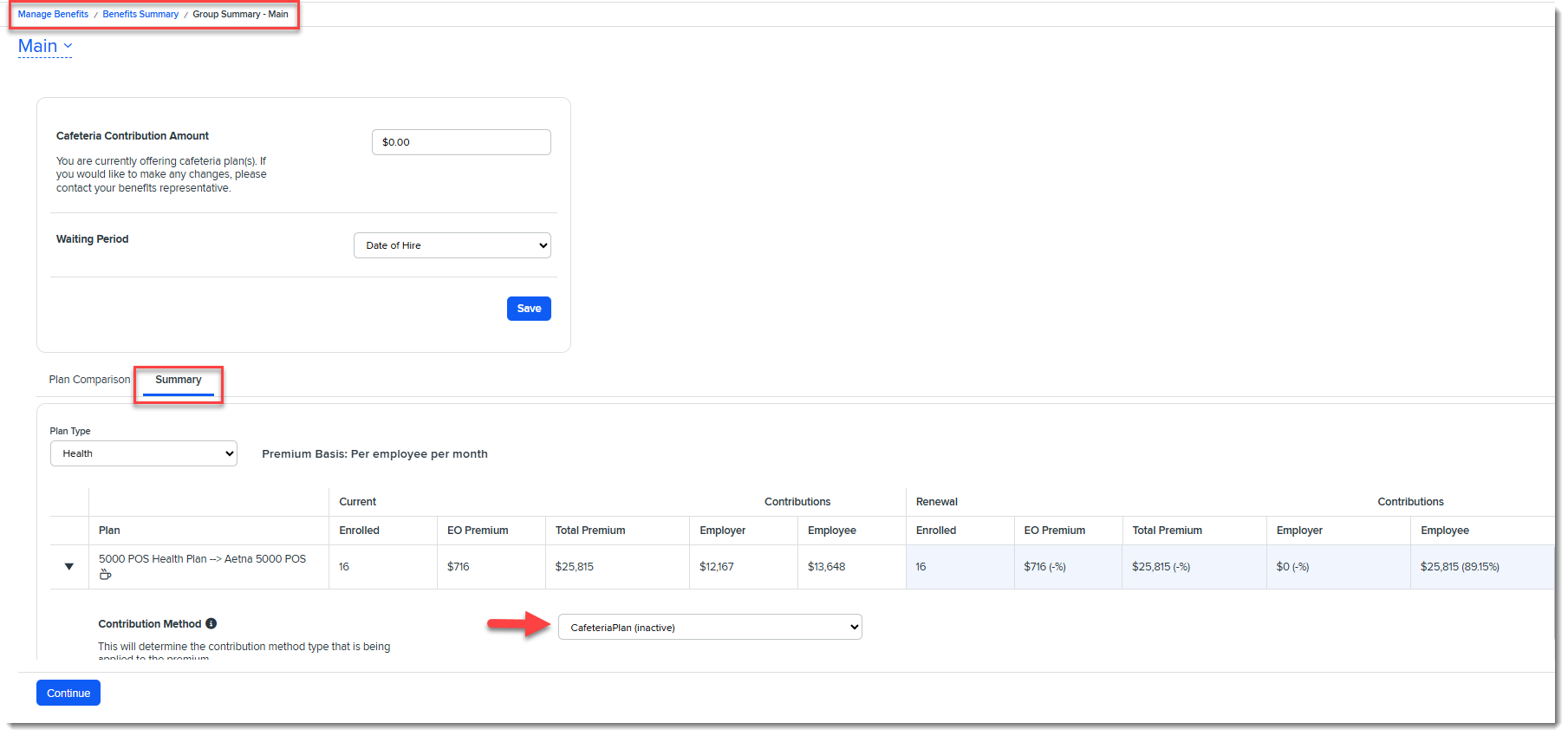
Added Contribution Method Tooltip Tooltip definitions have been added for the BPM Contribution Method list options (Manage Benefits > Benefits Summary > Group Summary > Summary). Click the tooltip icon
See: |
|
76637 |
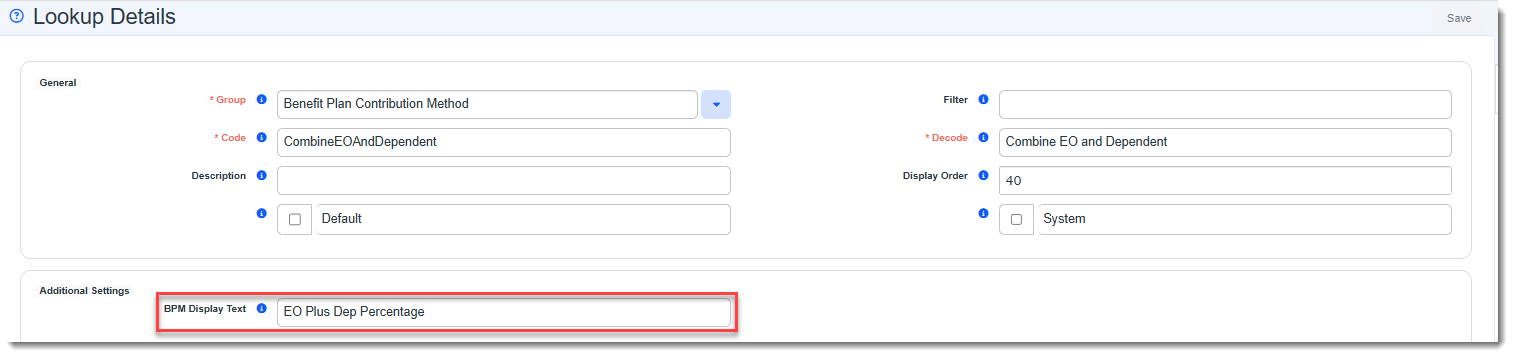
Inactivated Contribution Methods No Longer Display in BPM and Created New Metadata Form to Control Display Values Previously, all contribution methods were hard coded in Benefit Plan Manager (BPM) . Now, when you inactivate a contribution method in ClientSpace in the Benefit Plan Contribution Method Lookup Group (System Admin
Additionally, a new metadata form named Benefit Plan Contribution Method Metadata has been added and linked to the Benefit Plan Contribution Method Lookup Details. This change adds a field named BPM Display Text to the Benefit Plan Contribution Method lookup details records. When this field is populated, BPM displays this value for the Contribution Method instead of the lookup Decode value.
Note:
See: |
| 77362 |
Added Scroll Bar to Related Companies Popup Window Previously, when you clicked the link on Welcome page or Selection Summary/Signature page to view affiliated child companies in the Related Companies popup window, if all companies could not fit in the visible display area, the lack of a scroll bar prevented you from being able to view them. Now, a vertical scroll bar appears when the Related Companies popup window contains more items than can fit within the visible area. See: |
 next to the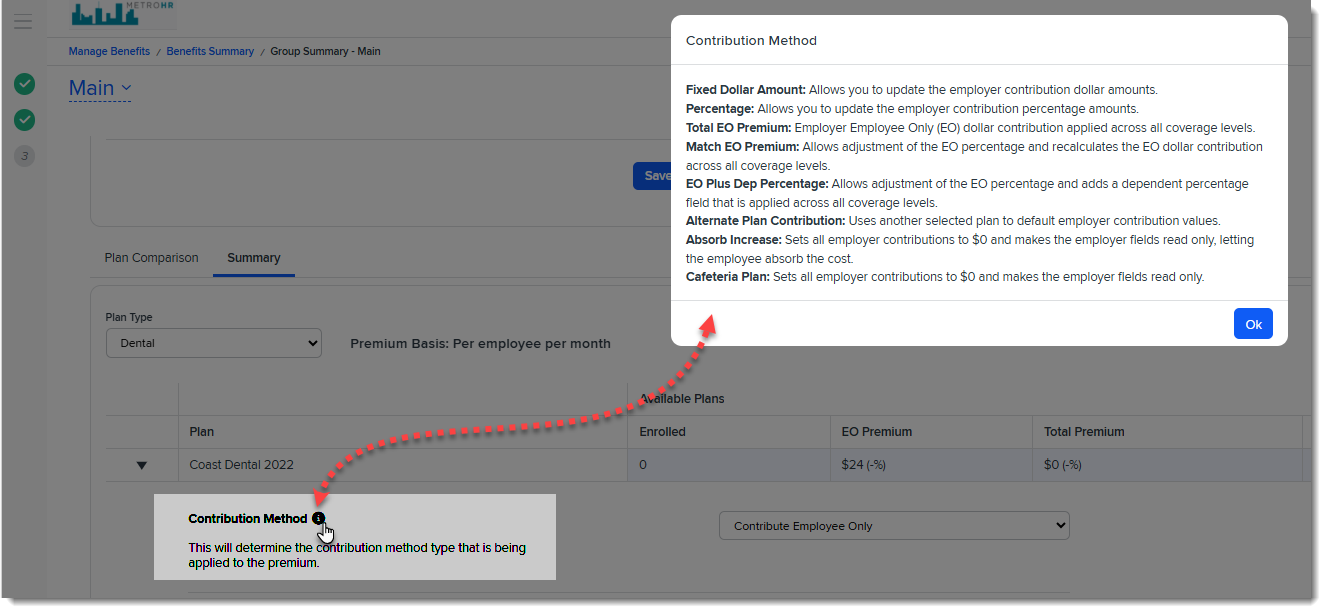
 >
> 
Other ClientSpace Premium
|
Case |
Enhancement |
|---|---|
|
76707 |
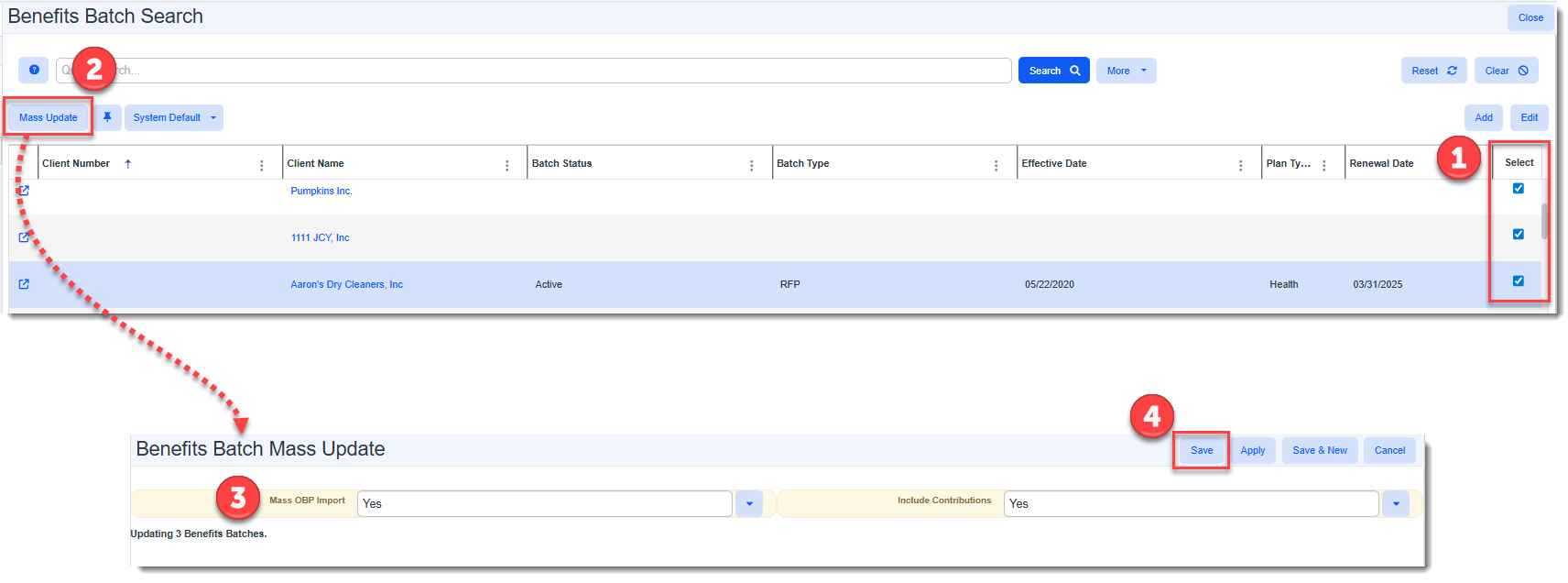
An Offered Benefit Plan Mass Import feature has been added to import new and update existing Offered Benefit Plans (OBPs) on selected Benefit Batches. How this can help: If you have a large number of Benefit Batches, being able to perform a mass import of OBP details from PrismHR into the existing ClientSpace batches can quickly bring the existing batches current with PrismHR details which will save time when preparing the batches for renewal. How this works: The import is triggered on Active Benefit Batches where the Mass OBP Import field (located in the "OBP Import" fieldset on the batch) is set to Yes. An optional Include Contributions setting allows you to import or exclude contributions from PrismHR. You do not have to manually flag the settings for each batch (although you can set the fields manually). The quickest option is to use the Mass Update option on the Benefits Batch Search dashboard to set the Mass OBP Import field and the optional Include Contributions field on the Benefits Batch Mass Update window:
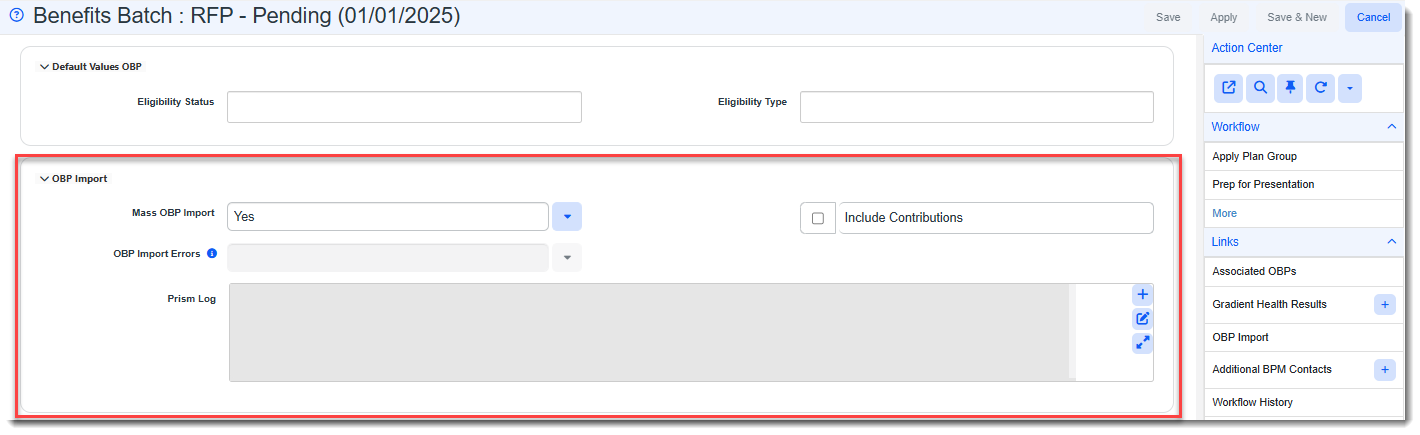
This updates the "OBP Import" fieldset of the selected Benefit Batches with the import settings:
Then, a nightly scheduled process named PrismHR Mass OBP Import runs for all Benefit Batches where OBP Mass Import = Yes. Any new OBPs associated with the flagged batches will be added to ClientSpace from PrismHR. If any existing OBPs associated with the flagged batches have changed in PrismHR, they will be updated in ClientSpace.
Other key features include:
|
| 77114 |
Added "Renewal Date" field to Benefits Batch Dataform and Search Dashboard and Exposed "Date Last Renewed" Column on Benefits Plan Search Dashboard A Renewal Date field has been added to Benefits Batch dataform. The field is "read only" and is populated with the current date when you click the Renew link on the Action Center Workflow panel of the Benefits Batch. (The Renew link configuration was updated to set the date on the renewed batch if the Renewal Date field is blank.) Additionally, Benefits Batch Search and Benefits Plan dashboards have been updated to display the renewal date fields as grid columns and in the More search as a date range search. On the Benefits Batch Search dashboard, the column name is Renewal Date (as previously mentioned). On the Benefits Plan dashboard, the column name is Date Last Renewed. The More search has also been updated on both dashboards to allow searching by a renewal date range. See |
|
77186 |
Enhanced "Alternate Contribution Plan" Functionality in ClientSpace and BPM Multiple changes were made to Alternate Contribution Plan Contribution Method functionality to prevent invalid plan selections. These changes affect the following locations:
The changes are as follows:
|
|
76655 |
Updated "Alternate Contribution Plan" Functionality with Fixed Dollar Contributions Previously, when an Offered Benefit Plan (OBP) had a Contribution Method of Alternate Contribution Plan and the associated alternate plan had a Contribution Method of Manually Set Dollars, the correct fixed dollar amounts for the OBP were not being calculated and exported. Now, if an OBP has a Contribution Method of Alternate Contribution Plan and the associated alternate plan has a Contribution Method of Manually Set Dollars, the OBP dollar amounts are updated to reflect the dollar amounts assigned to the alternate plan. The fixed dollar amounts assigned to the alternate plan are also exported to PrismHR (when using the Benefit Plan Export API). If the OBP has an assigned Rate Group, it is ignored in all calculations as only fixed dollar amounts are exported. |
Advanced Administration and System Administration
|
Case |
Enhancement |
|---|---|
|
67888 |
Changed "Users" Tile to "Resources" and Added "Personalization" Link The Users tile in System Admin
The Personalization form allows a Global Administrator to determine the username option (Username, First Name, or First Name Last Name) for ClientSpace and select whether profile pictures can be added to user profiles.
If the option to allow profile photos is set to Yes, Global Administrators can add profile pictures to user profiles. (Any size photo can be used. The system will scale the photo as necessary.) Note: Profile pictures display next to the username in the upper right corner of the ClientSpace menu bar as shown in the example below:
Profile pictures also display when you click a User Information
See:
Also view the "Learning How" video on User Profile Personalization. |
|
73567 |
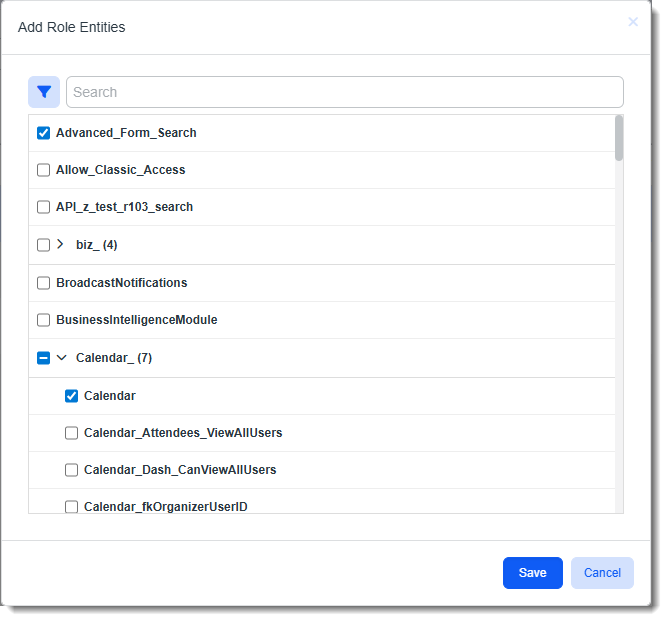
Added Ability to Configure Multiple Entities At Once On a Security Role The Add Role Entities window accessed by clicking Add on the Security Role Entities dashboard is now a multi-selector window.
Previously, the Add Role Entities window contained a single drop-down field for selecting one entity at a time. The updated Add Role Entities window allows you to select, add and remove multiple security role entities at once. |
|
75123 |
Added "Contains" and "Equals" Trigger Operators to Multi-Lookup Business Rule Configuration When the Primary Trigger Field or Secondary Trigger Field on a business rule (System Admin
|
|
76053 |
Disabled PII Fields in Global Search Index and Removed PII Fields from Global Search Results "Replace Fields" List The following dataform fields were disabled in the Global Search Index (i.e., the Index checkbox now appears dimmed or "grayed out"). The fields have also been removed from the Global Search Results list of "replace fields". This was done to prevent users from seeing sensitive or personally identifying information (PII) in the Global Search results. Employee Dataform:
Employment Dataform:
|
|
76401 |
Created New Email Integration Replace Field to Correct Text Formatting Issue in HTML Editor Field Previously, when using the {EmailBody} Replace Field with an HTML-enabled Editor field datatype in Email Integration field mapping, text did not decode properly into the Editor field on the dataform. Line breaks were either removed or added in places that did not match the original formatting of the text, resulting in improperly formatted text. Now, a new Replace Field named {EmailBodyTextToHTML} has been created to properly format HTML-enabled Editor field text. This Replace Field strips embedded images and HTML formatting, extracts only the text from HTML emails, and presents it as readable text with line breaks. |
| 76756 |
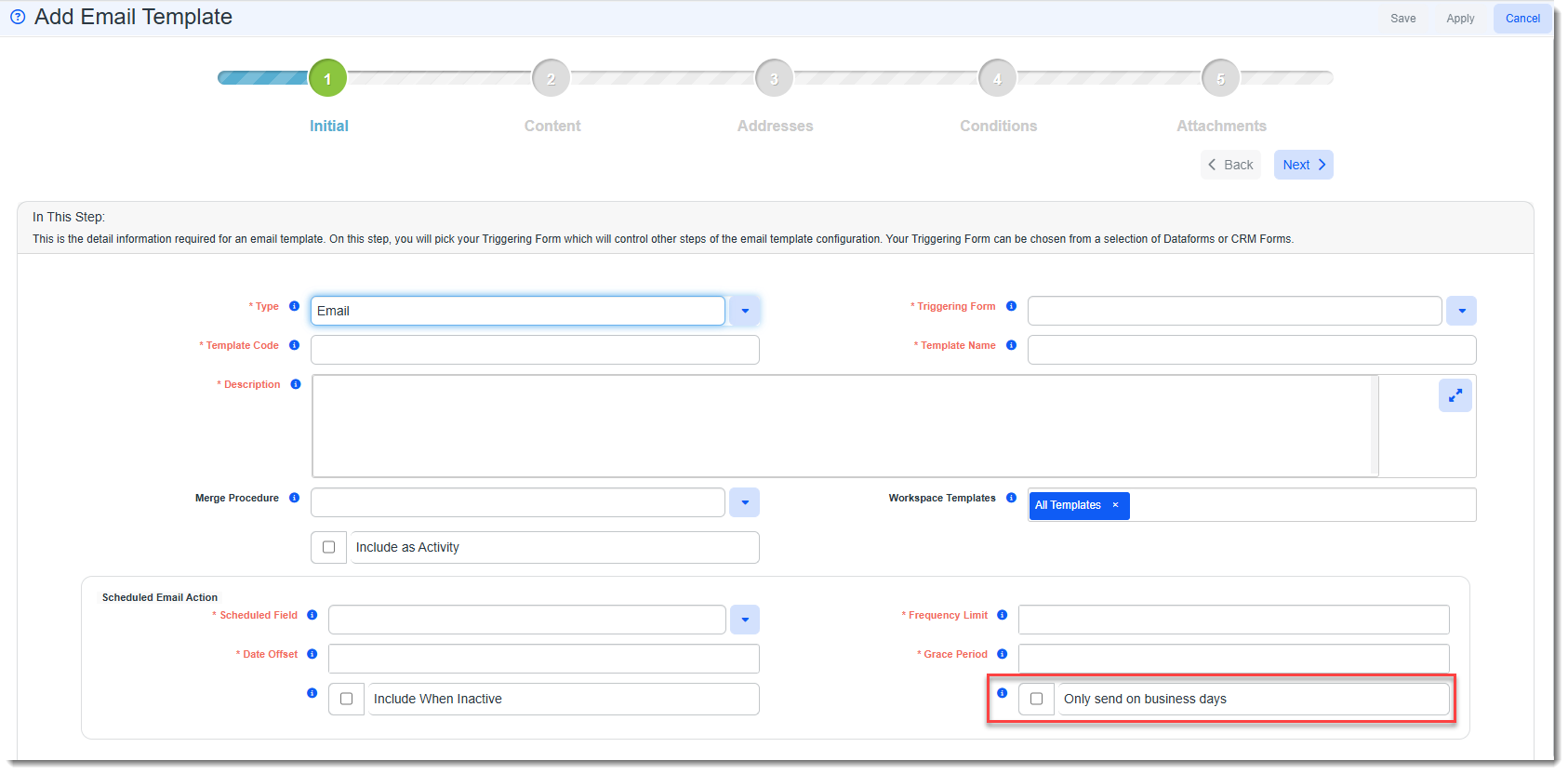
Added Ability to Send Scheduled Emails or Surveys on First Available Business Day Before a Non-Business Day Trigger Date An Only send on business days checkbox has been added to Scheduled Email Template configuration on the Initial tab:
When checked, if the scheduled email or survey trigger date falls on a non-business day or holiday, the system will send the emails or surveys on the first available business day before the trigger date.
Note: This setting uses the business day configuration settings in System Admin |
| 76817 |
Moved Time Tracker Categories Management to System Admin > Lookups Time Tracker Categories management has now been moved from System Admin
See Customizing Workflow: Adding and Editing Time Tracker Categories |
| 76892 |
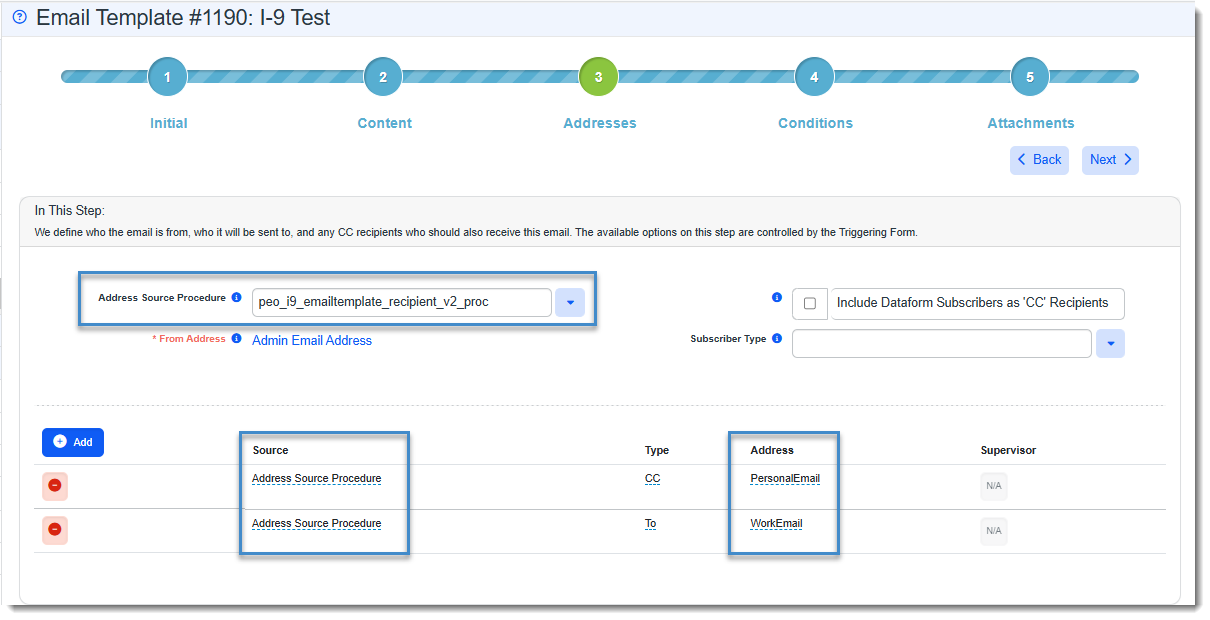
Added I-9 Stored Procedures Two new stored procedures have been added to ClientSpace to facilitate retrieving the work and personal email addresses from the Employee record associated with I-9 dataform for use on the Email Templates Addresses tab and other I-9 dataform data for use in Email templates and Workflow Channels Replace Fields and Conditions tab configuration:
Note: The stored procedures use values that are present on page load, not after a change has been made and data is updated. See Using I-9 Data on Email Templates and Workflow Channels. |
|
77153 |
Added Workflow Channel and Email Template Replace Fields for Single Form Tabs If Parent Form is Available Previously, replace fields for tabbed forms were only available if they were related to a Workflow Channel or Email Template triggering form. Now, single form See Replacement Fields. |
|
77552 |
Added Secondary ID to API Configuration Dashboard and Third Party Application Configuration Dashboard A Secondary ID column (which is hidden by default) has been added to the API Configuration dashboard (System Admin
Additionally, Secondary ID was also added to More search on the API Configuration dashboard and Third Party Application dashboard. Note: Secondary ID is formerly known as PEO ID. The field label was updated to Secondary ID on the Client Master and on multiple dashboards in ClientSpace Release 155. |



 icon next to a User selection drop-down field: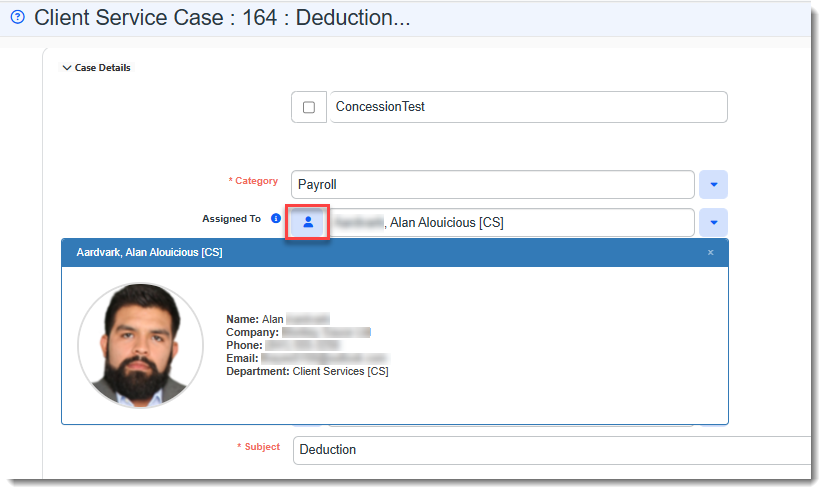


 >
>  on Action Center toolbar) in the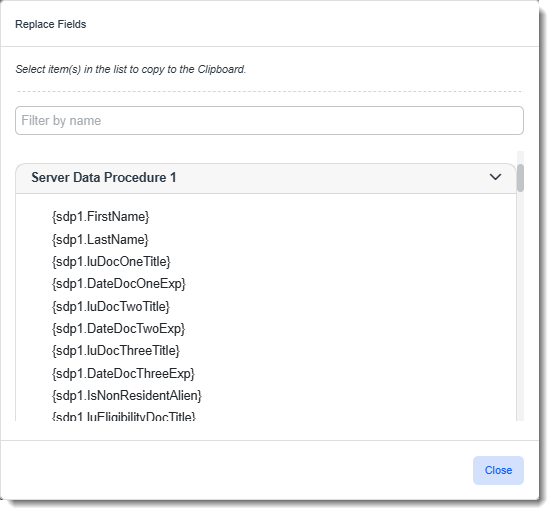

 next to any displayed column, select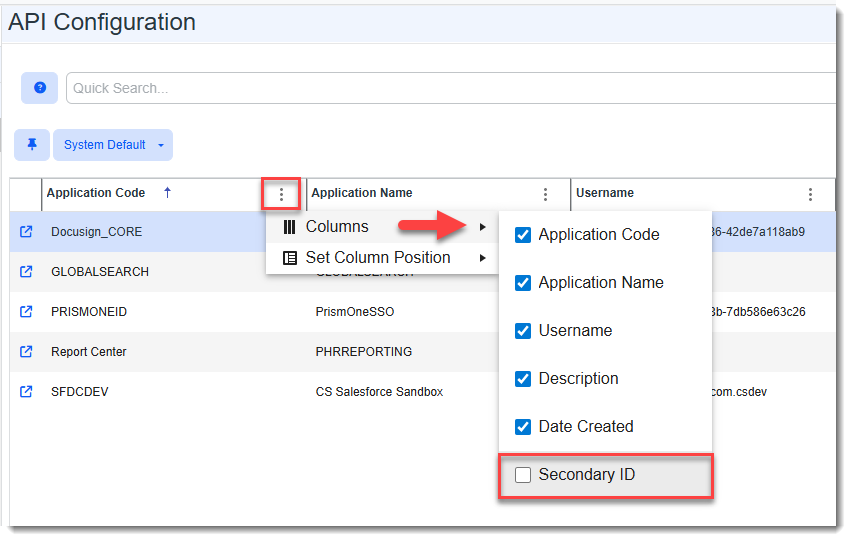
General User Enhancements
|
Case |
Enhancement |
|---|---|
|
74809 |
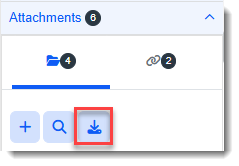
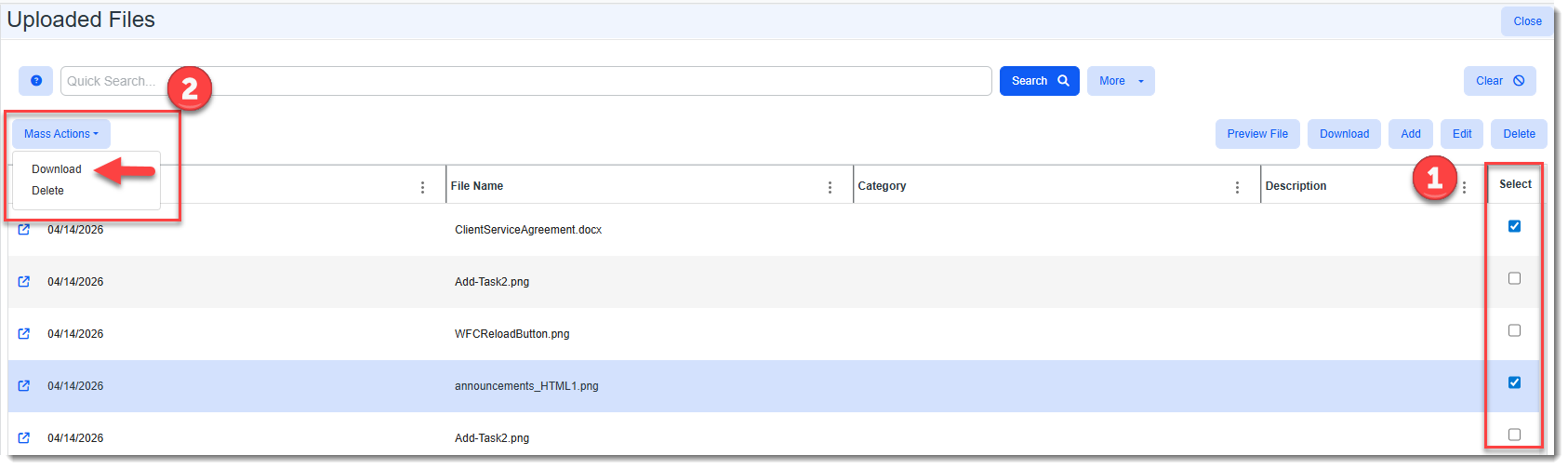
Added "Mass Download" for Attachments You can now perform a "Mass Download" of file attachments from the Action Center Attachments panel by:
See Attachments. |
| 76996 76809 |
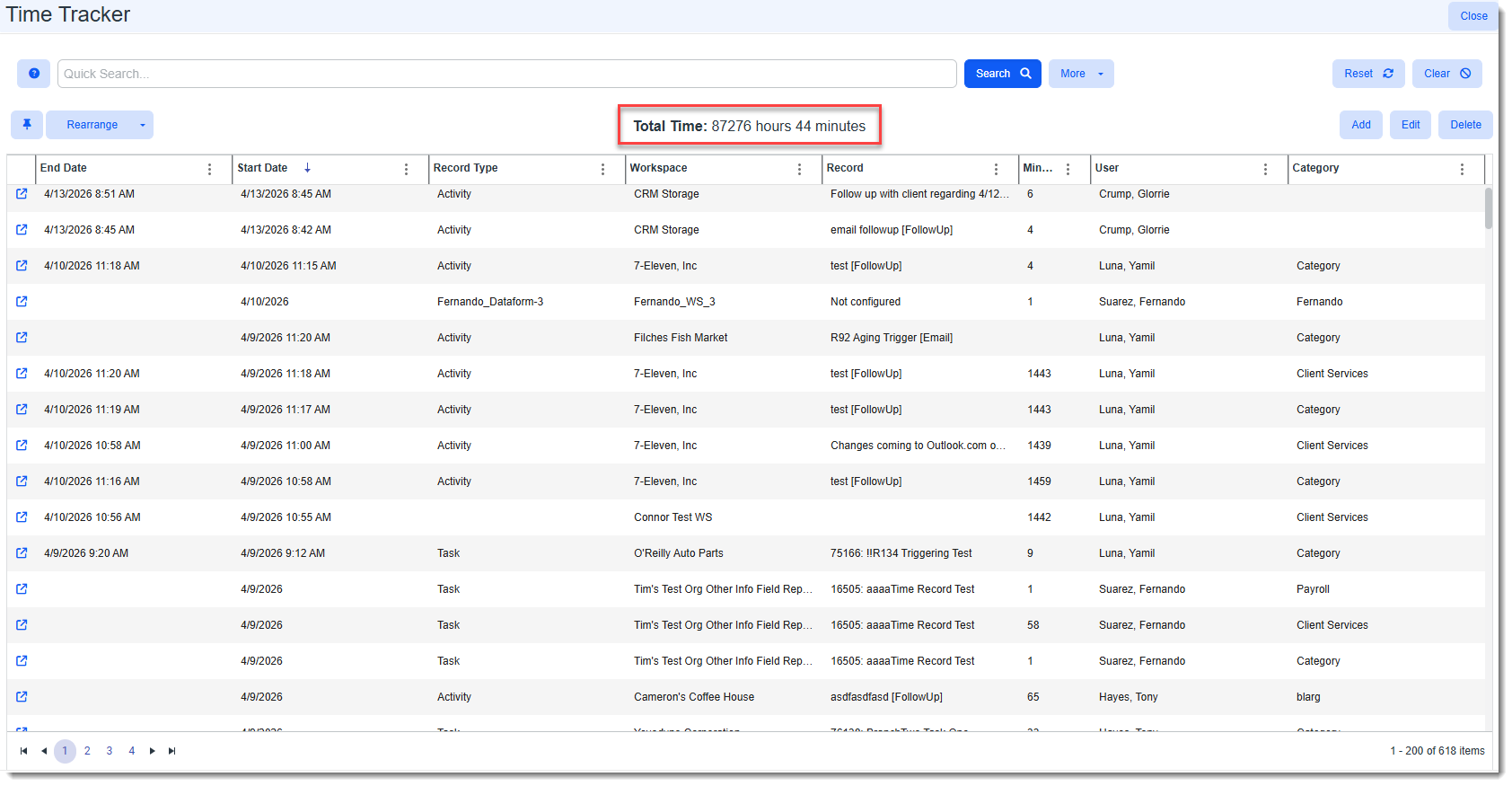
Updated Time Tracker Dashboard and Time Tracking Action Panel to Show Total Time The Time Tracker module dashboard has been updated to show the Total Time of all displayed time tracking entries at the top of the dashboard. If you filter the dashboard, the Total Time is updated to reflect the total amount of time tracked for the displayed entries only.
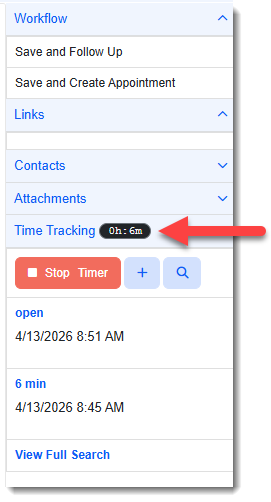
The Time Tracking Action panel has also been updated to show total time tracked on the work item. (The badge counter that previously showed a count of time tracking entries was repurposed to display total time.)
Note:
|
 (
(
Fixes
|
Case |
Issue summary |
Resolution |
|---|---|---|
|
73291 |
Corrected Task Manager Search Date Filter Issue |
Previously, when performing a date range search using the More Search options in the Task Manager, the search results were not inclusive of the start and end dates. For example, if you entered a single day date range of 4/22/2026 to 4/22/2026, no results were returned because the start and end dates were excluded. Similarly, if you entered a multiple day date range of 4/22/2026 to 4/25/2026, results were returned for 4/23 and 4/24 only. This issue has been corrected. The search is now inclusive of start and end dates. |
|
75557 |
Corrected "More Search" Filter Chiclet Name Truncation Issue |
Previously, when numerous More search filter chiclets were displayed that caused the chiclet text to wrap within the filter chiclet capsule, the capsule did not expand. This caused the filter chiclet text to appear cut off at the top and bottom. Additionally, if there were too many chiclets to display on one line, they ran off the page and were not visible:
Now, filter chiclets automatically adjust to display the full text up to the character limit. Once the character limit has been reached, ellipses display after the final letter and you can hover over the chiclet text to view the full text. Additionally, if there are too many chiclets to display on a single line, they wrap to subsequent lines and there is now an Expand/Collapse toggle button that allows you to view multiple lines of chiclets.
|
|
75558 |
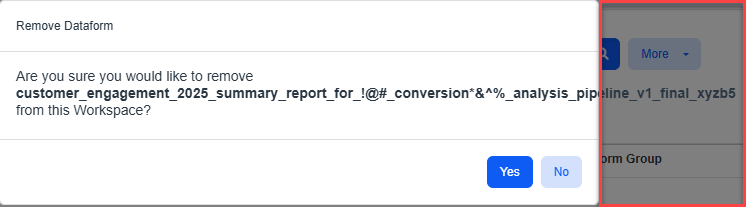
Corrected Issue of Long Workspace Dataform Name Not Wrapping in "Remove Dataform" Confirmation Message When Deleting a Dataform |
Previously, if you deleted a dataform with a long dataform name from the Workspace Dataforms page, when the "Remove Dataform" confirmation message displayed, the dataform name did not wrap properly and overflowed outside of the bounds of the confirmation message window as shown in the example below:
This issue has been corrected. The dataform name now wraps inside of the "Remove Dataform" window. |
|
76243 |
Corrected Decode Function on Commission Form |
Corrected an issue where a parent form field referencing the Commission dataform was not decoding all Commission records in the drop-down correctly. Only "Sales User" was decoded. Other sales entity types were not. Now, all Commission records listed in the drop-down are properly decoded. |
| 77179 |
Corrected Issue of Users Already in a Role Displaying as Available to Add to the Role |
Previously when you added multiple users to a security role, users who already existed in the role were available to add. Now, only users who do not already exist in the role are available to add. |