R165 Sprint: 6/1/2026 to 6/30/2026. To learn about product features that you may not recognize, contact ClientSpace Professional Services.
Release Schedule
Release updates are implemented by the group, as indicated in the following table.
The release schedule is subject to change and updated as required. To determine your group or ask questions, please log a case for ClientSpace Professional Services.
|
Sprint 6/1/2026 to 6/30/2026 |
||
|---|---|---|
|
Upgrade groups |
Date of upgrade |
Tentatively occurs on |
| Group 1 | First Tuesday of the month | July 7, 2026 |
| Group 2 | Second Tuesday of the month | July 14, 2026 |
| Group 3 | Third Tuesday of the month | July 21, 2026 |
Enhancements
Enhancement groups are Change in Functionality, ClientSpace Premium (ClientSpace with additional modules), Advanced Administration, General, and Staffing.
Benefit Plan Manager (BPM)
|
Case |
Enhancement |
|---|---|
| 77157 |
Added Ability to Edit Cafeteria Enrollment Counts The Enrolled Count fields for Cafeteria Plans are now unlocked and editable on the Manage Benefits > Benefits Summary > Group Summary > Summary (Contributions) tab in the "Renewal" section. Edit the enrollment counts by clicking the right arrow
See: |
 next to the plan name to display the contribution details by coverage level and then edit the counts for the desired coverage levels in the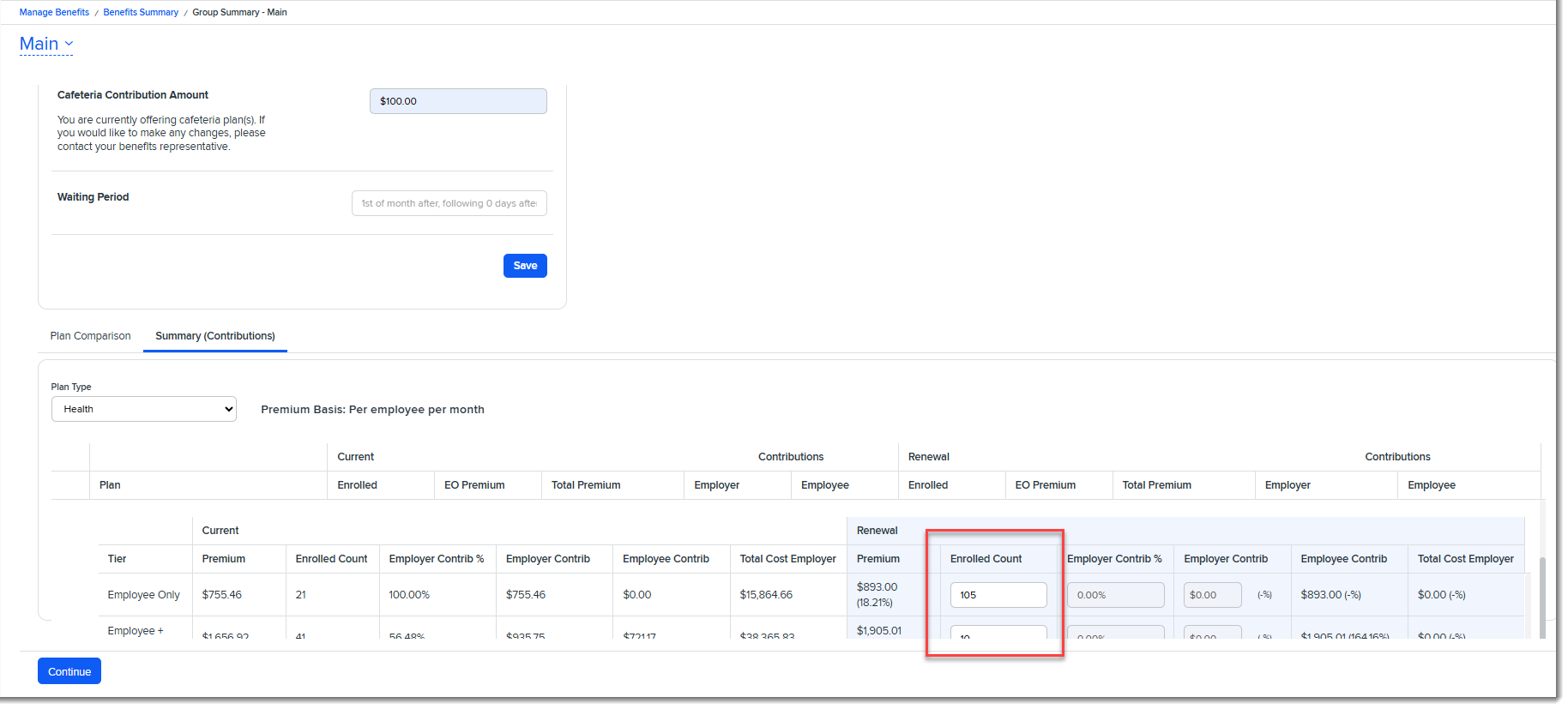
Other ClientSpace Premium
|
Case |
Enhancement |
|||||||||||||||||||||||||||
|---|---|---|---|---|---|---|---|---|---|---|---|---|---|---|---|---|---|---|---|---|---|---|---|---|---|---|---|---|
|
71614 |
Updated Business Rules and Added New Fields to Support Defaulting 20 Additional Fields on OBPs Twenty new fields have been added to the Benefits Batch and Benefit Plan dataforms in the "Default Values OBP" fieldset. The values in these fields will be used to set the values of matching fields on the associated Offered Benefits Plan(s) but only if they are blank upon the creation of the OBP. If the fields on the OBP are already populated with values, they are not updated.
The following business rule methods were updated to sync the field values from the Benefits Batch or Benefit Plan to the OBP:
See: |
|||||||||||||||||||||||||||
|
77115 |
Added "Mass Update Renew" Feature to Benefits Plan and Benefits Batch Module Dashboards A Mass Update Renew feature has been added to the Benefits Plan module dashboard (i.e., Benefit Plan Search window) and to the Benefits Batch module dashboard (i.e., Benefits Batch Search window). The feature allows you to flag Benefits Plan and Benefits Batch records for renewal by setting a new Mass Update Renew field on the selected records to Yes. Then, when the Benefits - Mass Update Renew nightly scheduled process runs, any records set to "Yes" are renewed using the renewal logic that is on the Benefits Plan or Benefits Batch. Note: The Benefits - Mass Update Renew scheduled process is Active by default. See: |
|||||||||||||||||||||||||||
|
77151 |
Updated Benefit Parent Company Import Logic The following changes were made to Benefit Parent Company import logic:
|
|||||||||||||||||||||||||||
|
77300 |
Added Benefits Batch "Clone to Child Batches" Action Center Link A new Clone to Child Batches Action Center link has been added to the Workflow section of the Benefits Batch dataform, allowing you to automatically create or update child company benefits batches from a parent company batch (for eligible child companies). Note:
This enhancement ensures that child company benefits batches remain aligned with the parent company and helps maintain benefit plan consistency and compliance across related organizations. In addition, this feature can provide a great assist to the Benefit Plan Manager (BPM) workflow. Once a parent batch is approved by the client, you can then automatically create or update child company benefits batches from the approved parent batch.
Note: Please do not confuse this feature with the existing Clone Parent OBPs functionality. While similar, Clone Parent OBPs is available on a displayed child batch and allows you to clone selected Offered Benefit Plan (OBP) records from the identified Benefit Parent Company batch to the child company batch (which must be blank). Additionally, for the process to work, the parent company OBPs must have an Effective Date that matches the Effective Date of the existing blank benefits batch in the child company workspace. The new Clone to Child Batches feature provides broader functionality. You activate the link from a displayed parent batch. It clones both benefits batch fields (except for the exclusions listed in the related article), benefit groups/codes, and all OBPs that are not in Rejected or Expired Status from the benefit parent company batch to its child company batches, with the goal of creating child batches that fully mirror the parent batch and offer the same benefit plans. In summary, the Clone to Child Batches feature:
IMPORTANT:
See Cloning Parent Company Benefits Batch Data to Child Company Batches. |
|||||||||||||||||||||||||||
| 77785 |
Updated Benefit Plan Export API Handling of "Manually Set Dollars" Contribution Method Previously, if an Offered Benefit Plan (OBP) contribution method was Manually Set Dollars for the EO coverage level and the Max Dollar Amount (which exports to the PrismHR Contribution EE Bill field) for the EC, ES, EK, or EF coverage levels was less than the EO dollar amount (i.e., EO monthly premium amount), a negative value was calculated for the PrismHR Contribution DEP Bill field, resulting in a "contribution amount is less than zero" error and export failure.
Now, in this scenario, if the Max Dollar Amount for EC, ES, EK, or EF coverage levels is equal to or less than the EO dollar amount, 0.00 is added to the Contribution DEP Bill field.
This scenario is reflected in the example below. Notice that the EC coverage level has Total Contribution ($) value of $66. This is $4 more than EO coverage level's Max Dollar Amount (Contribution EE Bill amount) of $62 which represents the maximum that the company will contribute. This results in $4 being calculated for the EC coverage level Contribution DEP Bill field which represents the amount billed for the uncovered portion of the dependent(s) premium. For all other coverage levels, the Total Contribution ($) amount is either equal to or less than the $62 Max Dollar Amount. Therefore, 0.00 is calculated in the Contribution DEP Bill field for those coverage levels since the dependent portion of the premium is fully covered:
Note: Alternate Benefit Plan logic has also been updated to account for this scenario in the Benefit Plan Export API. |
|||||||||||||||||||||||||||
| 77802 |
Updated Alternate Contribution Plan Logic with Rate Groups Previously, if the Contribution Method of an Offered Benefit Plan (OBP) was set to "Alternate Contribution Plan" and a Rate Group was then selected, the Employer Contribution amounts for each coverage level were updated. Now when "Alternate Contribution Plan" is selected, any value selected in the Rate Group field is ignored as the contribution amounts for each coverage level are derived from the Alternate Plan selection. |
|||||||||||||||||||||||||||

Advanced Administration and System Administration
|
Case |
Enhancement |
|---|---|
|
72254 |
Added Ability for Global Admins to View API Users Custom Stored Procedure Assignments Global Administrators with an Advanced Admin license can now access the API Users Proc Access tab to determine which custom stored procedures an API user can access. Note: This is view-only access. Only Developer users can manage API custom stored procedure security. See Viewing API Users Custom Stored Procedure Assignments (Global Admins). |
|
77101 |
Added Global Search Security Entity A new security entity named GS_Display has been added to the existing PEO Employees role. If the Global Search feature has been implemented by ClientSpace Professional Services, Global Search is visible in the ClientSpace user interface for any user in the PEO Employees role (or any other role where you add the entity) if the GS_Display entity is set to View. Note:
See: |
|
77150 |
Added Ability to Export Claim Deductible Bills as Miscellaneous Invoices Instead of Bill Pending Records A new API Configuration parameter was added named ClaimDeductBillAsMiscInv. When the parameter is set to 1 on the PrismHR API configuration record, Claim Deductible bills in "Ready to Bill" status are exported to PrismHR as Miscellaneous Invoices instead of "Bill Pending" records by the PrismHR Bill Records scheduled process. See Configuration and Process Overview of the Claim Deductible Billing Process. |
| 77475 |
Added Department Column to Users Dashboard A Department column (which is visible by default) has been added to the Users Dashboard (System Admin See Users Dashboard. |
| 77934 |
Updated ClientSpace Icon for Outlook Add-In in Manifest File The Outlook Add-in manifest file has been updated to apply the following ClientSpace icon in the Outlook Add-in user interface: See: |
 >
> 
General User Enhancements
|
Case |
Enhancement |
|---|---|
|
77516 |
Added Ability to Clone a Case from an Existing Case You can now clone an existing case and copy it to:
To do so, select Clone Case from the Links section of the Client Service Case Action Center. How this can help: There are multiple applications for this feature. One use is the ability to clone to a different workspace or to affiliated companies in a different workspace when a client is part of a multi-entity group of affiliated clients with separate FEINs/workspaces. This can save time as you no longer need to manually create a case for each FEIN. See Cloning a Case. |
|
77771 |
Updated Forms Functionality to Keep the Parent Form Editable When a Related Form is Opened Previously, when you opened a related (i.e., child) record from a form, the original form (i.e., parent) became "grayed out" and locked in a read-only state. Now, the original form remains unlocked and editable. Note:
|
|
77799 |
Updated Case Discussions User Interface The user interface of the Case Discussions thread page has been updated with an improved presentation while maintaining existing functionality. Note: If you are interested in this feature, please log an extranet case to turn on the new user interface. See Case Discussions. |
| 77933 |
Updated ClientSpace Browser Icon The ClientSpace internet browser tab has been updated to use the following image: |
|
78015 |
Updated Action Center Time Tracker Badge to Display Total Time for All Time Tracker Records Previously, the badge located at the top of the Time Tracking Action Center panel only displayed cumulative time for up to five displayed time tracking records. Now, the badge displays cumulative time tracked for all associated time tracking records regardless of whether they are displayed in the Time Tracking Action Center panel. See Adding and Managing Time Tracker Entries from a Dataform. |
|
78082 |
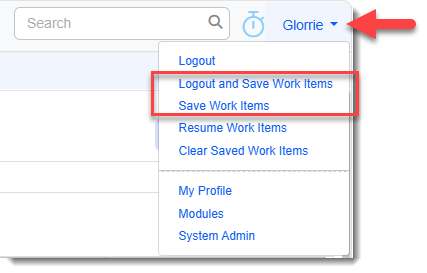
Added Ability to Save Work Items You can now save Work Center work items and restore them.
See the Saving Work Items section of theWork Center topic for details. |
|
78136 |
Enhanced Time Tracker Stopwatch Functionality In ClientSpace Release 164, when you started or stopped a time tracking record using the Time Tracker Stopwatch Several additional enhancements were made to Stopwatch functionality:
|

 icon, the icon color did not refresh on its own. You had to click
  on your browser to update the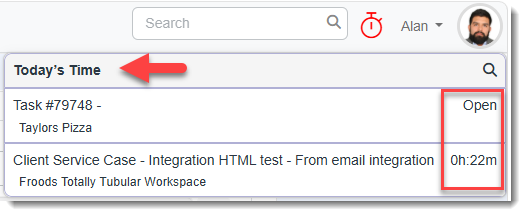
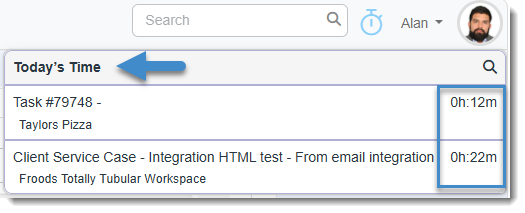
 icon was added to the
 Fixes
|
Case |
Issue summary |
Resolution |
|---|---|---|
| 76618 |
Corrected WFC Work Center Display and Display Order Issues |
After ClientSpace Release 156, the Display Order field was no longer shown on the Triggering tab of Workflow Channels configuration. Additionally, after ClientSpace Release 158, the workflow channel number and name combination (EX: Channel #27: Benefits Renewal) of an open workflow channel record no longer displayed in the Work Center panel. These issues have been corrected. |
|
78565 |
Corrected Time Tracker Category Defaulting Issues |
Resolved an issue introduced in R164 where Time Tracker category defaulting behaved inconsistently depending on how a time record was created. Time Chips did not use the configurable custom time category function defined for dataforms, while manually added time records always defaulted to "Other". With this fix, the default time tracking category is now determined consistently regardless of the method used to add a time record:
Note: Global Administrators should configure an overall default time tracking category that is appropriate for their installation. This ensures that when a category cannot be determined from a dataform, task, or other defaulting logic, time records will automatically fall back to the configured default category rather than requiring manual correction. See Customizing Workflow: Adding and Editing Time Tracker Categories. |